7
MORDAX : DATA
User Guide
SYS V. 01.00.00
BOOT V. 01.00.00
Updated: 161229
Updating the Bootloader Firmware
This is a similar process to updating the system rmware, except that
you will go into the DATA’s Settings program to execute the update.
1. Got to www.mordax.net and download the latest DATA bootloader
rmware le to your computer. All DATA bootloader rmware .bin
les start with DB followed by 6 numbers, which indicate the version
number (e.g., DB010000.bin is DATA Bootloader Version 01.00.00).
2. Turn off the DATA, remove its microSD card and put the microSD
card in your computer (or if your computer doesn’t have a microSD
card reader, use a USB based reader, available at any electronics
retailer). You’ll see the card is named ‘MX_DATA’.
3. Take the downloaded DATA rmware .bin le and place it in the
mircoSD card’s root directory.
4. Eject the card and put it back into the DATA.
5. Power on the DATA. From the DATA’s main menu, hit button 1-4 to
access the Settings program.
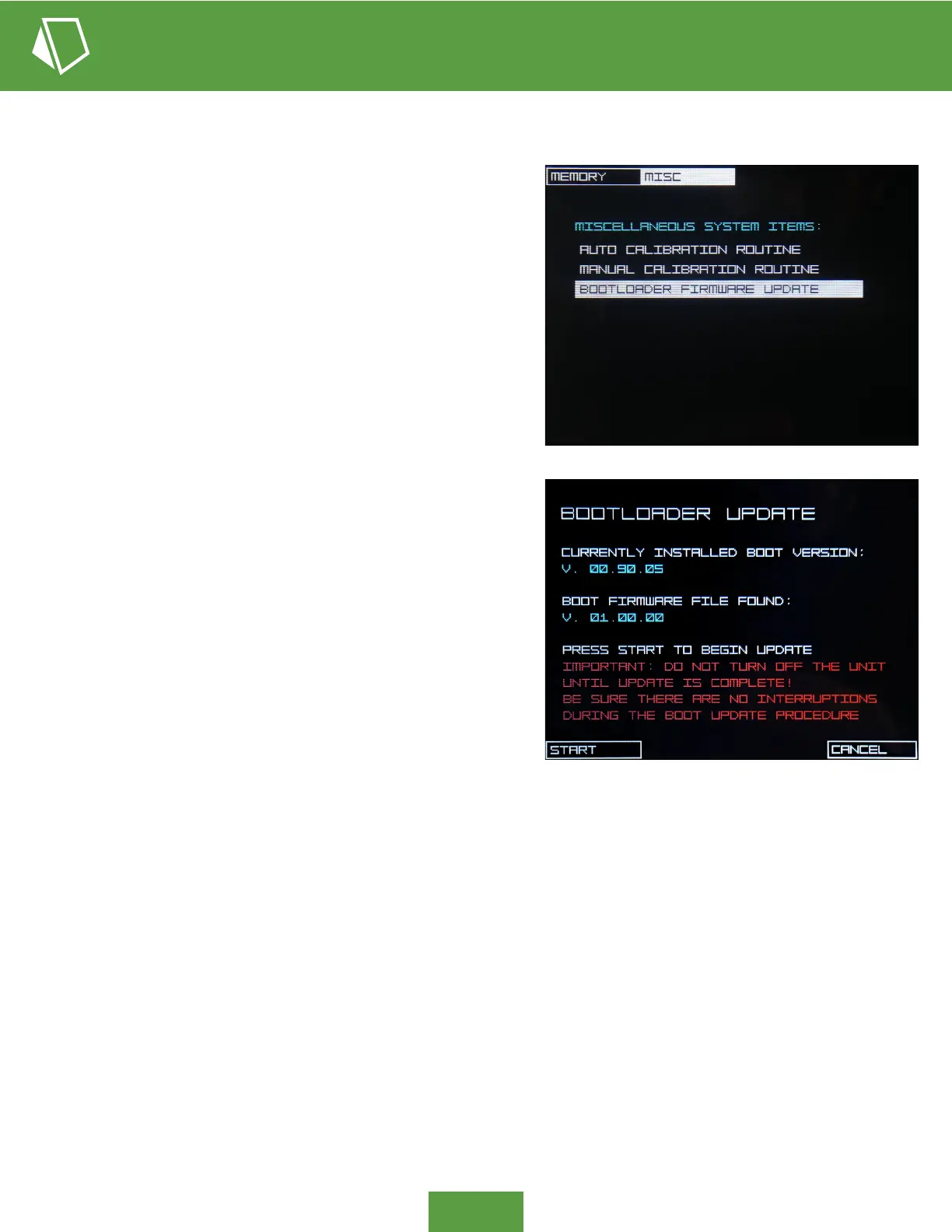
6. The Settings program opens in the ‘Memory’ page. Hit button 2-2
to navigate to the ‘Miscellaneous Systems Items’ page. Then scroll
with the rotary encoder knob to select ‘Bootloader Firmware Update’
from the submenu. With this item highlighted, push in on the encoder
to access the Bootloader Update routine.
7. The Bootloader Update program will recognize the new rmware
and display the version number on the screen. Push button 1-1 to
start the update. Heed the notice on the screen; while this update
process is rather fast, if the bootloader update is interrupted before
completing, it may brick your DATA and would have to be returned to
Mordax HQ for service.
8. Once the rmware update is complete, the .bin source le will be
deleted from the card.


 To Next Page