6
MORDAX : DATA
User Guide
SYS V. 01.00.00
BOOT V. 01.00.00
Updated: 161229
The DATA’s software is comprised of two parts: the bootloader rmware and the system rmware. The bootloader is a small
program that runs every time the DATA is started; it checks for system rmware updates on the SD Card. If the there is no
system rmware le present on the card, then the bootloader will start the system normally. The system rmware is the
main software and contains all of the DATA’s functions (e.g., oscilloscope, spectral analyzer, etc.). You are able to update the
bootloader rmware from the settings menu of the main system. All this may sound confusing, but the process of updating both
the system and the bootloader rmware is really quite simple, as explained below.
To get the most of out your DATA, be sure to keep the bootloader and system rmware up-to-date! It is through this process we
provide new and improved features, as well as x bugs, for optimal DATA performace. Both the DATA’s system and bootloader
rmware update les can be found on the Mordax website as they become available (major updates will also be annouced via
the email newletter and social media channels).
Firmware
Updating the System Firmware
1. Go to www.mordax.net and download the latest DATA
system rmware le to your computer. All DATA system
rmware .bin les start with DS followed by 6 numbers,
which indicate the version number (e.g., DS010000.bin is
DATA System Version 01.00.00).
2. Turn off the DATA, remove its microSD card and put
the microSD card in your computer (or if your computer
doesn’t have a microSD card reader, use a USB based
reader, available at any electronics retailer). You’ll see the
card is named ‘MX_DATA’.
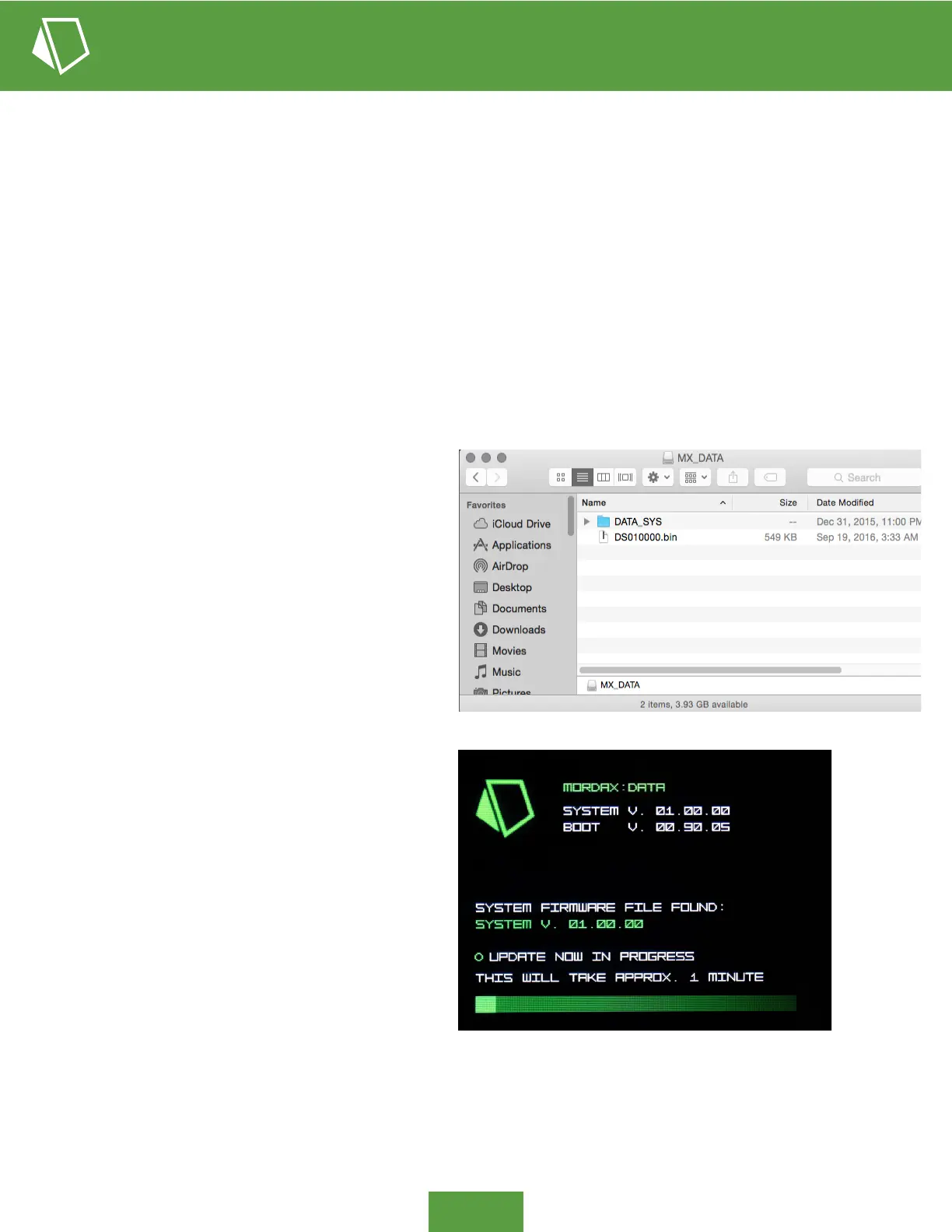
3. Take the downloaded DATA rmware .bin le and
place it in the mircoSD card’s root directory– a fancy way
of saying the place that you see when you rst open the
card on your computer (see top image).
4. Eject the card and put it back into the DATA.
5. Power on the DATA. The rmware le will be
automatically detected and loaded into the DATA’s
memory. Once the rmware update is complete, the .bin
source le will be deleted from the card.


 To Next Page