Chapter 4
Using Your Motion Tablet PC
Motion Computing M1400 Tablet PC User Guide 84
13. Confirm the selection by tapping Yes.
Hard Disk Drive (HDD) Password
To set up a password to start the Tablet PC (so no one can access the
information on the Hard Disk Drive of your Tablet PC even if it is
removed and installed in another Tablet PC without the proxy password):
1. Start the Tablet PC.
2. When the Motion Computing Splash Screen
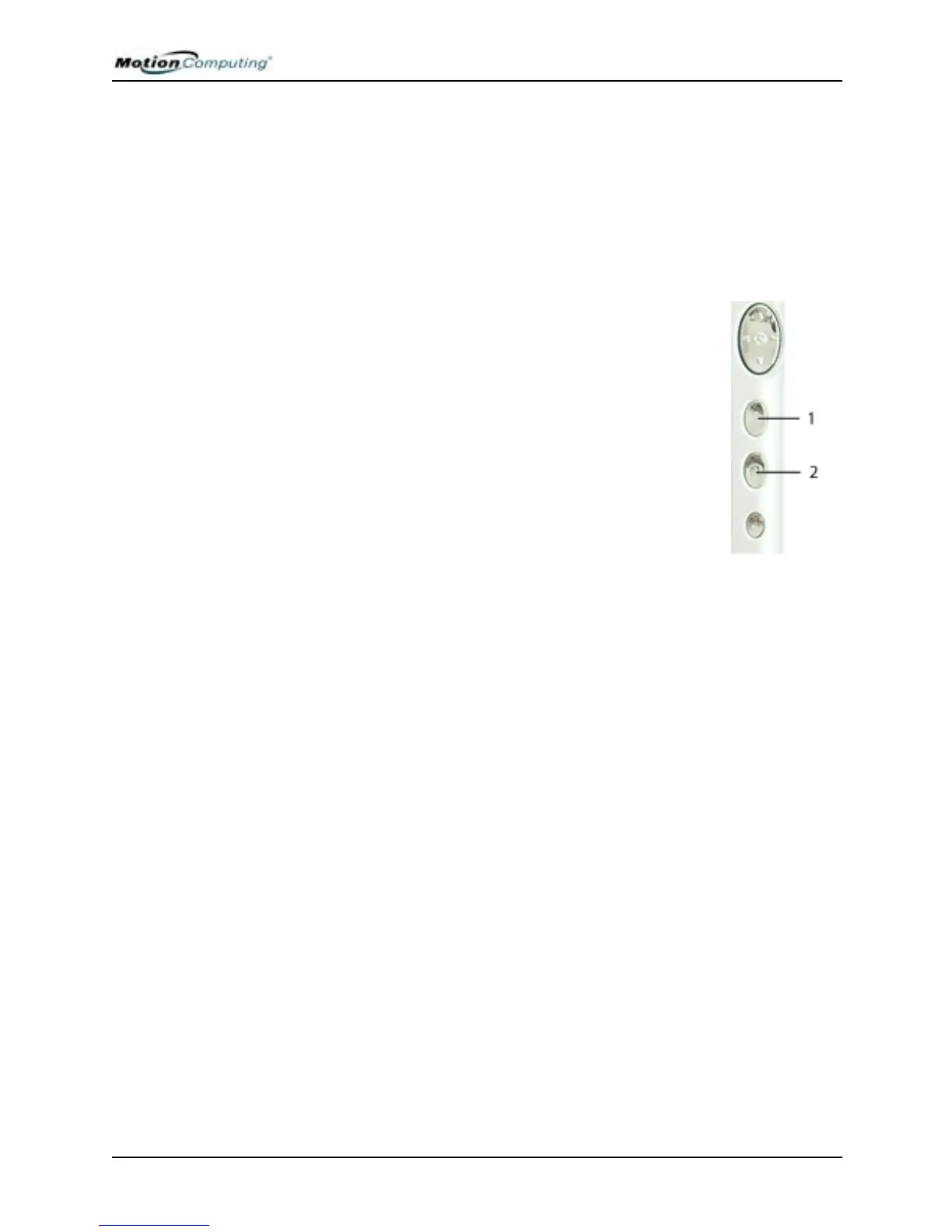
appears, quickly press Hot Key #2 (2). If you miss
the Splash screen, turn the Tablet PC off then back
on and try this step again.
3. From the PhoenixBIOS Setup Utility, tap Security
on the menu bar.
4. To set the hard disk password, double-tap Enter
next to Set Hard Disk Password.
5. Type in a New Password.
6. Tap Enter.
7. Type in the password to confirm it.
8. Tap Enter. The system returns to the Security
screen and the HDD Password is Set. (When you
exit then re-enter the PhoenixBIOS setup, the HDD Password is
Locked.)
9. If you have finished setting up a password, tap Exit or press the Esc
key on the Tablet PC to exit the PhoenixBIOS Setup Utility.
10. When you exit, you are prompted to select from the
following options:
• Exit Saving Changes
• Exit Discarding Changes
• Load Setup Defaults
•Discard Changes
• Save Changes
11. Select the desired action.
12. Confirm the selection by tapping Yes.


 To Next Page