Troubleshooting Tips
What if I can’t make an Internet connection right after
installation?
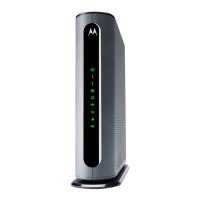
• First turn your MG8702 off for at least 8 seconds, then on, to
see if that fixes the problem.
• Check the connections you’ve made to your MG8702. Power
and coax connections are required, and up to 4 Ethernet
connections are optional. Are those connections good? Be
sure that the coax cable connection is tight enough, possibly
using the coax wrench.
• Check that the MG8702’s power cube is plugged into a live
outlet, and that the Ethernet cable is connected securely.
• Make sure that your coax cable is live. You can check that by
using it with a TV.
• Check that you provided the correct setup information to your
cable service provider.
• Contact your cable service provider to make sure they’ve
turned on your Internet service.
What if my MG8702 has been working, then stops working?
• First turn your MG8702 off for at least 8 seconds, then on, to
see if that fixes the problem.
• If the MG8702’s lights don’t come on, check that the modem is
getting power from its power cube and that the MG8702’s
power button is on.
• Check your MG8702 cables.
• Check with your service provider. Sometimes there’s a service
outage or some other service issue. Sometimes a service
outage also affects your TV service, so check that.


 To Next Page
 Loading...