5Touchscreen & keys
Touchscreen & keys
a few essentials
Touch tips
Here are some tips on how to navigate around your
phone.
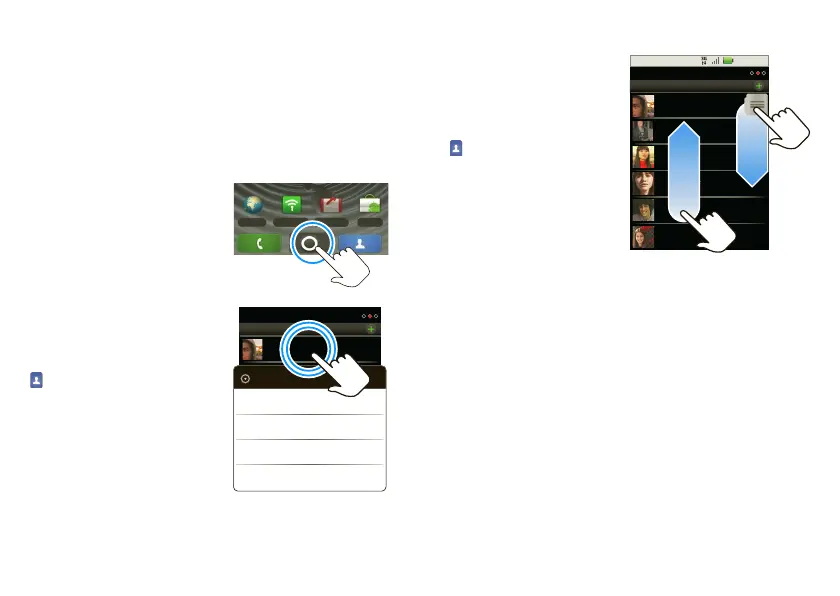
Touch
To choose an icon or option,
touch it.
Touch & hold
To open special options,
touch and hold an icon or
other item. Try it: In the
home screen, touch
Contacts, then touch
and hold a contact to open
options.
Browser 3G Mobile Market
Messaging
Contacts: A-Z
Arthur Baudo
Contacts: All contacts
Send email
Arthur Bando
View contact
Call contact
Send text message
Drag
To scroll through a list or
move slowly, drag
across the touchscreen.
Try it: In the home
screen, touch
Contacts, then drag
your Contacts list up or
down.
Tip: When you drag or
flick a list, a scroll bar
appears on the right.
Drag the scroll bar to
move the list to a letter A - Z.
Flick
To scroll through a list or move quickly, flick across the
touchscreen (drag quickly and release).
Tip: When you flick a long list, touch the screen to stop
it from scrolling.
Zoom
Get a closer look at maps or web pages. To zoom in,
double-touch the screen. To zoom out, double-touch
the screen again.
3:00 PM
Contacts: A-Z
Arthur Baudo
Barry Smyth
Cheyenne Medina
Christine Fanning
Jim Somers
Kat Bleser
Contacts: All contacts











 To Next Page