Page 9
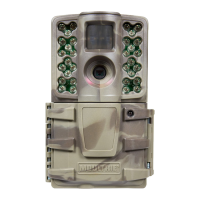
M-990i (Gen2) Digital Game Camera
Page 12
M-990i (Gen2) Digital Game Camera
Infostrip Active
Use the Up/Down buttons to choose between:
YES - Camera Name, Time, etc, information will be imprinted
at the bottom of the image/video as an infromation bar
Note: Remember to input the camera name in the setup
and set the clock accordingly.
NO - No information bar will be imprinted.
Press the OK button to conrm the selection. Press the Right
button to move to the next option.
Setting Photo or Video
Press the OK button. Use the Up/Down buttons to choose
between Photo, Video or Both.
Press OK to lock in
your selec-
tion, then press Left button to go to the next option.
SETTING MOTION DETECT OPTIONS (cont.)
E
INFOSTRIP SETTINGS
TEMPERATURE UNITS
X Fahrenheit (F)
Celsius (C)
Temperature Units
The temperature is imprinted on each photo and can be in
degrees Fahrenheit or Celsius. To change the temperature
units, press the Up/Down buttons to highlight the desired
setting. Press the OK button to conrm the selection. Press
the Right button to move to the next option.
INFOSTRIP SETTINGS
INFOSTRIP ACTIVE
X Yes
No
SETTING PHOTO/VIDEO OPTIONS
I
Photo/Video Settings
From the Photo/Video Settings Main Screen, use the
Up/Down buttons to navigate to the setting you want to
adjust. Press the Right button to select.
PHOTO/VIDEO SETTINGS
PHOTO RESOLUTION
4
MOTION FREEZE
4
VIDEO RESOLUTION
4
VIDEO LENGTH
4
PHOTO/VIDEO SETTINGS
PHOTO RESOLUTION
Low (0.9MP)
Medium (2MP)
X High (4MP)
Enhanced (10MP)
Setting Photo Quality
Press the OK button. Use the Up/Down buttons to choose
between 4 image resolution settings.
1. Enhanced: 4224 x 2376
2. High: 2688 x 1512
3. Medium: 1920 x 1080
4. Low: 1280 x 720
Press the OK button to conrm the selection. Press the Right
button to move to the next option.
MOTION DETECT MODE
PHOTO OR VIDEO
X Photo
Video
Both
Reset Options
Press the OK button. Use the Up/Down buttons to choose
between a set of predened congurations
for Motion Detect
mode to quickly congure your camera for certain levels of
performance.
Press OK to lock in
your selection, then press
Left button to go to the next option.
MOTION DETECT MODE
RESET OPTIONS
X Do Not Reset
Max. Performance
Max. Battery
Factory Defaults
SETTING TIMELAPSE OPTIONS
F
TIMELAPSE (TL) MODE
TIMELAPSE INTERVAL
30 minutes
15 minutes
10 minutes
5 minutes
1 minute
30 seconds
Interval Time Setting
Press the OK button. Use the Up/Down buttons to choose
between 10, 30 seconds / 1, 5, 10, 15,
or 30 minutes / 1, 2, 3, 6,
12 hours or 1 day. When your selection has been made, press
the Left but
ton to go to the next option.
TIMELAPSE SOFTWARE INSTALLATION
Download your free Time Lapse software at www.moultriefeeders.com/timelapsesoftware
For PC users: Installation and operation instructions are available here, as well.
For Mac users: This software is not Mac-compatible. You can import your image les into a program
such as iMovie and create timelapse movies this way.


 To Next Page
 Loading...