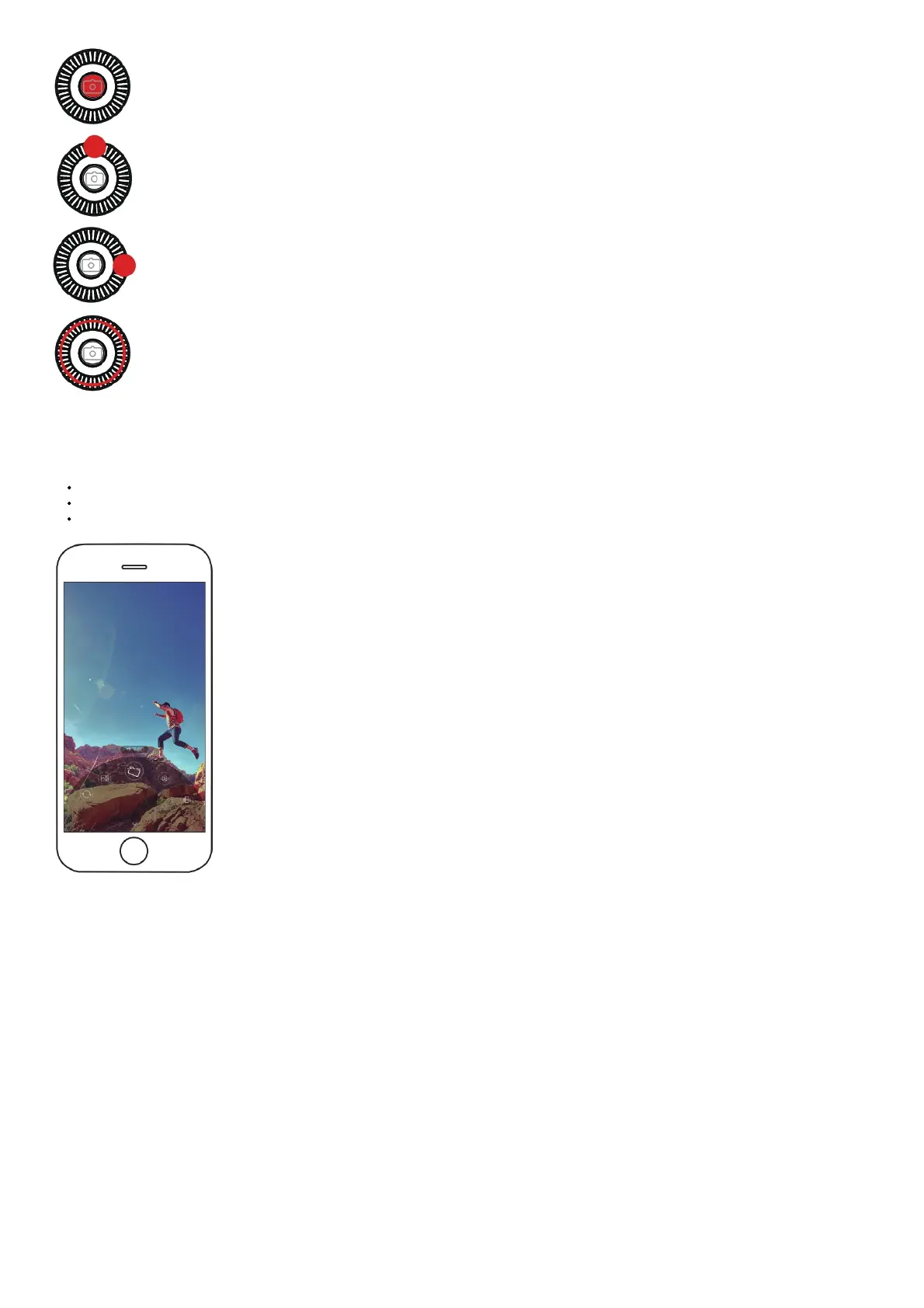
Single press the center button: start/stop recording (only valid in video mode)
Double press the center button: photo-taking (also valid during the video recording)
Double press the upper button: switching video mode & photo mode
Long press the upper button: switching front camera & rear camera
Single press the right button: Quick playback
Single press the right button to return to the camera
Rotate the dial wheel: Zoom ZOOM IN
ZOOM OUT
Menu
On the camera interface, single press the upper button to enter the menu
Rotate the dial wheel or single press the upper/down buttonto select an item
Single press the left buttonto enter the next step
Single press the right button to return to the previous step
Professional Mode
Enter the menu to select “professional mode”, parameter setting icons will appear at the bottom of the screen, which can be used to set shutter, ISO,
focus, white balance and so on. Press the upper/down button to select the corresponding parameter icon, values will appear at the right of the screen,
then rotate the dial wheel to adjust values.



 To Next Page