12
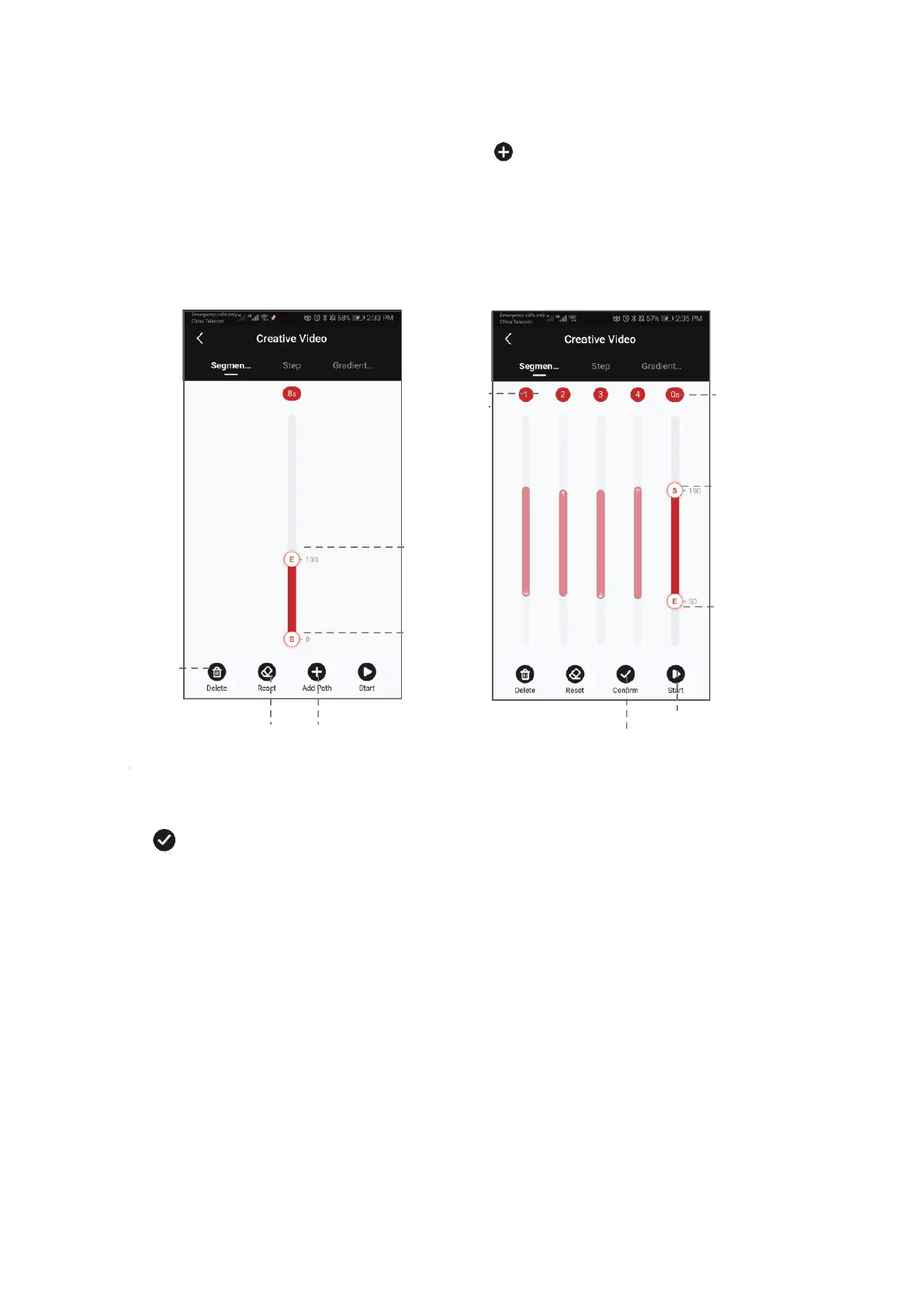
Segmentation Mode
Select the segmentation mode, add a path (Click to add the path. 5 paths is the most
that can be added, click confirm before adding the next path). Slide the S operating point
and the E operating point to any position to set the starting position and end position of
the first path. Slide the E operating point to set the end position of the second, third,
fourth or fifth path. Then, the starting point of the next path will be the end position of
the previous one.
Click to confirm the path and set the running time. After confirming the first path,
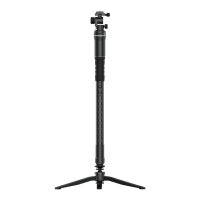
another path can be added. Tap Confirm and the SLYPOD PRO will run according to
programmed movement. Using Segmentation mode and the camera connection cable
the SLYPOD Pro will activate the camera’s shutter for a motion controlled time-lapse.


 To Next Page