6 INSTALLATION INSTRUCTIONS
AUTOTRONIC CONTROLS CORPORATION • 1490 HENRY BRENNAN DR., EL PASO, TEXAS 79936 • (915) 857-5200 • FAX (915) 857-3344
PRO-DATA+ PROGRAMMING INSTRUCTIONS
INSTALLING THE SOFTWARE
1. Insert the installation disk.
2. In Windows click Start then select Run.
3. In the box type A:\Setup then press Enter.
4. Follow the on-screen instructions.
5. At this point there should be two MSD icons on your desktop.
6. Select the one that says MSD Graph View.
7. In the upper left corner of the screen select File.
8. Select the folder 7560.
9. Select the file that says 7560vXX.IGN (XX means the latest version such as 02).
10. Click on Open.
SAVES AND TRANSFERS
Whenever a change is made to a program it either must be saved to your PC as part of the file you
are programming or it must be Saved/Transferred to the MSD Controller. The software gives you
the choice of automatically transferring the change to the MSD or the PC.
Save to MSD: By saving the change right to the MSD, the new change is automatically put into the
Controller.
Save to PC: This saves the changes on your PC screen only. The information still must be transferred
to the MSD before it becomes active or saved to a file.
TACHOMETER
The tachometer on the monitor will show real time rpm when the engine is running with the laptop
connected.
MENUS
Monitor Status
Cyl Cnt Shift*
Stat 1 Scan
ScanTime 1Sec
1 TO 9
ScanTime 1SEC
Seq 1
S
H
Seq5 DlyOut_OFF
Sec5.000
TimeCtl Alerts*
AlertsPer
TimerControl
Timer_PAUSE
Timer_ADVANCE
Timer_PAUSE
Alerts
2 Out1
3 Out2
4 Out3
5 Out4
6 Out5
Monitor List
1. ScanTime 1Sec
2 ActSeq 5 RST,1,2,3,4,5,ALL
3 Time25.0
4 LaunRst OFF/ON
5 OFF/ON
6 Out1 OFF/ON
7 Out2 OFF/ON
8 Out3 OFF/ON
9 Out3 OFF/ON
10 Out4 OFF/ON
11 Out5 OFF/ON
ActSeq.
.
.
. TimeCtl
.
.
.
.
.
.
Stats List
Same as Monitor
list at left
DlyOut_OFF
DlyOut_ON
1 TO 5
0.001 TO 5.000
LaunchRst
Sw_GND
Sw_GND
Sw_PWR
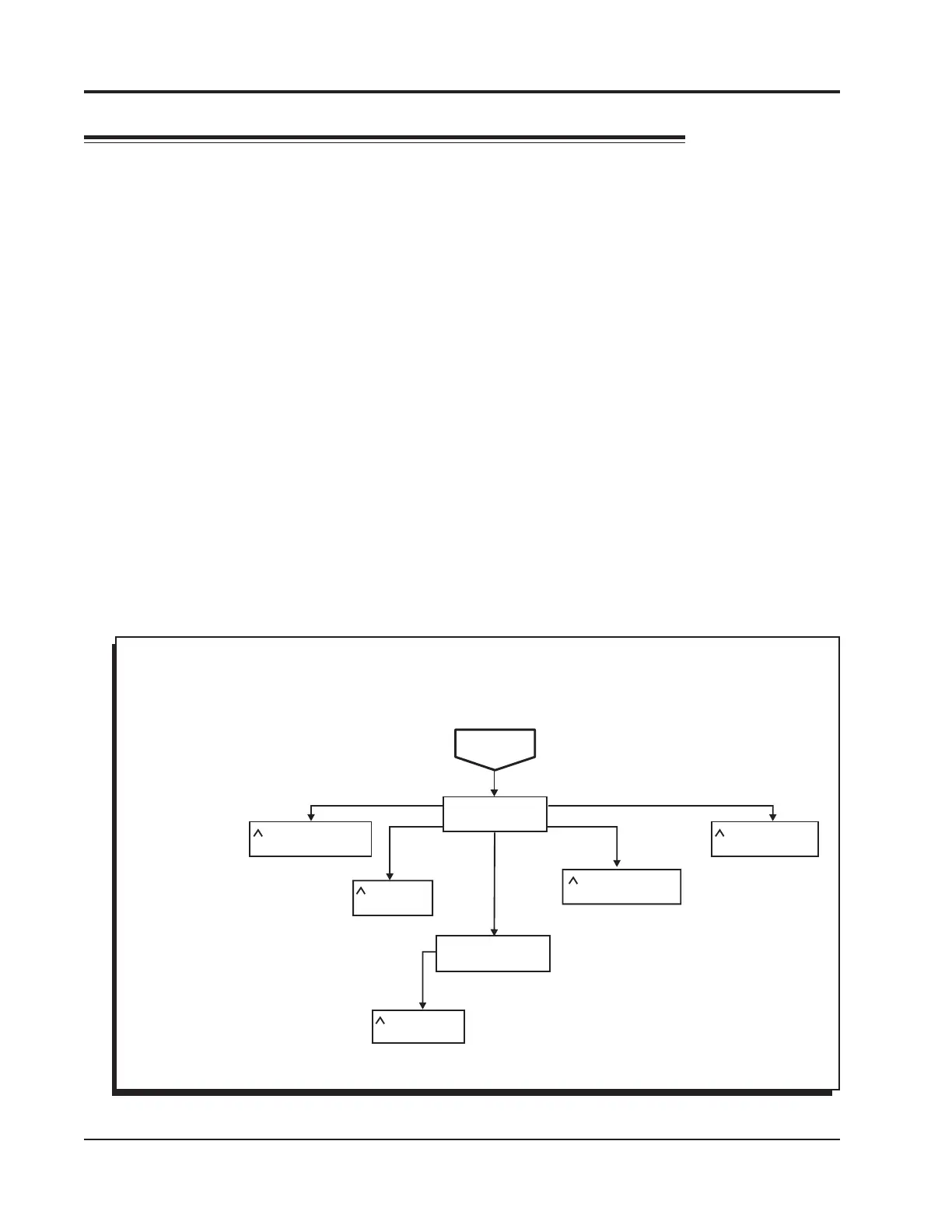
Figure 6 Monitor Screen Menu


 To Next Page
 Loading...