3-16
System Operations
▍
ralink wireleSS lan ConneCtion (optional)
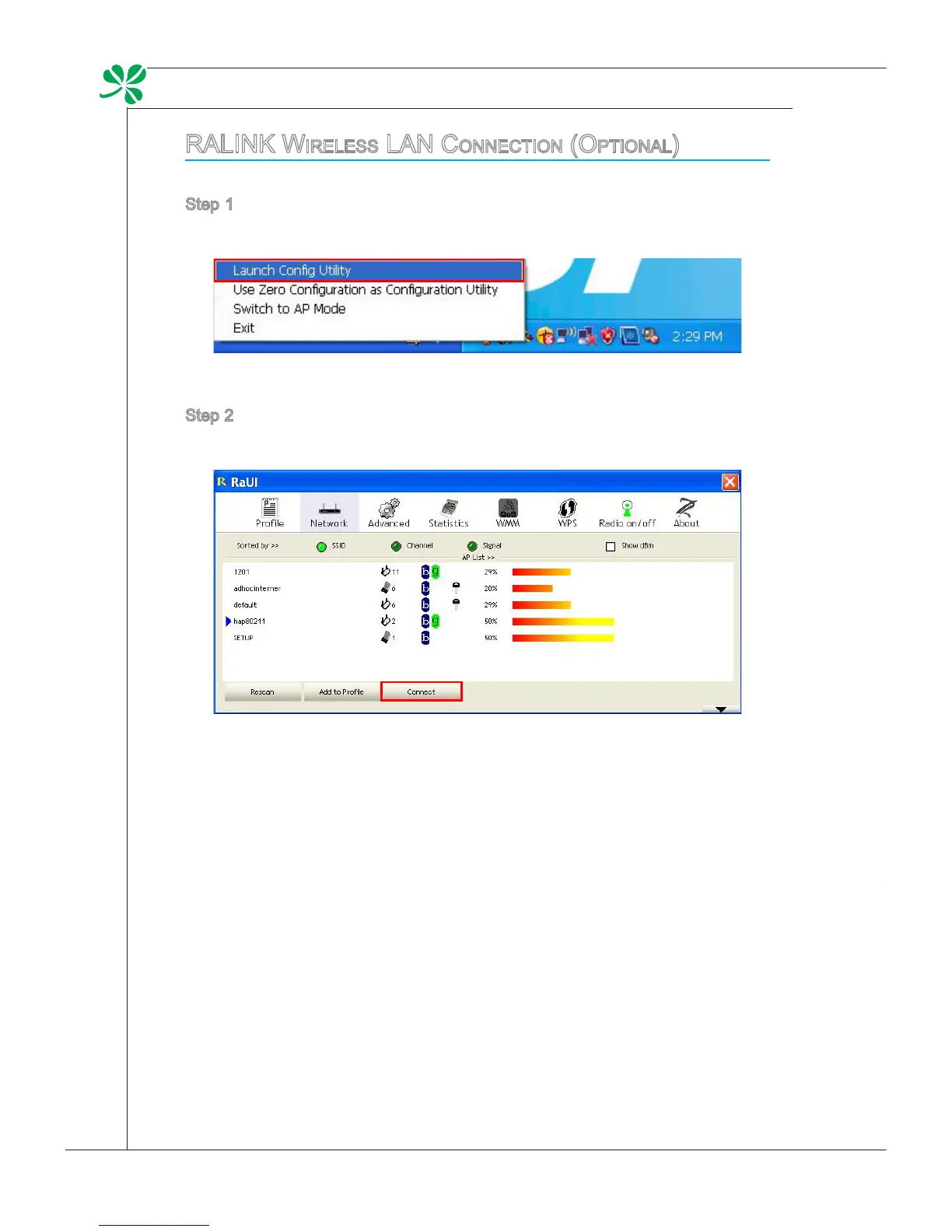
Step 1. Right-click the Ralink Wireless LAN Card status icon in the lower right
corner, and then click Launch Cong Utility.
Step 2. The window displays some available wireless networks. Choose a net-
work, and then click Connect.
Step 3. There may prompt you to enter a key. Type the network key and then
click OK.
Step 4. Now, you’re ready to browse the Web wirelessly.


 To Next Page