7
5 How to Use MSI Utility Software
5.1 Main Tab
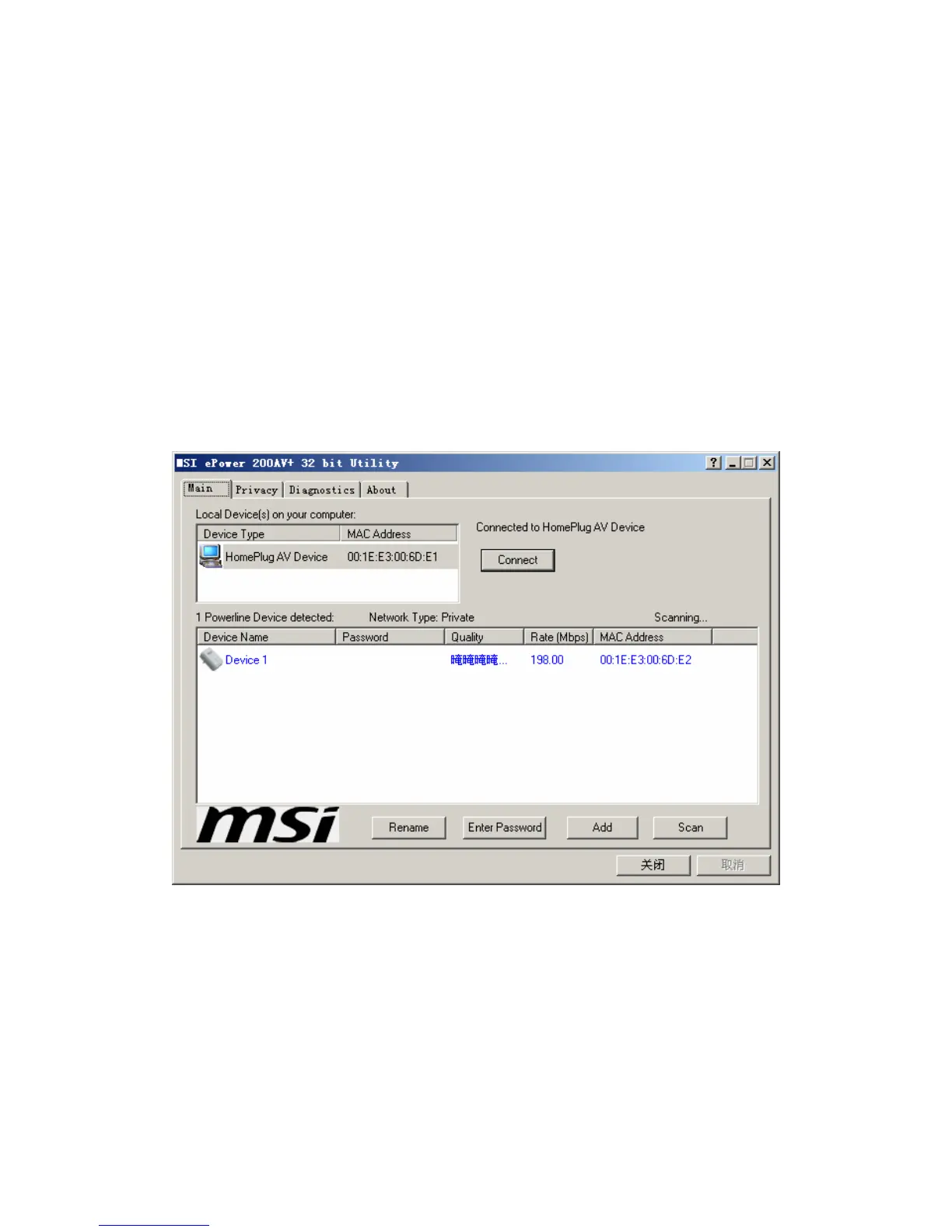
The Main screen provides a list of all Powerline devices logically connected to the
computer when the utility is running.
The top panel shows local HomePlug devices connected to the computer’s NIC
(Network Interface Card). The user can click the Connect button to its right. Once
connected to the local device, the utility will automatically scan the power line
periodically for any other HomePlug devices. If no local HomePlug devices are
discovered, the status area above the connect button will indicate with a message
‘NO HOMEPLUG ADAPTERS DETECTED’.
Figure 5-1: Main Tab information
The lower panel displays all the HomePlug remote devices, discovered on the current
logical network. The total number of remote devices connected on the same network
can be found on top of the Remote device panel. The Network type (Public or Private)
is also displayed based on the network status of the local device. The scan status
option is displayed on the top right corner above the Remote devices panel showing
whether the Autos can functionality is turned ON or OFF. The following information is
displayed for all devices that appear in the lower panel.


 To Next Page