2.4 Cutting from Vinyl Express LXi 19 to the ARTisan
To change the Blade Offset covered in Section 2.2.2, click on Properties and select the Cut tab .
Enable the setting called Knife Offset and enter a new setting, using inches as the units.
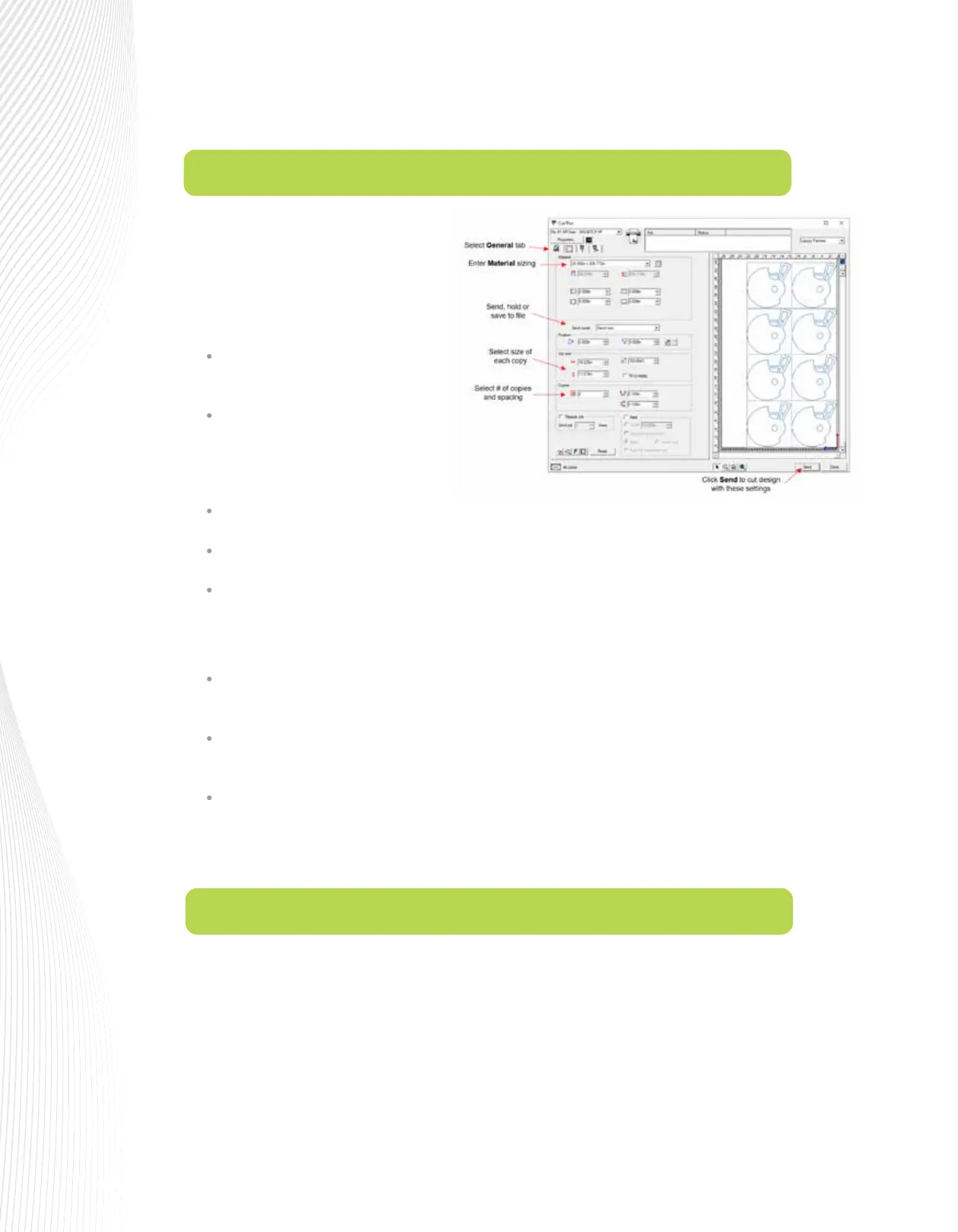
When you are ready to cut, click the Cut/Plot
icon to launch the Production Manager and
open the following Cut/Plot window:
For a simple cut you only need to address
the following on the General tab:
While there are quite a number of other cutting features you may need for your applications, take note of
several common ones:
Make sure the correct cutter is selected
at the top of the Cut/Plot window.
Verify the Material sizing is correct. If
not, you can click on Properties, enter
new dimensions and they will appear in
the drop-down menu for Material.
2.5 Cutting from Create Space to the ARTisan
When you are ready to cut, click on the Cutter icon to open the Cut Settings window:
Cut Mode controls where shapes will cut on the material. Typically, you will choose Origin Point to be
more efficient with material. Shapes will be aligned and cut next to the origin you set on the material. If
the Cut Mode is set to WYSIWYG, shapes will cut based on their placement in the document (mat) area
as shown in screenshots which follow.
Use Software Speed and Pressure: Enabling this option will use the Pressure and Speed settings in
Create Space, thus overriding those set on the ARTisan’s control panel.
Create an array of repeats and change their sizing, as needed.
Check the Preview to make sure it seems correct.
Make sure Send mode is set to Send now if you are cutting directly to the ARTisan immediately.
When you are ready to send the project to the ARTisan, click on Send.
To the right of the General tab is the Options tab , where you can set Passes if your material cuts
better with more than pass.
Also to the right of the General tab is the Advanced tab , where you can modify the Overcut
setting covered in Section 2.2.3.



 To Next Page