EN-7
HOW TO SELECT MP3/WMA FILES
1. Searching by Track:
• Press “A/PS”, then search track is activated.
• Turn “VOL” knob to left or right, select rst digit desired.
• Press “VOL” knob, then the rst digit is xed and second digit will ash.
• Turn “VOL” knob to left or right, select 2’nd 3’rd respectively.
• Press “BD/ENT”, the song selected will start.
2. Searching by Character:
• Press “A/PS” twice, then character search mode is activated.
• Turn “VOL” knob to left or right, you can select the desired letter.
• Press “VOL” knob, repeat steps above for 2’nd 3’rd character.
• The songs with the same character that you selected is displayed.
• Turn “VOL” knob to left or right, you can select the desired song.
• Press “BD/ENT”, then the song selected will start.
3. Searching by File Name:
• Press “A/PS” 3 times, then folder search is activated.
• Turn “VOL” knob to left or right, you can select the desired folder.
• Press “BD/ENT”, then the folder is xed and the rst le will be played.
Connecting it to Portable Digital MP3 Player
26. USB PORT
Using USB cable to connect Your Portable Digital MP3 Player.
*Not all USB MP3 players types are supported
27. MULTI-MEDIA CARD (MMC) / SD CARD SLOT
Support MP3/WMA ID3 format music only.
* IMPORTANT INFORMATION:
BECAUSE OF THE GREAT VARIETY OF PRODUCTS WITH USB, SD AND MMC CARD PORTS AND THEIR SOMETIMES
QUITE MANUFACTURER-SPECIFIC FUNCTIONS WE CAN NEITHER GUARANTEE THAT ALL DEVICES WILL BE
RECOGNIZED NOR THAT ALL OPERATING OPTIONS THAT ARE POSSIBLE IN THEORY WILL ACTUALLY WORK.
28. FRONT AUX IN
Convenient easy to use front “AUX IN” input jack, allows easy connection of Portable Media and digital MP3 Players.
HOW TO USE BLUETOOTH IN YOUR CAR AUDIO
How to Perform Pairing
Before you can dial out from the car stereo, you must rst perform PAIRING. Pairing is a procedure used to connect 2
Bluetooth devices together.
1. This unit’s Bluetooth function is always on, perform the pairing starting from your cellular phone. Refer to your cellular
manual on proper pairing.
2. Perform the search for available Bluetooth devices, “CAR--BT ”
will show. Enter ‘0000’ when asking for code.
3. After successful pairing, connect to the head unit if it is not automatically connected.
How to call / receive calls using wired remote controller
• When there is incoming call, press
TALK button once to answer.
• During conversation, press
TALK button once to end call.
• To make calls using call history
1. Press and hold
TALK button to display “REDIAL” history.
2. Using VOL knob on main unit, turn repeatedly to select the phone number you want to make
call to and press “ ” to dial out.
Note: Up to 20 phone numbers will be displayed including previous outgoing and incoming calls.
How to call / receive calls using wireless remote controller
• To make calls, press “
” button on the remote controller followed by pressing TEL NO using
number keys.
• After entering TEL NO, press “
” again to dial out.
• During conversation, press “
” button to end call.
• When there is incoming call, press “
” button to receive call.
• Press “
” button to reject incoming calls.
How to make / receive calls using front panel
• To make calls using call history
1. Press and hold “
” to display “REDIAL” history.
2.
Using VOL knob on main unit, turn repeatedly to select the phone number you want to make call to and press “ ”
to dial out.
• During conversation, press “
” button to end call.
• When there is incoming call, press “
” button to receive call.
• Press “
” button to reject incoming call.
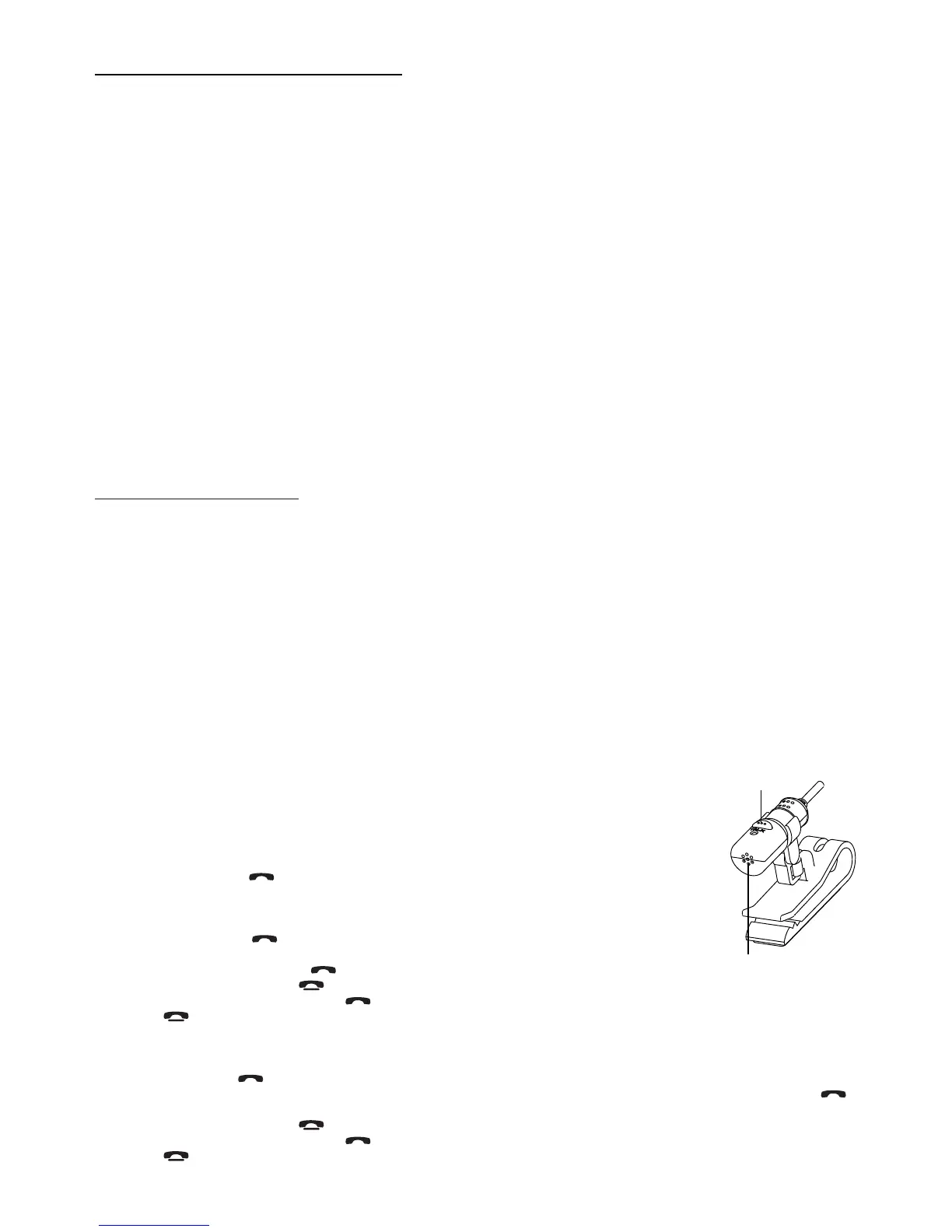
TALK BUTTON
MICROPHONE


 To Next Page