CONNECT AIRPLAY
AirPlay lets you stream music from your AirPlay-enabled device to the
D7050. The AirPlay-enabled device and the D7050 must be in the same
network to send and receive streaming audio with AirPlay. This connection
could be wired, using Ethernet cable, or wireless.
SETTING UP NETWORK CONNECTION
The D7050 can be connected to a network using any of the following
methods
A Wired connection
B Wireless connection
C Share Wi-Fi setting
Start playback of your device after successful network connection using any
of the above methods.
WIRED CONNECTION
Network connection using Ethernet broadband connection. Set up a Wired
Ethernet broadband router with broadband internet connection. Your
router or home network should have a built-in DHCP server to consummate
the connection.
1 Using a standard straight-through Ethernet cable (not supplied),
connect one end of the Ethernet cable to the LAN port of your wired
Ethernet broadband router and the other end to D7050’s LAN port.
2 Connection is established when a solid signal strength bar indicator
appears in the upper right corner of the D7050 display.
It is advisable that wired connection is utilized when possible. Wired
connection is less likely to have “drop-out” or range problem and not
vulnerable to interference or eavesdropping.
WIRELESS CONNECTION
Wireless (WiFi) broadband router with broadband internet connection
is required for wireless connection to be established. D7050 can be
connected wirelessly via two methods
A WPS key pairing
B Access point mode
WPS KEY PAIRING
1 Short press the WPS button located at the rear panel of D7050. Press
also the corresponding WPS button in your router. A ashing signal
strength bar indicator appears in the upper right corner of the
D7050 display.
2 The D7050 will attempt to detect the WPS signal from the router and
establish a wireless connection.
3 Wireless connection is established when the ashing signal bar
indicator turns to solid bar.
ACCESS POINT MODE
The D7050 can act as an Access Point (AP) enabling it to connect to a wired
network wirelessly.
1 Press and hold WPS button located at the rear panel of D7050 for
about 3 seconds and then release it. A ashing signal strength bar
indicator appears in the upper right corner of the D7050 display.
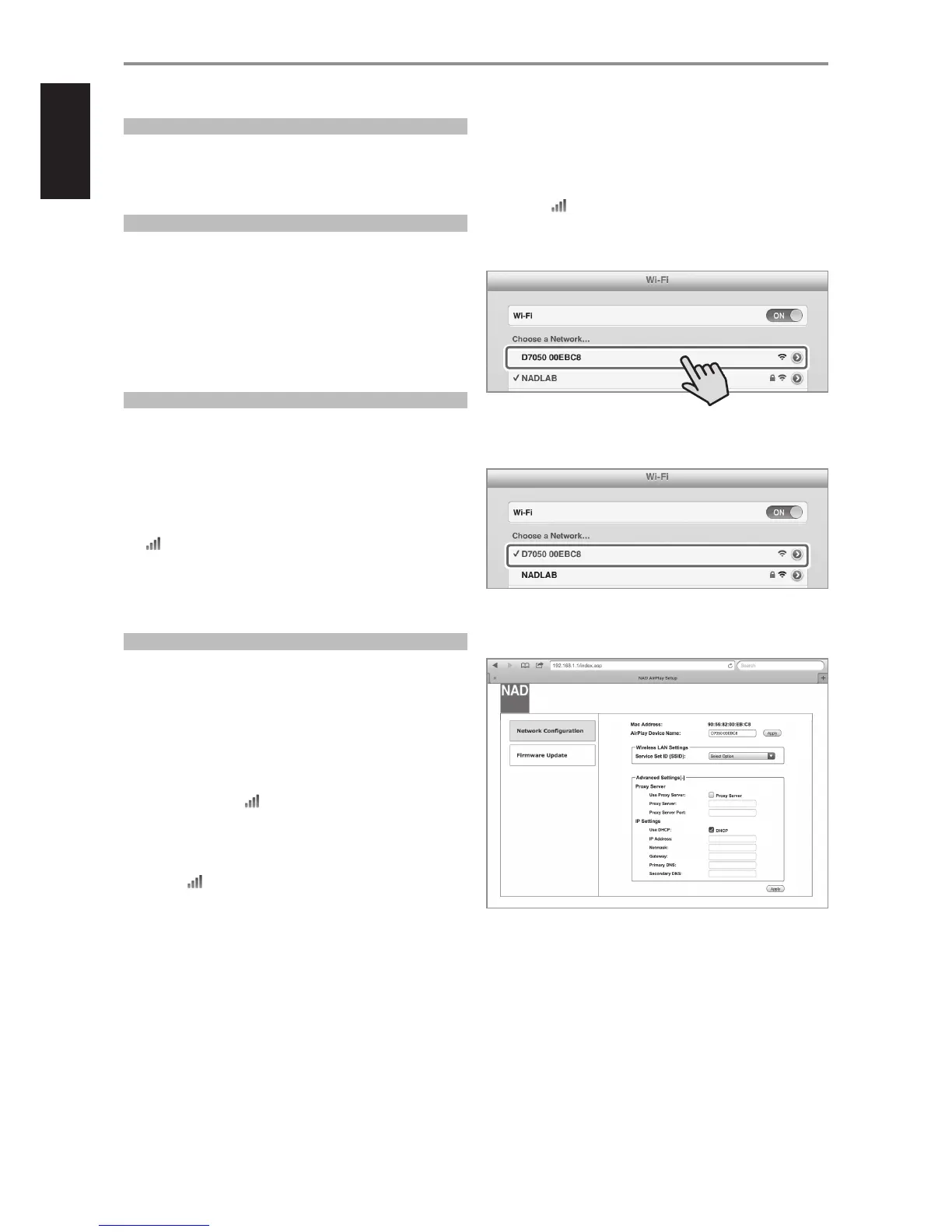
2 Using your iOS device (iPad is used here for reference), select among
the list of available network connections the unique network ID (D7050
00EBC8 in this example) of your D7050.
3 Launch Safari and enter http://192.168.1.1. The NAD AirPlay Setup
menu window will appear. While at Network Conguration section,
select Select Option at Service Set ID (SSID).
OTHER FEATURES
^
10


 To Next Page