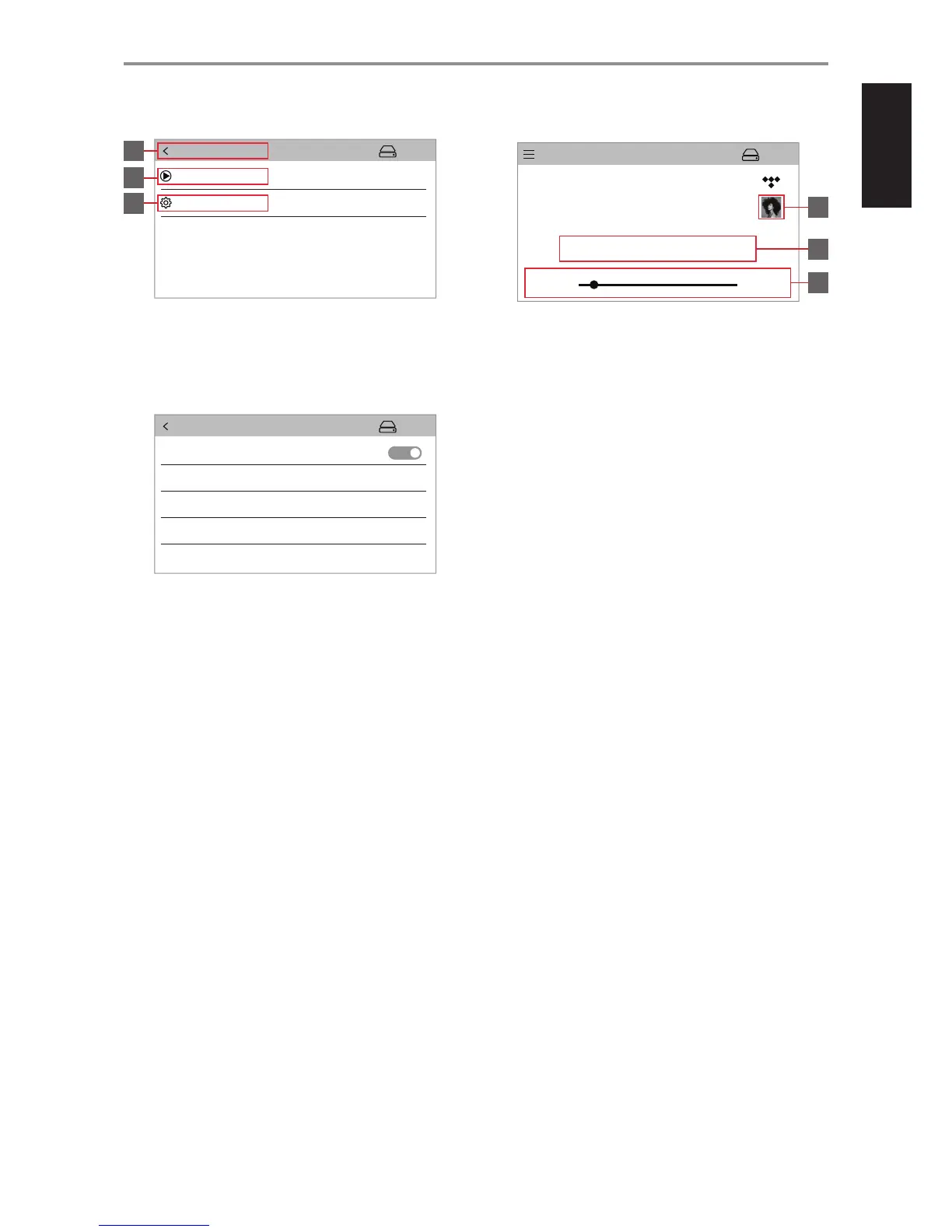
B Main Menu
Touch item to display applicable option.
8 Screen is returned to “Now Playing” display.
9 “Now Playing” screen is displayed.
10 A new screen is opened showing “Settings” option (below).
C Settings
Large Artwork (ON/OFF)
ON: “Now Playing” screen is displayed with large album artwork
cover.
OFF: “Now Playing” screen is displayed with minimized album
artwork cover.
Reboot (Yes/Cancel)
Yes: M50.2 will power o and restart again.
Cancel: Current condition is retained.
Factory Reset
Yes: M50.2 will be restored to its factory default settings.
Cancel: Current condition is retained.
Firmware Version
Current rmware version is shown.
D Minimized Album Artwork Display (Now Playing)
11 Minimized album artwork cover.
12 In addition to item 7 above, Repeat and Random controls are
available for selection.
13 Elapsed time and remaining time of current music.
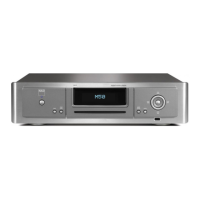
4 DISC SLOT
• Insert CD or audio disc face down into this slot.
• Select “Audio Disc” from the BluOS Controller App’s navigation
drawer to select the loaded disc for playback or ripping.
• Depending upon Rip/Play options settings, the loaded disc will
“Always Rip”, “Always Play CD” or “Prompt for Rip or Play”.
• Refer also to “Ripping” menu under “Settings” option in the BluOS
Controller App’s navigation.
5 FRONT USB
• Connect to this input a USB mass storage device with music les.
Typical USB mass storage devices compatible with M50.2 include
portable ash memory devices and external hard drives (FAT32-
formatted).
IDENTIFICATION OF CONTROLS
FRONT PANEL


 To Next Page