RULES TO FOLLOW:
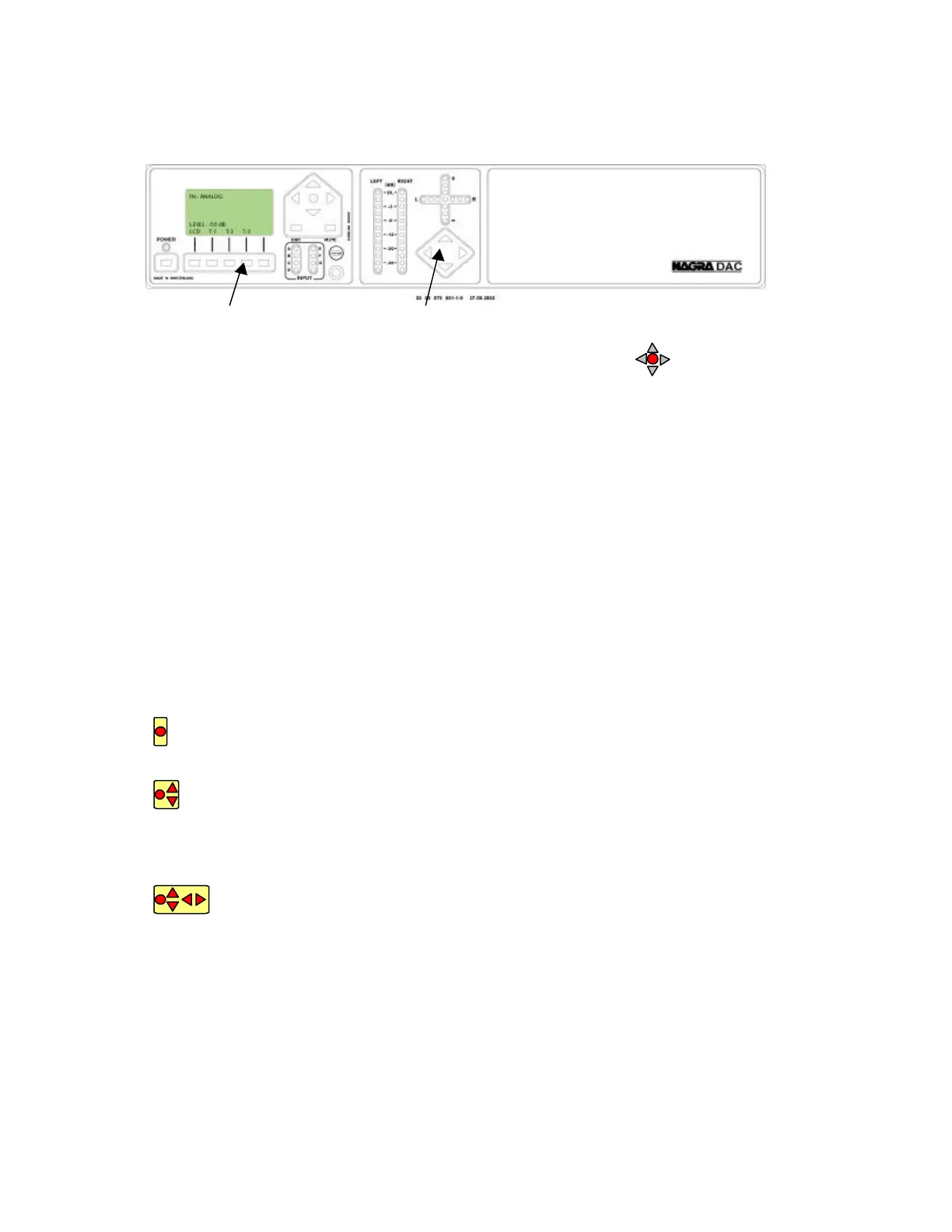
The DAC has 2 front panels.
Main panel Trim panel
Entering into the menu tree: Press the center button on the
main panel once
Use the up and down arrow keys for vertical scrolling and right and left arrow keys for
horizontal scrolling.
Pressing the ESC key will return the menu to the previous menu step by step.
If the sign “>” appears at the end of the text, it means that it is still possible
to move to another menu by pressing the right arrow key.
If the sign “?” appears at the start of the text, it means that the
corresponding parameter can be modified by using the up or down arrow
keys.
If at the start of the text, the sign ”?” is not appearing but only the sign”>”, the center
key needs to be pressed before the parameters can be changed.
Means that only the center button needs to be pressed, this to select the present
parameter.
Means that first the center button needs to be pressed, followed by the parameter
selection via the up and down arrow key. Once the corresponding parameter is
selected, press the center key once to validate. The left arrow key permits to return one
step, the ESC key returns immediately to the normal display.
Is almost identical to the previous definition. Once the center key is pressed,
the up and down arrow keys permit to scroll through the alphabet, the left
arrow key permits to jump to the next character position, the left arrow key to return one
character etc. Press the center key to validate the introduced text.
All the added text after yellow colored menus is showing the different parameter
selections or the minimum and maximum limits of each adjustment.


 To Next Page