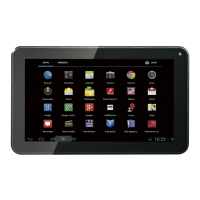
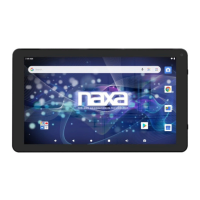
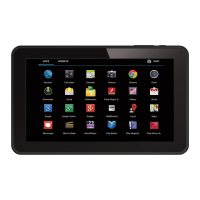
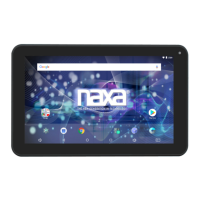
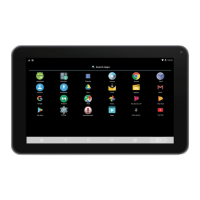
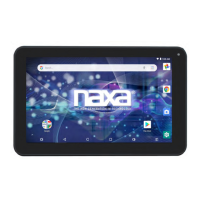
This document describes the Naxa NID-7019, a 7-inch Core™ Tablet running Android™ OS 7.1 with GMS Certification. It serves as an instruction manual covering basic operation, technical specifications, and troubleshooting.
Function Description
The Naxa NID-7019 is a portable tablet designed for general use, including internet browsing, media consumption, and running Android applications. It features a capacitive touchscreen for interactive use and supports Wi-Fi and Bluetooth connectivity. The tablet includes front and rear cameras for taking photos and videos, and a built-in microphone for sound recording. It allows for file management, application installation and uninstallation, and can connect to a PC for file transfer. The device also supports external USB keyboards and mice, and can play media files from USB storage.
Important Technical Specifications
- Display Panel: 7" TFT LCD
- Display Resolution: 1024 x 600
- Touch layer: Capacitive touch screen
- OS: Android 7.1
- CPU: Cortex A9 1.2GHz (Quad Core)
- RAM: 1 GB
- Memory: 8 GB
- External Memory: microSD, microSDHC (up to 32GB)
- Wireless Connectivity: Wi-Fi 802.11 b/g/n, Bluetooth® 2.1
- A/V Connectivity: Headphone out (3.5 mm), Built-in microphone, Built-in stereo speakers (1 W)
- Camera: Rear: 0.3 MP (2.0 MP with interpolation), Front: 0.3 MP
- Audio Formats: MP3, WMA, FLAC, APE, OGG
- Video Formats: MPEG4-sp, ASP, DivX, WMV, RMVB, H.264/1080P
- Power adapter: AC 100~240V, 50/60 Hz; DC 5V out
- Battery: Rechargeable lithium-polymer battery (2400 mAh)
Usage Features
Basic Operation:
- Charging: Initial charge for 10 hours, then charge as needed. Connect the supplied DC adapter to an AC outlet (100-240V~50/60 Hz).
- Powering On/Off: Press and hold the Power Button for 2-3 seconds to turn on. To power off, press and hold the Power Button for 2-3 seconds until "Power Off" appears, then select "OK".
- Sleep Mode: Press the Power Button once to enter sleep mode (low battery consumption). Press again to wake up the device.
- Reset/Force Shutdown: If the device locks up, use a small pin to press the Reset button. A hard reset can be performed by pressing and holding the Power and ESC buttons simultaneously for 3-5 seconds, then following on-screen prompts to "wipe data/factory reset" and "reboot system now".
Touch Panel Gestures:
- Click: Touch once to select, activate functions, menus, or applications.
- Tap and Hold: Tap and hold for 2 seconds to display a pop-up menu with options.
- Slide: Slide up, down, left, or right for fast scrolling, browsing pages, and navigating the display screen.
- Double Click: Double click to enlarge or shrink pictures or web pages.
- Shut (Pinch-to-Zoom): Use two fingers simultaneously on the touch panel to enlarge or shrink the display scale.
- Drag: Drag an icon to relocate its position on the screen.
Home Screen Customization:
- Wallpaper: Press the home screen for 2 seconds to access wallpaper selection. Choose from preloaded options or pictures, then "set wallpaper".
- Shortcuts: From the application page, tap and hold an app icon, then drag it to a home screen to create a shortcut. Drag to the edge of the screen to move to another home screen.
- Widgets: Tap and hold an empty part of a Home screen, then tap WIDGETS. Swipe left/right to browse, then tap and hold a widget to drag it to an empty space. Some widgets may require additional choices.
- Folders: Combine app icons by dragging one onto another. Tap a folder to open it. Tap the folder label to rename it. Reposition folders by tapping and holding, then dragging.
Navigation and System Features:
- Google Search: Tap the Google search bar or tap to turn on voice search (requires Wi-Fi).
- Running Applications: View a list of current running applications.
- Back/Home/Previous: Dedicated buttons for navigation.
- Notification Screen: Displays icons and device status at the top of the screen. Tap to turn on the notification screen.
- Screenshot: Take a screenshot using the designated button.
- Applications Page: Access all installed applications.
- Rotate Screen Setting: Go to Menu Setting > Accessibility > Auto-Rotate Screen to toggle auto-rotation.
Applications:
- Internet Browsing: Use the CHROME icon from the Application page. Tap the address bar to enter a URL. Browser settings (bookmarks, history, etc.) are accessible via the upper right ":" menu.
- Email (Gmail): Access Gmail from the Application page. Compose emails, add recipients (use semicolon for multiple addresses), input subject and body, attach files, and send. Check incoming messages online.
- Sound Recorder: Click Sound Recorder in the Application Page. Tap to start, then to stop and save. Recordings are found in
Android/data/com.android.soundrecorder/files/Download.
- Video Player: The built-in front camera allows taking pictures and videos. Tap the camera icon in the application page, then slide right to switch between camera and video modes.
- Take a Photo: Tap the Camera icon, then tap the capture button.
- Shoot a Video: Select video mode, tap to record, and to stop. Video files are found in the video player.
- Camera Settings: In camera and video mode, tap the settings icon to access the setup menu.
- File Explorer: Access "Explorer" from the application page to view and manage files on microSD card, Internal Storage, and USB storage.
- APK Installation: Install APK files from microSD, internal memory, or USB flash drive. Click the APK file under "APKinstall" to complete.
- Uninstall APK: Go to Application page > APKInstaller > Manage, then tap the APK file to uninstall.
- Close Running Applications: Go to Settings > Apps, then select and close desired applications.
Connectivity:
- Connecting to a PC: Connect the tablet to a PC using a USB cable. Select "File Transfer Mode" on the tablet to transfer files.
- Connecting a USB device: Supports USB keyboards and mice. View media files from USB storage using pre-loaded photo, music, and video applications.
- Wi-Fi Setup: Connect to Wi-Fi networks. Swipe down from the top of the screen, tap the top bar, then Settings icon > Connections > Wi-Fi. Slide the Wi-Fi switch to On. Tap a network name to connect (enter password if secured). Tap and hold a network name to forget or modify settings (e.g., proxy, static IP).
- Language & Input: Go to Language & input settings to choose OSD languages, select keyboard and input methods, and switch input methods.
System Settings:
- Date & Time: When connected to the internet, turn on "Automatic date & time" to synchronize.
- Developer Options: Access by going to Settings > About Tablet and tapping "Build number" approximately 8 times.
Maintenance Features
General Care:
- Handling: Do not drop or forcefully shake the unit. Avoid touching with metal or sharp objects.
- Data Backup: Schedule regular backups of data to prevent loss, especially before firmware upgrades.
- Disassembly: Do not disassemble the unit. Refer servicing to qualified personnel.
- Cleaning: Do not use alcohol, thinner, or benzene on the surface. Unplug before cleaning. Use a damp cloth.
- Environmental Conditions: Do not use in extremely hot, cold, dusty, or humid places.
- Water/Foreign Objects: Do not allow water or foreign objects to enter the tablet.
- Charging: Charge when the Low Battery icon is displayed, system turns off automatically, or keys are unresponsive.
- USB Port: The USB port is for data transfer only, not for charging other devices.
Troubleshooting:
- Cannot Power On: Connect power cable and charge. If issue persists, contact Naxa Tech Support.
- Noise from Unit: Check if audio files are corrupt. Corrupt files can cause alarming or jumping sounds.
- Cannot Download/Copy: Ensure strong internet connection, sufficient storage, and undamaged USB cable.
- Unable to Connect via USB: Ensure USB device is securely connected and the cable is undamaged.
- Electrostatic Discharge: In case of malfunction due to electrostatic discharge, reset the product (reconnecting power source may be required).
Safety Warnings:
- Shock Hazard: Do not open the unit. Refer servicing to qualified personnel.
- Fire/Shock Prevention: Do not expose to rain or moisture.
- Ventilation: Do not block ventilation openings or holes.
- Naked Flames: Do not place lighted candles on the apparatus.
- Battery Disposal: Follow local rules and laws for battery disposal.
- Attachments: Use only manufacturer-recommended attachments.
- Water/Moisture: Do not use near water.
- Accessories: Use only manufacturer-recommended carts, stands, tripods, brackets, or tables.
- Power Sources: Operate only from the specified power source.
- Grounding/Polarization: Do not defeat safety purpose of polarized plugs.
- Power-Cord Protection: Route cords to prevent walking on or pinching.
- Protective Attachment Plug: Ensure replacement plugs have the same overload protection.
- Lightning: Unplug during lightning storms or when unused for long periods.
- Overloading: Do not overload wall outlets, extension cords, or receptacles.
- Object/Liquid Entry: Never push objects or spill liquid into the product.
- Servicing: Do not attempt self-service. Refer to qualified personnel for damaged power supply/plug, liquid spills, exposure to rain/water, abnormal operation, drops, or distinct performance changes.
- Replacement Parts: Ensure service technicians use manufacturer-specified replacement parts.
- Safety Check: After service, ask technicians to perform safety checks.
- Mounting: Mount to wall or ceiling only as recommended by the manufacturer.
- Heat: Keep away from heat sources (radiators, stoves, amplifiers).
- FCC Notice: Device complies with FCC Rules Part 15. Avoid harmful interference. If interference occurs, reorient antenna, increase separation, or connect to a different circuit.
- Modifications: Unauthorized modifications may void FCC operating authority.
- Chemical Warning: Product contains lead (known to cause cancer/birth defects in California). Wash hands after handling.

 Need help?

 To Next Page
 General