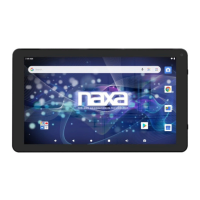
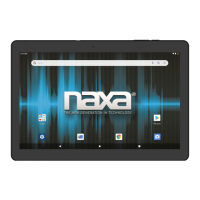
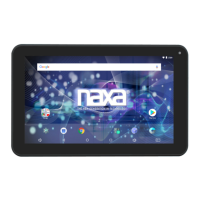
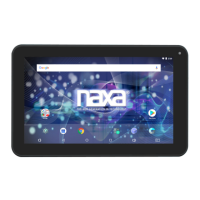
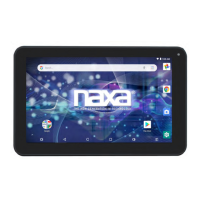
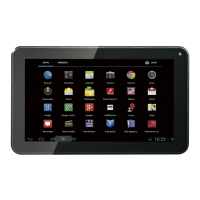
This document serves as an instruction manual for the Naxa 9" Core™ Tablet with Android™ OS 7.1 and GMS Certification (NID-9009). It provides comprehensive guidance on the device's functions, usage, and maintenance.
Function Description
The Naxa 9" Core™ Tablet is a portable electronic device designed for various tasks, including internet browsing, media playback, and application usage. It operates on the Android™ OS 7.1, offering a user-friendly interface and access to a wide range of applications through the Google Play Store. The tablet features a 9" TFT LCD with a capacitive touchscreen, allowing for intuitive interaction through touch gestures. It includes a front camera for taking pictures and videos, and a rear camera for higher-resolution photography. The device supports Wi-Fi connectivity for internet access and Bluetooth® for wireless peripheral connections. It also has a Micro USB port for data transfer and charging, a headphone jack for audio output, and a memory card slot for expanding storage.
Usage Features
Basic Operation:
To power on the tablet, press and hold the Power Button for 2-3 seconds. Once on, a single press of the Power Button will put the device into sleep mode, conserving battery. To wake it up, press the Power Button again. To power off, press and hold the Power Button for 2-3 seconds until the "Power Off" option appears, then select "OK."
Charging:
For initial use, charge the tablet for 10 hours to ensure battery longevity. Subsequently, charge as needed using the supplied DC adapter plugged into an AC outlet (100-240V~50/60 Hz).
Touch Panel Interaction:
The capacitive touchscreen supports various gestures:
- Click: A single tap to select or activate functions, menus, or applications.
- Tap and Hold: Tapping and holding for 2 seconds will display a pop-up menu with options.
- Slide: Sliding up, down, left, or right enables fast scrolling through pages and screens.
- Double Click: Double-clicking can enlarge or shrink the display size of pictures or web pages.
- Shut (Pinch): Using two fingers simultaneously on the touch panel allows for enlarging or shrinking the display scale.
- Drag: Tapping and holding an icon allows you to drag and relocate it on the screen.
Home Screen Navigation:
The Home Screen provides quick access to various features:
- Google Search: Initiate a search by tapping the Google search bar.
- Voice Search: Tap the microphone icon to activate voice search (requires Wi-Fi).
- Running Applications: View a list of currently running applications.
- Back to Home: Return to the Home screen.
- Back to Previous Screen: Navigate to the previous screen.
- Status Bar: Displays icons for device status (e.g., Wi-Fi signal, battery level) and notifications. Tap to open the notification screen.
- Screenshot: Capture a screenshot.
- Applications Page: Access all installed applications.
Customization:
- Changing Wallpaper: Press and hold an empty part of the Home screen for 2 seconds, then select from preloaded wallpapers or pictures and confirm with "set wallpaper."
- Adding Shortcuts: Tap and hold an application icon from the applications page and drag it to the Home screen to create a shortcut. To move a shortcut to another Home screen, drag it to the edge of the current screen.
- Adding Widgets: Tap and hold an empty part of a Home screen, then tap "WIDGETS." Swipe to browse available widgets, then tap and hold to drag one to an empty space.
Screen Rotation:
To enable or disable auto-rotate: Go to Menu Setting > Accessibility > Auto-Rotate Screen, then tap the "AUTO ROTATE" icon.
Internet Browsing:
Use the Chrome browser to access websites. Tap the address bar to enter a URL. Browser settings, bookmarks, and history can be accessed by tapping the upper right ":" icon.
Email (Gmail):
- Sending a Message: From the Application page, select "G-Mail," tap the compose icon, enter recipient(s), subject, and message body. Tap the attachment icon to include files, then "SEND."
- Checking Incoming Messages: Access your email account online to view downloaded messages.
- Email Account Setup: From the Application page, select "G-Mail," enter your email address and password, then choose "Personal Email Account" or "Manual Setting" and follow the prompts.
Sound Recorder:
Access "Sound Recorder" from the Application Page. Tap the record icon to start, and the stop icon to save. Recordings are stored in Android/data/com.android.soundrecorder/files/Download.
Video Player & Camera:
The tablet has a built-in front camera for pictures and video. Tap the camera icon in the application page, then slide right to switch between camera and video modes.
- Taking a Photo: Tap the camera icon, then tap the capture icon.
- Shooting a Video: Tap the video icon, then the record icon to start and the stop icon to end. Video files are found in the video player.
- Camera Settings: In camera or video mode, tap the settings icon to access the setup menu.
File Management:
- File Explorer: Access "Explorer" from the application page to view and manage files on a Micro SD card, Internal Storage, and USB storage.
- Connecting USB with OTG Cable: Connect a USB device (e.g., flash drive) via an OTG cable.
- File Operations: In "Explorer," tap and hold a file or folder for 2 seconds to reveal options. Select "Multi" to choose multiple items, then "Editor" to perform functions.
Application Management:
- APK Installation: Download APK files to a micro SD card or USB flash drive. Click the APK file under "APKinstall" on the application page to install.
- Uninstalling APK Files: Go to the application page, select "APKInstaller," choose "Manage," then tap the APK file to uninstall.
- Closing Running Applications: Go to Settings > Apps, then select the app you wish to close.
Connecting to a PC:
Connect the tablet to a PC using a USB cable. On the tablet, select "File Transfer Mode" to transfer files between devices.
Connecting a USB Device:
USB keyboards and mice are supported. Media files on USB storage can be viewed using pre-loaded photo, music, and video applications.
Wi-Fi Setup:
- Connecting to a Network: Swipe down from the top of the screen, tap the top bar, then the Settings icon. Under Connections, tap Wi-Fi and slide the switch to "On." The tablet will scan for available networks. Tap a network name to connect; if secured, enter the password.
- Forgetting/Modifying a Network: Tap and hold a network name to forget it or modify its settings (e.g., password, proxy, static IP).
- Language: Users can select OSD languages.
- Keyboard & Input Methods: Select the desired language method and switch input methods.
Date & Time:
When connected to the internet, enable "Automatic date & time" in settings for the device to automatically obtain the correct date and time.
Developer Options:
To access Developer Options, go to Settings > About Tablet, then tap "Build number" approximately 8 times.
Maintenance Features
General Precautions:
- Avoid dropping or forcefully shaking the tablet.
- Do not touch the unit with metal or sharp objects.
- Regularly back up your data to prevent loss.
- Do not disassemble the device or wipe its surface with alcohol, thinner, or benzene.
- Do not disconnect the tablet during formatting or uploading/downloading to prevent data corruption.
- Prevent water or foreign objects from entering the tablet.
- Avoid using the tablet in extremely hot, cold, dusty, or humid environments.
- Charge the tablet when the Low Battery icon appears, the system shuts off automatically, or keys become unresponsive.
- The tablet may become slightly warm during charging, which is normal.
- The USB port is for data transfer only, not for charging other devices.
- Specifications are subject to change without prior notice.
Troubleshooting:
- Cannot Power On: Connect the power cable to charge. If it still doesn't power on after a few minutes, contact Naxa Tech Support.
- Noise from Unit: Check if the audio file is corrupt; corrupt files can cause alarming or jumping sounds.
- Cannot Download/Copy: Ensure the tablet is connected to the internet with a strong connection, has sufficient storage, and the USB cable is intact.
- Unable to Connect via USB: Verify the USB device is securely connected and the cable is not damaged.
Safety Warnings:
- Shock Hazard: Do not open the unit. Refer servicing to qualified personnel.
- Fire/Shock Hazard: Do not expose the appliance to rain or moisture.
- Ventilation: Do not block ventilation openings or holes.
- Naked Flames: Do not place naked flames (e.g., lighted candles) on the apparatus.
- Battery Disposal: Follow local rules and laws for battery disposal.
- Cleaning: Unplug the product before cleaning. Use a damp cloth; do not use liquid or aerosol cleaners.
- Attachments: Use only manufacturer-recommended attachments.
- Water and Moisture: Do not use near water sources.
- Accessories: Do not place on unstable carts, stands, tripods, brackets, or tables. Use only manufacturer-recommended mounting accessories.
- Power Sources: Operate only from the specified power source.
- Grounding/Polarization: If equipped with a polarized plug, ensure it fits correctly. Do not defeat its safety purpose.
- Power-Cord Protection: Route power cords to prevent walking on or pinching.
- Protective Attachment Plug: If the plug has overload protection, ensure replacement uses the same protection.
- Lightning: Unplug during lightning storms or when unused for long periods.
- Overloading: Do not overload wall outlets or extension cords.
- Object/Liquid Entry: Never push objects or spill liquid into the product.
- Servicing: Do not attempt self-service. Refer to qualified personnel for repairs, especially if damaged, exposed to moisture, or malfunctioning.
- Replacement Parts: Ensure service technicians use manufacturer-specified replacement parts.
- Safety Check: After service, ensure a safety check is performed.
- Mounting: Mount on walls or ceilings only as recommended by the manufacturer.
- Heat: Keep away from heat sources.
- FCC Notice: The device complies with FCC rules, but users are responsible for ensuring it does not cause harmful interference and accepts any received interference.
- Modifications: Unauthorized changes may void FCC authority.
- Warning (Lead): The product contains lead; wash hands after handling.

 Need help?
 General

 To Next Page