22
2. Install the Nebula Cast app on your projector.
3. Open Nebula Cast app and follow the on-screen instructions to
complete the process.
4. Play from HDMI Playback Devices
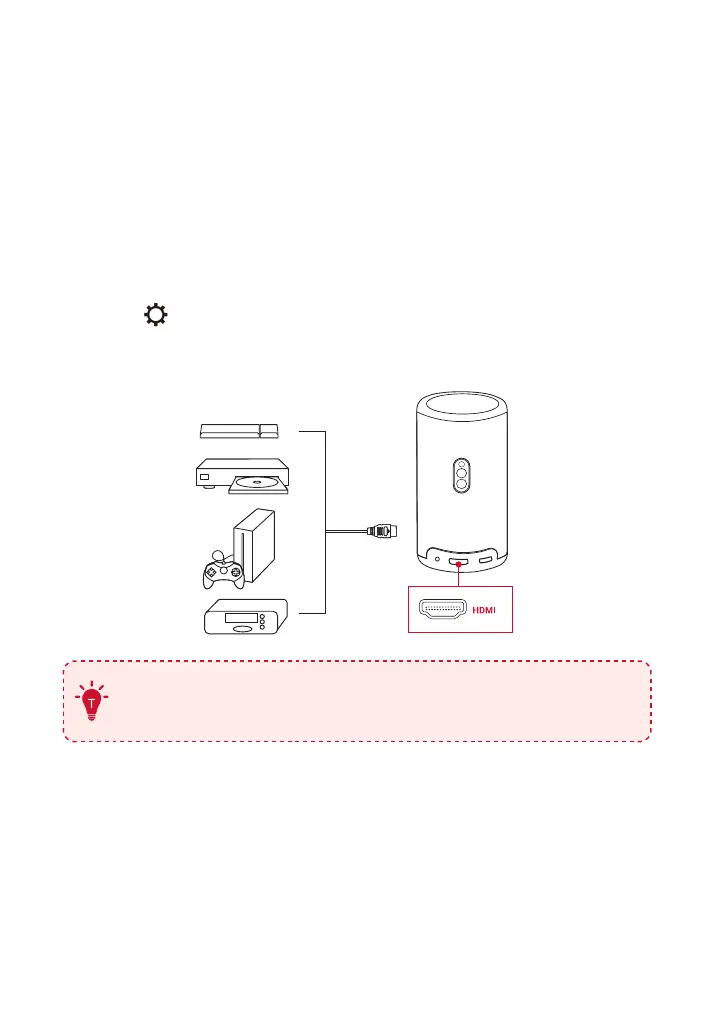
The projector can be connected to various HDMI playback devices such
as a TV box, TV stick, DVD player, set-top box (STB), gaming console, or
other devices.
①
Connect the projector to an HDMI playback device with an HDMI
cable (not provided).
②
Press to access the settings menu, then select [Channels &
Inputs] > [Input] > [HDMI].
(Not included)
The projector will automatically start HDMI playback once
connected to an HDMI playback device for the first time.
5. Play from a USB Drive
With this projector, you can enjoy music, video, and pictures, or install
apps that are stored on a USB 2.0 drive.
①
Download the Nebula File Manager app from Google Play.
②
Insert a USB-A drive (with the USB converter) or USB-C drive into the
USB port.



 To Next Page