This document is a User's Manual for the MultiSync E172M Desktop Monitor, model M179E9, manufactured by NEC. It provides comprehensive information on the monitor's features, installation, basic operation, troubleshooting, and environmental considerations.
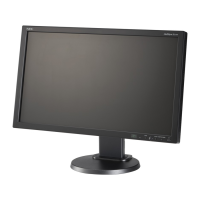
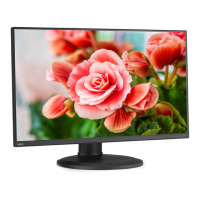
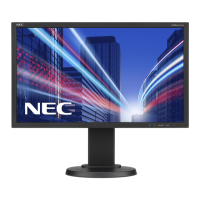
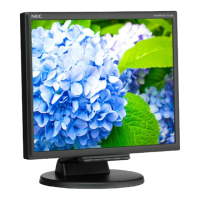
The MultiSync E172M is a desktop monitor designed for use in office or domestic environments, intended to be connected to a computer for displaying information. It is not designed for displaying television broadcast signals. The monitor boasts a reduced footprint, making it suitable for environments with space constraints, and its low weight facilitates easy movement and transport.
Function Description
The monitor offers various functionalities to enhance user experience and image quality:
- Color Control Systems: Users can adjust screen colors to customize color accuracy according to various standards.
- OSD (On-Screen Display) Controls: These controls allow for quick and easy adjustment of all screen image elements through intuitive on-screen menus. The OSD menu is accessed via the SELECT button on the control panel.
- NaViSet Administrator 2 Software: This software provides an expanded graphical interface for adjusting OSD display settings from a networked computer.
- No Touch Auto Adjust (Analog input only): Upon initial setup with an analog (VGA) input, the monitor automatically adjusts to optimal settings. Further adjustments can be made using AUTO CONTRAST and AUTO ADJUST OSD controls.
- ErgoDesign Features: The monitor incorporates ergonomic features aimed at improving the working environment, protecting user health, and saving energy. These include OSD controls for easy image adjustments, a tilt base for preferred viewing angles, a small footprint, and compliance with TCO guidelines for lower emissions.
- Plug and Play: Compatible with Microsoft® Windows® operating systems, this feature simplifies setup and installation by allowing the monitor to communicate its capabilities (screen size, supported resolutions) directly to the computer, thereby optimizing display performance automatically.
- Intelligent Power Manager System: This system provides power-saving methods that reduce the monitor's power consumption when idle, saving energy costs, reducing emissions, and lowering air conditioning costs. The monitor features LED indicator patterns for different power modes: Green for maximum and normal operation, Orange for energy-saving mode, and Off for off mode.
- VESA Standard Mounting Interface: The monitor can be connected to any VESA standard third-party mounting arm or bracket, offering flexibility in installation.
- Low Blue Light Function: This feature significantly reduces blue light emissions, helping to alleviate eye strain. It can be directly activated by touching the SELECT button for 3 seconds or more.
- Flicker Free: A special backlight system is integrated to reduce flicker, further contributing to reduced eye strain.
Usage Features
The manual details the monitor's control panel and terminal panel, guiding users through connections and basic operations.
- Control Panel: The control panel includes buttons for LED/Power, INPUT/RESET, +, -, and SELECT.
- The LED/Power button indicates power status and turns the monitor on/off.
- INPUT/RESET selects the input signal when the OSD is not displayed, and resets function adjustments when the OSD is active.
- The + button opens the [VOLUME] menu when the OSD is not displayed, and navigates right or raises settings adjustments within the OSD.
- The - button opens the [BRIGHTNESS] menu when the OSD is not displayed, and navigates left or lowers settings adjustments within the OSD.
- The SELECT button opens the OSD menu when not displayed, and selects a function icon or adjusts its function within the OSD.
- Terminal Panel: The monitor offers various input terminals:
- AC IN Connector: For connecting the supplied power cord.
- Audio IN: For audio signal input from external equipment.
- DisplayPort IN: For digital DisplayPort signals.
- HDMI IN: For digital HDMI signals.
- VGA IN (mini D-Sub 15-pin): For analog RGB signals.
- Headphone Jack: For connecting headphones.
- Security Slot: Compatible with Kensington security cables/equipment for theft protection.
- Connecting Video: The monitor supports VGA, HDMI, and DisplayPort connections. Users are advised to use specified shielded cables to prevent interference.
- Adjustable Monitor Stand: The stand allows for height and tilt adjustments to achieve desired viewing positions.
- Flexible Arm Installation: The monitor is designed for use with a flexible arm, requiring the removal of the monitor stand before mounting. Specific instructions and screw specifications are provided for secure installation. The monitor must be used in the landscape position when mounted on a flexible arm.
- Changing the Input: The INPUT/RESET button is used to change the signal input. The monitor will switch back to the current input if no active video signal is detected on another input.
- HDCP Content: The monitor supports HDCP (High-bandwidth Digital Content Protection) for displaying protected digital video content from sources like Blu-ray players or streaming services.
Maintenance Features
The manual provides guidelines for proper care and maintenance of the monitor to ensure longevity and safe operation.
- Safety Precautions: Emphasizes handling the power cord with care, avoiding placing heavy objects on it, and not bending or twisting it. Users are warned against opening the monitor's cabinet due to high voltage. In case of malfunction (smoke, strange odors, broken cabinet), users must immediately turn off the monitor, unplug it, and contact qualified service personnel.
- Installation Precautions: Advises against installing the monitor in poorly ventilated spaces, near heat sources, in direct sunlight, or in humid, dusty, steamy, or oily areas. It also warns against placing the monitor on sloping or unstable surfaces.
- Power Cord Selection: Users are instructed to use the power cord provided or one that matches the power socket and complies with safety standards in the country of purchase. The power cord must be earthed properly.
- Image Persistence Mitigation: To alleviate image persistence (residual "ghost" images), users should turn off the monitor for a duration equal to the time the previous image was displayed. NEC DISPLAY SOLUTIONS recommends using a moving screen saver or turning off the monitor when not in use.
- Cleaning the LCD Screen: The LCD screen should be gently wiped with a soft, lint-free, non-abrasive cloth. Harsh cleaning solutions, abrasive materials, and pressure on the screen surface should be avoided. OA cleaner is not recommended as it can cause deterioration or discoloration.
- Cleaning the Cabinet: The cabinet should be gently wiped with a soft cloth, possibly dampened with a neutral detergent and water, followed by a dry cloth. The power supply should be unplugged before cleaning.
- Ventilation Hole Maintenance: To ensure reliability, the ventilation holes at the rear of the cabinet should be cleaned at least once a year to remove dirt and dust, preventing electric shock or damage.
- Troubleshooting: The manual includes a comprehensive troubleshooting section for common issues such as no picture, unstable images, improper image reproduction, dim picture, and hardware issues like unresponsive buttons or no sound. It guides users through checking cable connections, OSD settings, and power status.
- Recycling and Energy Information: NEC DISPLAY SOLUTIONS is committed to environmental protection. The manual provides information on disposing of old NEC products according to EU-wide legislation (WEEE Mark) and country-specific guidelines, emphasizing separate disposal from normal household waste. It also details the monitor's energy-saving capabilities and power consumption in different modes.

 Need help?
 General




 To Next Page