EasyManua.ls Logo

NEC NP1000 - User Manual

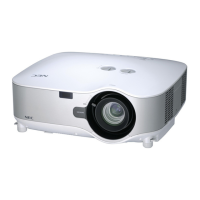
NEC NP1000
144 pages
Print Icon
To Next Page IconTo Next Page
Loading...
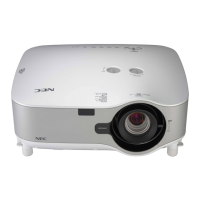
LCD Projector
NP2000/NP1000
Users Manual

Table of Contents

Other manuals for NEC NP1000

Questions and Answers

  • F
    franklindanielAug 16, 2025
    Why my NEC NP1000 does not turn on?
    • N
      Nancy BurkeAug 17, 2025
      If your NEC Projector doesn't turn on, there could be several reasons. First, check that the power cable is properly plugged in and the power button on either the projector or the remote is switched on. Also, make sure the lamp cover is correctly installed. The projector might have overheated due to insufficient ventilation or a warm room; in that case, move it to a cooler spot. If the lamp usage exceeds 2100 hours (or 3100 in Eco mode), replace the lamp and reset the lamp hours. Finally, the lamp may have failed to light, so wait a minute before trying to turn it on again.
  • Z
    Zachary BellAug 22, 2025
    How to fix NEC Projector remote control that is not working?
    • C
      chapmanrichardAug 22, 2025
      If your NEC Projector remote control isn't working, try these steps: install new batteries, ensure there are no obstructions between you and the projector, and stay within 22 feet (7 meters) of the projector. Check if the remote sensors are enabled. If a remote control cable plug is inserted into the REMOTE mini jack, the remote control will not function wirelessly.
  • J
    Joseph BarnesAug 26, 2025
    Why does my NEC Projector keep turning off?
    • A
      ashleyfloresAug 26, 2025
      If your NEC Projector keeps turning off, ensure that the Power Management, Off Timer, and Program Timer settings are disabled. Also, check the lamp usage; if it exceeds 2100 hours (or 3100 hours in Eco mode), replace the lamp and reset the lamp hours used.
  • T
    Tanya KimAug 28, 2025
    How to adjust color tone on NEC NP1000 Projector?
    • K
      Kelly HernandezAug 28, 2025
      If the color tone or hue appears unusual on your NEC Projector, first check if an appropriate color is selected in [Wall Color]. If not, select the correct option. If further adjustment is needed, fine-tune the [Hue] setting in [Adjust].
  • N
    Nichole WarrenAug 31, 2025
    How to fix a blurred picture on NEC Projector?
    • N
      Nicholas MartinAug 31, 2025
      To correct a blurred picture on your NEC Projector, first adjust the focus. Reposition the projector to improve its angle to the screen. Make sure the distance between the projector and the screen is within the lens's adjustment range. If the projector was cold and brought into a warm place, condensation might have formed on the lens; let it stand until the condensation clears.
  • R
    Ricky Parker Jr.Sep 3, 2025
    How to square image to the screen on NEC Projector?
    • C
      Connie IrwinSep 3, 2025
      To correct the image shape on your NEC Projector, reposition the projector to improve its angle relative to the screen. Additionally, use the 3DReform function to correct any trapezoid distortion.
  • X
    xgeorgeSep 6, 2025
    What causes image scrolling on NEC NP1000 and how to fix it?
    • D
      Derek PorterSep 6, 2025
      If the image on your NEC Projector is scrolling, first, use the SOURCE button on the projector or the corresponding buttons on the remote to select your source. If that doesn't resolve the issue, manually adjust the computer image using the Clock/Phase settings located in Adjust > Image Options.
  • J
    John LeonardSep 9, 2025
    How to remove vertical stripes in RGB mode on NEC Projector?
    • C
      churchlorraineSep 9, 2025
      To remove vertical stripes in RGB mode on your NEC Projector, press the AUTO ADJUST button on the projector or the AUTO ADJ. button on the remote control. If the issue persists, manually adjust the computer image using the [Clock]/[Phase] settings under [Adjust] > [Image Options].
  • T
    tonya99Sep 10, 2025
    What to do if there is no picture on my NEC Projector?
    • N
      nobleangelaSep 12, 2025
      If you're not getting any picture on your NEC Projector, start by using the SOURCE button on the projector or the corresponding buttons on the remote to select the correct source. Ensure all your cables are properly connected. Adjust the brightness and contrast in the menus. Make sure the image isn't muted and the lens cap is off. If none of that works, try resetting the settings to factory defaults in the menu. If the Security function is enabled, enter your registered keyword. When connecting a notebook PC, ensure the projector is in standby mode before turning on the PC. If the screen goes blank when using the remote, it might be due to the computer's screen-saver or power management software.
  • M
    Megan ContrerasSep 12, 2025
    Why doesn't my USB mouse work with NEC Projector?
    • R
      Ryan WheelerSep 12, 2025
      If your USB mouse isn't working with the NEC Projector, ensure it's properly connected to the projector. Note that the projector may not support all brands of USB mice.

Summary

1. Introduction

Product Unboxing and Overview

Details the contents of the projector box and provides an initial overview of the product.

Projector Features and Manual Guide

Highlights key features of the projector and explains the structure and purpose of the user's manual.

Projector Part Identification

Identifies and labels the key parts of the projector's front, rear, and bottom.

Carrying and Securing the Projector

Provides instructions on how to safely carry the projector and lock its carrying handle.

Top Features and Terminal Panel Overview

Details the projector's top control buttons and indicators, and the terminal panel layout.

Remote Control Setup and Operation

Covers remote control parts, battery installation, operating range, precautions, and wired operation.

2. Installation and Connections

Projector and Screen Setup

Guides on selecting a location and setting up the projector relative to the screen.

Connecting Computer Sources

Instructions for connecting PCs, Macs, and other computer sources via various ports.

Connecting Video, Audio, and External Monitors

Details on connecting DVD players, VCRs, and external monitors to the projector.

Network Connectivity (LAN)

Explains how to connect the projector to a network via wired or wireless LAN connections.

PC Card Installation and Management

Covers inserting, removing, locking, and managing PC cards like wireless LAN adapters.

Power Cable Connection and Direct Power Off

Instructions for connecting the power cable and using the Direct Power Off feature.

3. Projecting an Image (Basic Operation)

Projector Power On and Startup Screen

Guides on turning on the projector and navigating the initial language selection screen.

Selecting Input Source

Explains how to select the desired input source from the available options.

Image Adjustment and Positioning

Covers adjusting image size, position, focus, and tilt using projector controls.

Keystone and Cornerstone Correction

Details how to correct trapezoidal distortion using Keystone and Cornerstone functions.

Auto Adjust, Volume Control, and Laser Pointer

Explains automatic image optimization, volume adjustment, and using the laser pointer feature.

Turning Off Projector and After Use

Provides procedures for safely turning off the projector and post-use actions.

4. Convenient Features

Picture, Sound, Lamp, and Help Functions

Covers turning off image/sound, freezing pictures, lamp modes, and accessing help.

USB and Remote Mouse Operations

Details using a USB mouse for menu navigation and operating the computer via remote mouse receiver.

Networked Computer Control

Explains controlling the projector via HTTP Server and Desktop Control Utility over a network.

Security Features: Keyword and PC Card Lock

Covers assigning, checking, and disabling the projector's security features.

5. Using the Viewer

Viewer Function Overview and Usage

Introduces the Viewer function, its features, ease of use, and utility software.

Saving Data and Slide Playback

Guides on saving data to PC cards/USB and performing slide playback using the Viewer.

Viewer Menu, Window Elements, and Options

Details the Viewer's menu commands, window elements, and setting options.

Exiting Viewer and Background Logo

Instructions for exiting the Viewer function and changing the background logo.

6. Using On-Screen Menu

Menu Navigation and Source Selection

Explains how to navigate menus, select sources, and use menu elements.

Adjusting Picture Settings

Covers picture modes, presets, detail settings, brightness, contrast, color, and hue adjustments.

Image Options and Video Settings

Details clock/phase adjustment, horizontal/vertical position, blanking, overscan, aspect ratio, and video settings.

Setup Options and Network Configuration

Covers Keystone, Wall Color, Lamp Mode, Menu Mode, Language, and LAN Mode settings.

Resetting and Information Menus

Explains how to reset settings and view projector information like usage time and network status.

7. Maintenance

Filter Maintenance

Provides instructions for cleaning or replacing the projector's air filter.

Cabinet and Lens Cleaning

Guides on how to clean the projector's exterior cabinet and lens properly.

Lamp Replacement and Resetting Hours

Details the procedure for replacing the projector lamp and resetting the lamp usage hours.

8. Using Optional Lenses

Optional Lens Throw Distance and Screen Size Guide

Provides a table and formulas for selecting lenses based on screen size and throw distance.

Lens Shift Adjustment and Replacement

Explains the lens shift adjustable range and the procedure for replacing optional lenses.

9. Appendix

Troubleshooting Guide

Helps resolve common projector issues using indicator messages and problem/solution checklists.

Product Specifications and Dimensions

Lists detailed optical, electrical, mechanical, and environmental specifications of the projector.

Connector, Signal, and Control Information

Provides details on input connector pin assignments, compatible signals, and PC control codes.

TravelCare Service Program

Information about the international warranty, service options, and terms for travelers.

NEC NP1000 Specifications

General IconGeneral
Matrix size0.8 \
Heat dissipation1484 BTU/h
Vertical scan range48 - 120 Hz
Projection technologyLCD
Digital gamma correctionYes
Screen size compatibility30 - 500 \
Projector native resolutionXGA (1024x768)
I/O ports1 x mini D-sub 15 pin; 1 x 5 BNC 1 x mini D-sub 15 pin
Audio input3 x 3.5 mm
Aspect ratio4:3
RS-232 ports1
Dimensions (WxDxH)399 x 358 x 150 mm
Power requirements100-120 V/200-240 V AC; 50/60 Hz
Connectivity technologyWired
Lamp power280 W
Light source typeLamp
Service life of light source2000 h
FocusManual
Focal length range24.4 - 32.5 mm
RMS rated power10 W
Number of built-in speakers2
Serial interface typeRS-232
USB 2.0 ports quantityUSB 2.0 ports have a data transmission speed of 480 Mbps, and are backwards compatible with USB 1.1 ports. You can connect all kinds of peripheral devices to them.
CardBus PCMCIA slot typeType II
Component video (YPbPr/YCbCr) in3
Noise level30 dB
Remote control typeRD424E
SafetyCE, TÜV, GS
Power consumption (standby)16 W
Power consumption (typical)435 W
PlacementCeiling
Weight and Dimensions IconWeight and Dimensions
Weight7300 g

Related product manuals