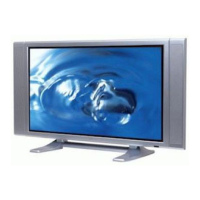
This document outlines the operation and maintenance of the NEC PX-42VR5W plasma monitor, a 42-inch wide VGA display designed for various applications. The manual provides comprehensive instructions for installation, basic operations, on-screen menu (OSM) controls, function settings, external control, pin assignments, and troubleshooting.
Function Description
The NEC PX-42VR5W plasma monitor is a versatile display capable of presenting images from a wide range of input sources, including RGB, NTSC, PAL, SECAM, HD, DVD, and DTV signals. It supports various resolutions and aspect ratios, allowing for flexible integration into different environments. The monitor features advanced color processing with 4,096 steps and 68.7 billion colors, ensuring vibrant and accurate image reproduction.
The device offers multiple input terminals for both analog and digital signals. For RGB, it includes a mini D-sub 15-pin connector (Visual 1 Analog) and BNC connectors (Visual 2 Analog), which can also be configured for HD/DVD input. A DVI-D 24-pin connector (Visual 3 Digital) is available for digital signals, compatible with HDCP. Video inputs include BNC, RCA, and S-Video. For DVD/HD/DTV, it supports RCA-pin and BNC connectors. Audio inputs are provided via stereo RCA jacks, with selectable input sources. External control is facilitated through a D-sub 9-pin RS-232C connector, enabling remote operation and system integration. The monitor also includes built-in sound output with 8W+8W at 6 ohm.
Usage Features
The PX-42VR5W plasma monitor is designed for user-friendly operation, offering both front panel controls and a remote control for convenience.
Basic Operations:
- Power On/Off: The monitor can be turned on and off using the Power button on the unit or the POWER ON/STANDBY button on the remote control. The POWER/STANDBY indicator changes from red (standby) to green (on).
- Volume Control: Audio volume can be adjusted using the VOLUME UP/DOWN buttons on the remote control or the unit.
- Mute Function: The MUTE button on the remote control allows for quick muting and unmuting of audio.
- Display Settings: The DISPLAY button on the remote control cycles through source settings on the screen.
- Digital Zoom: The ZOOM (+/-) buttons enable digital magnification and adjustment of picture position.
- Off Timer: The OFF TIMER function allows users to set the monitor to turn off automatically after 30, 60, 90, or 120 minutes. The remaining time can be checked, and the timer can be canceled.
Wide Screen Operations:
The monitor supports various screen sizes, including NORMAL (4:3), ANAMORPHIC, STADIUM, ZOOM, 2.35:1, and 14:9, which can be selected using the WIDE button on the remote control. This feature is particularly useful for viewing videos, digital video discs, and computer signals, allowing users to optimize the display for different content and aspect ratios. For instance, the 2.35:1 mode expands squeezed film images to fill the entire screen, while ANAMORPHIC expands horizontally compressed images with correct linearity.
The OSM provides access to a wide array of settings, organized into main menus: PICTURE, AUDIO, IMAGE ADJ., SET UP, FUNCTION, and SIGNAL INFO.
- Picture Settings Menu: This menu allows users to store and recall up to six picture memory settings, adjust contrast, brightness, sharpness, color, tint, and apply noise reduction (NR-1, NR-2, NR-3). It also includes settings for color temperature (LOW, MIDDLE LOW, MIDDLE, HIGH), white balance (GAIN RED/GREEN/BLUE, BIAS RED/GREEN/BLUE), Gamma Curve (2.1-2.4), Low Tone (AUTO, 1-3), Set Up Level (0%, 3.75%, 7.5%), Color Tune (RED, GREEN, BLUE, YELLOW, MAGENTA, CYAN), Cinema Mode (ON/OFF), and Picture Mode (DEFAULT, THEATER1/2, NORMAL, BRIGHT).
- Audio Settings Menu: Users can adjust bass, treble, and left/right balance. It also allows for allocation of audio connectors (AUDIO INPUT1/2/3) to various video inputs (VIDEO1/2/3, HD/DVD1/2/3, RGB1/2/3).
- Image Adjust Settings Menu: This menu controls aspect mode (ZOOM, NORMAL, ANAMORPHIC, STADIUM, 14:9, 2.35:1), vertical and horizontal position (V-POSITION, H-POSITION), vertical and horizontal height/width (V-HEIGHT, H-WIDTH), Auto Picture (ON/OFF), Fine Picture, and Picture ADJ. These settings help correct image flickering and striped patterns, especially for RGB signals.
- SET UP Settings Menu: This menu includes language selection (English, German, French, Spanish, Italian, Swedish, Chinese, Russian), BNC Input settings (RGB, COMPONENT, SCART1/2), D-SUB Input settings (RGB, SCART3), HD Select (1080I, 1035I, 540P), RGB Select (AUTO, STILL, MOTION, WIDE1/2/3, DTV), DVI Set Up (PLUG/PLAY, BLACK LEVEL), Color System (AUTO, PAL, SECAM, NTSC, etc.), Background (BLACK, GRAY), Gray Level (0-15), S1/S2 (AUTO/OFF), Display OSM (ON/OFF), OSM ADJ. (TOP LEFT/CENTER/RIGHT, BTM LEFT/CENTER/RIGHT), and ALL RESET.
- Function Settings Menu: This menu offers power management (ON/OFF) for computer images, Input Skip (ON/OFF) for skipping signals not present, and PDP Saver functions to reduce burn-in. PDP Saver includes Peak Bright (100%, 75%, 50%, 25%), Orbiter (OFF, AUTO1/2), Inverse/White (OFF, INVERSE, WHITE), Screen Wiper (ON/OFF), Soft Focus (OFF, LEVEL1-4), OSM Orbiter (ON/OFF), and OSM Contrast (LOW, NORMAL).
- Signal Information Menu: This menu displays current input signal frequencies, polarities, and resolution.
External Control:
The monitor can be controlled externally via an RS-232C interface, allowing for integration into larger control systems. The manual provides details on communication parameters (asynchronous, RS-232C, 9600 bps, 8 bits, Odd parity, 1 stop bit, Hex code) and a list of external control codes for various functions like power on/off, input switching, audio mute, picture mode, screen mode, and auto picture.
Maintenance Features
The manual emphasizes the importance of proper installation and regular cleaning to ensure the longevity and optimal performance of the plasma monitor.
Installation:
- Ventilation: Adequate space must be left around the monitor for heat dispersion to prevent internal heat build-up and activation of the overheat protector.
- Safety Metal Fittings: Safety metal fittings and screws are provided to fasten the unit to a wall, preventing tipping due to external shock.
- Cable Management: Cable clamps are included to bundle signal and audio cables at the back of the unit, ensuring a tidy and secure setup.
- Ferrite Cores: For computer connections, RGB cables with ferrite cores on both ends are recommended. Supplied ferrite cores should be attached to DVI and power cables to ensure compliance with mandatory CE or C-Tick standards.
Cleaning Procedure:
- Front Panel and Bezel: Use a soft, dry cloth. Avoid solvents like alcohol or thinner.
- Ventilation Areas: Clean monthly with a vacuum cleaner with a soft brush nozzle attachment to ensure proper ventilation. More frequent cleaning may be necessary depending on the environment.
Phosphor Burn-in Prevention:
Plasma monitors are susceptible to phosphor burn-in from static images displayed over prolonged periods. To minimize this:
- Screen Saver: Always enable and use the computer's screen saver function when using a computer input source.
- Moving Images: Display moving images whenever possible.
- Menu Display: Change the position of the menu display from time to time.
- Power Down: Always power down the monitor when not in use.
- Long-term Use: For continuous operation, lower Brightness and Contrast levels, display images with many colors and gradations, create content with minimal contrast, and avoid images with few colors and sharply defined borders.
- PDP Saver Functions: The monitor includes specific functions like Peak Bright, Orbiter, Inverse/White, Screen Wiper, and Soft Focus, designed to reduce the likelihood of burn-in.
Troubleshooting:
The manual includes a comprehensive troubleshooting guide to address common issues such as mechanical sounds, disturbed pictures, remote control malfunctions, no sound/picture, poor picture quality, and unstable images. It provides checks and remedies for various symptoms, including power management status, cable connections, input settings, and environmental factors. For critical issues like blinking power/standby indicators, users are advised to promptly switch off the unit and contact an authorized service center.


 To Next Page
 General