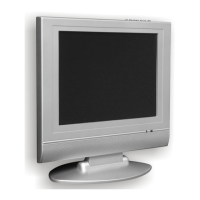
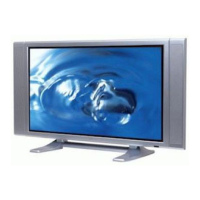
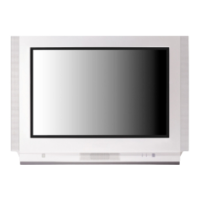
This document is an instruction manual for NEC Colour Televisions, specifically models N-3481, N-4881, and FS-5172. It provides comprehensive information on the operation, features, and maintenance of these television sets.
Function Description
The NEC Colour Television is designed for receiving and displaying television broadcasts. It offers various functionalities for viewing, sound control, and customization. The television can connect to external equipment such as VCRs, DVD players, camcorders, and video game consoles, expanding its utility beyond standard broadcast reception. It also integrates Teletext functionality, allowing users to access text-based information services.
Important Technical Specifications
The manual provides a detailed specifications table for the NEC Colour Television models:
- TV Standard: PAL/SECAM-B/G, D/K, I, H, NTSC (AV ONLY). This indicates the television's compatibility with various analog broadcast standards used in different regions.
- Main Voltage: 240V~, 50Hz. This specifies the electrical power requirements for the television.
- Power Consumption:
- N-3481: 49W
- N-4881: 60W
- FS-5172: 68W
These figures indicate the power usage of each model during operation.
- Stand-By Consumption: Under 3W. This shows the minimal power consumed when the television is in standby mode.
- Sound Output Power: 1.5W (80% MOD. at 1KHz THD. 10%). This specifies the audio output capability.
- Channel Coverage: HYPER + CHINA + IVORY COAST.
- VHF L: E2 (45.00MHz) ~ S6 (147.25MHz)
- VHF H: S7 (147.25MHz) ~ S36 (423.25MHz)
- UHF: A37 (431.25MHz) ~ E69 (855.25MHz)
These ranges indicate the frequency bands and channels the television can receive.
- Tuning System: Frequency Synthesizer Tuning System. This describes the technology used for channel tuning.
- Aux. Terminal:
- A/V INPUT (Front/Back)
- A/V OUTPUT (Back)
These terminals allow for connecting external audio/video sources and outputting signals.
- Remote Control Unit: RD-D90 (Requires two 1.5V batteries, type AA size). This specifies the model of the remote control and its power requirements.
- Dimensions (WxHxD):
- N-3481: 366 x 338 x 376mm
- N-4881: 496 x 446 x 464mm
- FS-5172: 516 x 466 x 476mm
These measurements provide the physical size of each television model.
- Weight:
- N-3481: 10.5Kg
- N-4881: 19.5Kg
- FS-5172: 20Kg
These figures indicate the weight of each television model.
The manual notes that specifications may change due to NEC's policy of continuous product improvement.
Usage Features
The NEC Colour Television offers a range of user-friendly features:
- Switching On and Off: The television can be switched on using the MAIN POWER button and CH UP/DOWN buttons on the front panel, or via the OPERATE, CH UP/DOWN, or NUMBER buttons on the remote control. Switching off is done by pressing the OPERATE button on the remote to enter standby mode, or by using the MAIN POWER button for extended periods of disuse. A 6-8 second startup time ensures optimum picture stabilization.
- Remote Control: The remote control unit (RD-D90) requires two 1.5V AA batteries. It provides comprehensive control over all television functions, including channel selection, volume, menu navigation, and special features.
- External Equipment Connection:
- RCA Jack AV (Back): Used to connect VCRs or DVD players. The TV/VIDEO button switches between TV and AV modes.
- A/V Output (RCA Jack): Provides a signal output for recording to a VCR or displaying on a monitor. The output signal mirrors the currently displayed content (RF or AV).
- RCA Jack AV (Front): Convenient for connecting camcorders or video game consoles. The TV/VIDEO button is used to select AV mode. A note clarifies that if both front and rear AV jacks are connected, only one apparatus can be played at a time, requiring the other to be switched off.
- Headphone Jack: A 3.5mm jack for private listening, which mutes the internal speakers when in use.
- Programme Selection:
- Direct Selection: Use the NUMBER buttons (0-9) on the remote control. For two-digit numbers, the second digit must be entered within 2.5 seconds.
- Up/Down Moves: Use the CH UP/DOWN buttons on the remote or the front panel to cycle through channels.
- Sound Control:
- Volume Adjustment: Use the VOLUME UP/DOWN buttons on the remote or front panel.
- Mute: Press the MUTE button on the remote to silence the sound. A mute logo will be displayed on-screen. Pressing it again restores sound.
- Picture Control: The PICTURE/OK button on the remote allows selection between three preset picture settings: Normal I (standard hard picture), Normal II (standard soft picture), and Favourite (user-adjustable). Further adjustments for brightness, contrast, colour, and sharpness are available in the Picture menu.
- Sleep Function: The SLEEP button on the remote allows setting a timer (30, 60, 90, 120 minutes) after which the television will automatically turn off. The remaining time is displayed on the programme status.
- Programme Status Display: Accessed via the CH-CALL button, this displays the programme number, channel name, and current time. It also shows the remaining sleep time if the sleep function is active.
- Menus:
- Main Menu: Accessed by pressing the MENU button. It offers options for PICTURE, FEATURES, and INSTALL. Menus automatically disappear after 25 seconds of inactivity. Navigation is done using CURSOR buttons (UP, DOWN, LEFT, RIGHT), and selection with PICTURE/OK.
- Sub-Menus: Functions within sub-menus are selected with CURSOR UP/DOWN, confirmed with PICTURE/OK, and adjusted with CURSOR LEFT/RIGHT. The MENU button returns to the main menu.
- Picture Menu: Allows adjustment of Brightness, Contrast, Colour, Sharpness, and Tint (for AV NTSC only).
- Features Menu:
- Language: Selects the display language.
- Child Lock: Prevents unauthorized use of the TV. When ON, the standby indicator glows orange, and the TV can only be switched on with the remote control.
- Clock: Sets the TV clock using NUMBER buttons. The clock setting is lost if the TV is turned off with the MAIN POWER button.
- Wake Time: A wake-up function that turns the TV on at a set time to a chosen programme. Only available when the clock is set and the TV is in standby mode.
- Wake PR: Selects the programme number for the wake-up function.
- Install Menu:
- Auto Setup: Automatically searches and stores available channels.
- Edit: Allows editing of the programme list.
- Freq: Displays channel frequency.
- Name: Allows naming channels.
- Program: Displays programme number.
- Store To: Stores programmes to a specified number.
- Programme List Edition:
- Channel Skipping: Allows marking channels to be skipped when using CH UP/DOWN buttons.
- Channel Deleting: Moves deleted programmes to number 99 and shifts others accordingly.
- Manual Channel Settings:
- Choose Starting Point: Selects a programme to begin manual tuning, displaying its number, frequency, and name.
- Channel Searching: Manual tuning using CURSOR RIGHT/LEFT buttons on the "FREQ." function. Tuning stops automatically at the next channel.
- Fine Tuning: Adjusts the signal for better picture/sound quality if broadcasting is poor.
- Enter Station Name: Allows customizing channel names using CURSOR buttons to select and modify characters.
- Store Programme in Memory: Saves current settings to a chosen programme number.
- Front Panel Key Operation: The MENU button on the front panel can access the menu (long press) or switch to AV mode (short press). CH UP/DOWN and VOL UP/DOWN buttons navigate and adjust settings within menus. Some functions like MOVE, DELETE, SKIP, and AUTOSETUP are not available via front panel keys.
- Teletext:
- Switching On/Off: The TELETEXT button (目) toggles Teletext mode.
- Selecting Pages: NUMBER buttons (0-9) enter page numbers. UP/DOWN buttons increment/decrement pages.
- Page Hold: The HOLD button (D) freezes a subpage on screen, preventing automatic updates or switching.
- Colour Buttons (FASTEXT): Red, Green, Yellow, Cyan buttons allow quick access to corresponding pages in TOP/FLOF Teletext.
- Index Page: The INDEX button (D) displays the programme preview or overview page.
- Calling Up Subpage Directly: The SUBPAGE button (◕) allows direct entry of subpage numbers using colour buttons or number buttons.
- Watching Television During Teletext Mode: The CANCEL button (凶) displays the regular TV programme while keeping Teletext information (like page number) visible. Pressing CANCEL again returns to the full Teletext page.
- Doubling Character Size: The SIZE button (图) cycles through character sizes: upper half, lower half, and normal.
- Mix: The MIX button (D) overlays the Teletext page with the aerial channel in the background. Brightness and contrast adjustments in Mix mode also affect TV mode.
- Reveal Answer: The REVEAL button (?) uncovers hidden answers on certain Teletext pages.
- Volume, Brightness Control (Teletext): Repeatedly pressing the MENU button in Teletext mode brings up VOLUME or BRIGHTNESS controls, adjustable with Red, Green, Yellow, Cyan buttons.
Maintenance Features
The manual includes important safeguards and troubleshooting tips to ensure proper operation and longevity of the television:
- Important Safeguards:
- Water and Moisture: Do not install in wet environments (e.g., bathroom) or place liquid containers on the set.
- Heat: Keep away from heat sources.
- Ventilation: Ensure proper ventilation by not blocking openings and maintaining a minimum 10cm gap around the unit.
- Object Entry: Do not insert foreign objects into openings.
- Lightning Striking: Disconnect from mains and aerial during thunderstorms.
- Cleaning: Unplug from mains before cleaning.
- After Moving the Set: If moved in a different direction, turn off the MAIN POWER for at least 15 minutes to avoid a colour strain on the screen.
- Child Safety: Not intended for use by young children without supervision.
- Troubleshooting: A dedicated section helps users diagnose and resolve common issues before seeking service.
- No picture or sound: Check if plugged in, and if volume, brightness, and contrast controls are set to minimum.
- Picture OK, but No Sound: Check if volume control is set to minimum.
- Sound OK, but No Picture: Check if brightness and contrast controls are set to minimum.
- No Colour: Check if colour control is set to minimum.
- Excessive noise in picture: Check for broken/disconnected/damaged antenna cable.
- Diagonal stripes on picture: May be caused by interfering signals (e.g., amateur radio transmitters). Adjusting antenna direction/height or replacing twin lead with coaxial cable may help.
- Picture has "Snow": Check for broken/disconnected/damaged antenna cable. Small dots indicate a weak aerial signal.
- Ghost images: Caused by reflected signals from hills/buildings. Check if antenna direction has changed (e.g., after a storm) and adjust antenna direction/height to minimize ghosts.
The manual emphasizes that checking these items can save time and money by avoiding unnecessary service calls.



 To Next Page
 General