Page 11 of 12
The USB connector needed to connect to the Neets Control
– OsCar is of the type mini USB B 5P. You can either buy this
cable from Neets or via the web (buy a USB A to Mini USB B
5P). The cable type is also widely used for MID devices,
compact cameras and so on.
Troubleshooting
Error indication using LEDs
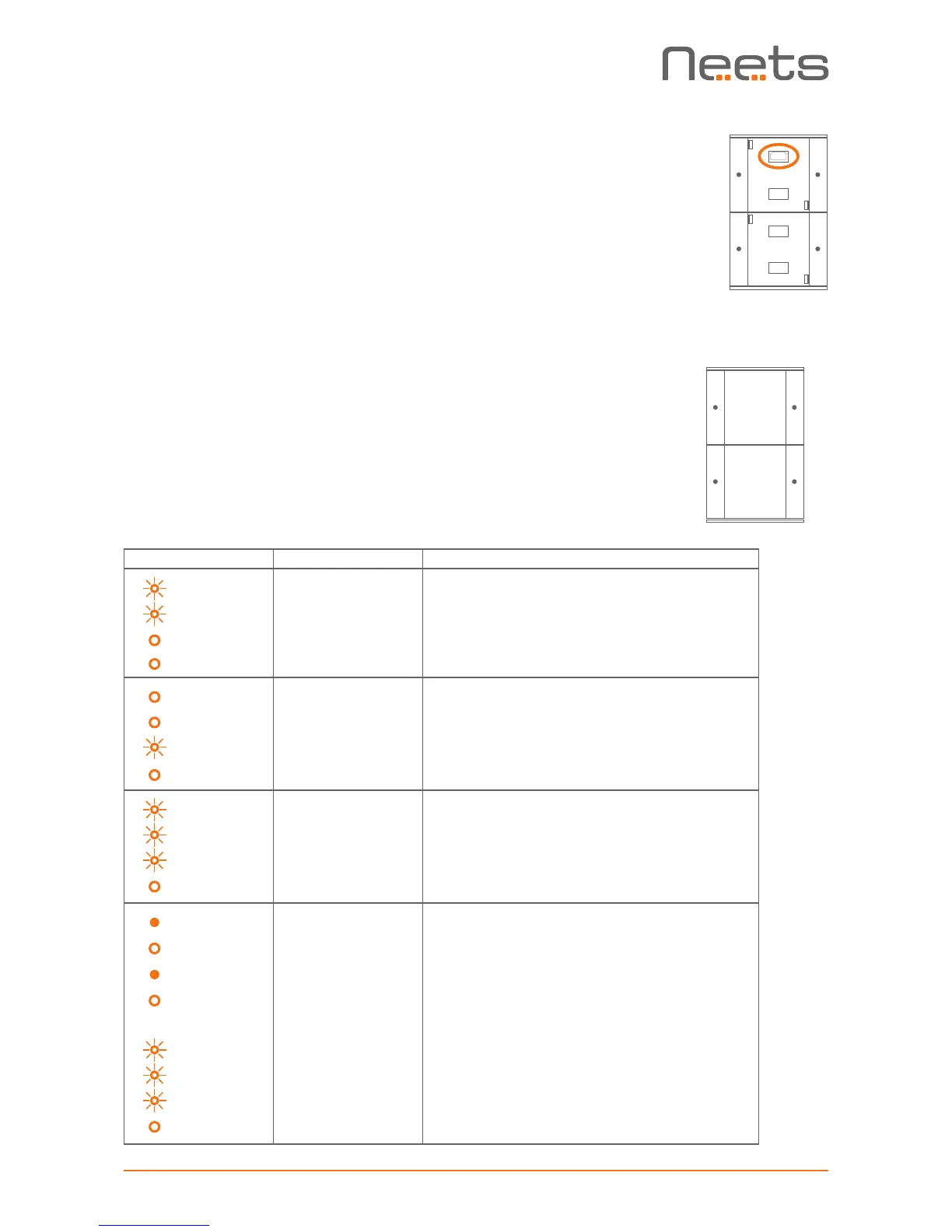
When errors occur the LED will indicate this. The following will
give you a guide to find these errors. In the Neets Control –
OsCar the LED´s are placed here:
MUTE OFF
PC1 PC 2
1
2
3
4
The flashing error descriptions and patterns are described below:
LED shows
Description Solution
1 Flashing
2 Flashing
3 Off
4 Off
Unexpected Error o Turn off the power to the control system for 20 sec before
turning the power on again.
1 Off
2 Off
3 Flashing
4 Off
Error in serial number o You need to return the unit to Neets or your local dealer for
replacement/repair.
1 Flashing
2 Flashing
3 Flashing
4 Off
No project found on the
control system or unable
to start the project
o Try to upload the project again.
o Alternatively, there can be a problem in the project you have
uploaded. In this case, try uploading an empty project and
see if this works.
1 Constant light
2 Off
3 Constant light
4 Off
↓
1 Flashing
2 Flashing
3 Flashing
4 Off
System are resuming
factory default settings
o When pressing Switch 1 and 2 during power on, the system
will delete the current settings and resume factory default.
This method is only intended to be used, if the control
system locks up and enters “Unexpected Error”.



 To Next Page