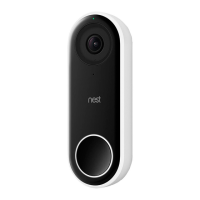
Attach the doorbell to the wall plate. Slide the top of the doorbell up into the plate, then
snap in the bottom. You can remove it later if needed by inserting the special release tool
provided into the small hole at the bottom of the wall plate.
Switch power back on. Then return to the doorbell to finish setup.
7. Allow Nest Hello to update
Nest Hello is a Wi-Fi enabled device and when first connected to Wi-Fi, it will look for a software update.
This should take no more than a minute or two.
8. Test Nest Hello
Press the Nest Hello doorbell button to make sure there is an audible chime at the doorbell, that the
interior chime rings, and that the customer receives a notification via the Nest App (default setting).
9. Help your customer set up Nest Hello in the Nest App
Go into the Nest Hello settings (gear icon) and walk your customer through the available features to
ensure the device is setup to their preferences. Let them know they can subscribe to Nest Aware for
continuous 24/7 recording and intelligent alerts. Advise them to visit nest.com/support for any future
questions about their Nest Hello device.
(1) Manually turn camera on and off.
(2) Turn indoor chime on and off.
(3) Use phone’s location to
automatically turn camera on and off.
(4) Set a schedule to customize when
the camera turns on and off.
(5) Choose types of activity, types of
notifications and when to receive them.
(6) Teach the camera to recognize
people your customer knows.
(7) Enable Google Assistant-enabled
speakers to announce visitors.
(8) Subscribe to keep familiar face
alerts and continuous video history.
a. Tap Settings (gear icon)
b. Explain available features


 To Next Page