Port Forwarding Configuration Guide – Vodafone MachineLink 9 of 12
November 2019 v. 2.1 vodafone.netcommwireless.com
Place device in the Demilitarized Zone
(DMZ)
A device connected to the router may be placed in the DMZ which gives it unrestricted access to the internet. All ports are forwarded to the
device when it is in the DMZ. Placing a device in the DMZ can be useful for testing certain scenarios but is also risky since it puts the client
device in a vulnerable position.
Important – Placing a device in the DMZ puts it in a vulnerable position and is open to potential threats from the internet. It is not
recommended that you leave a device in the DMZ during normal operation.
To place a device in the DMZ:
15 Open a web browser and navigate to the LAN IP address of your router. For the NTC-6000 Series, the default is http://192.168.20.1
.
For NTC-30 and NTC-40 Series, the default is http://192.168.1.1. For NTC-22x series, the default is https://192.168.1.1.
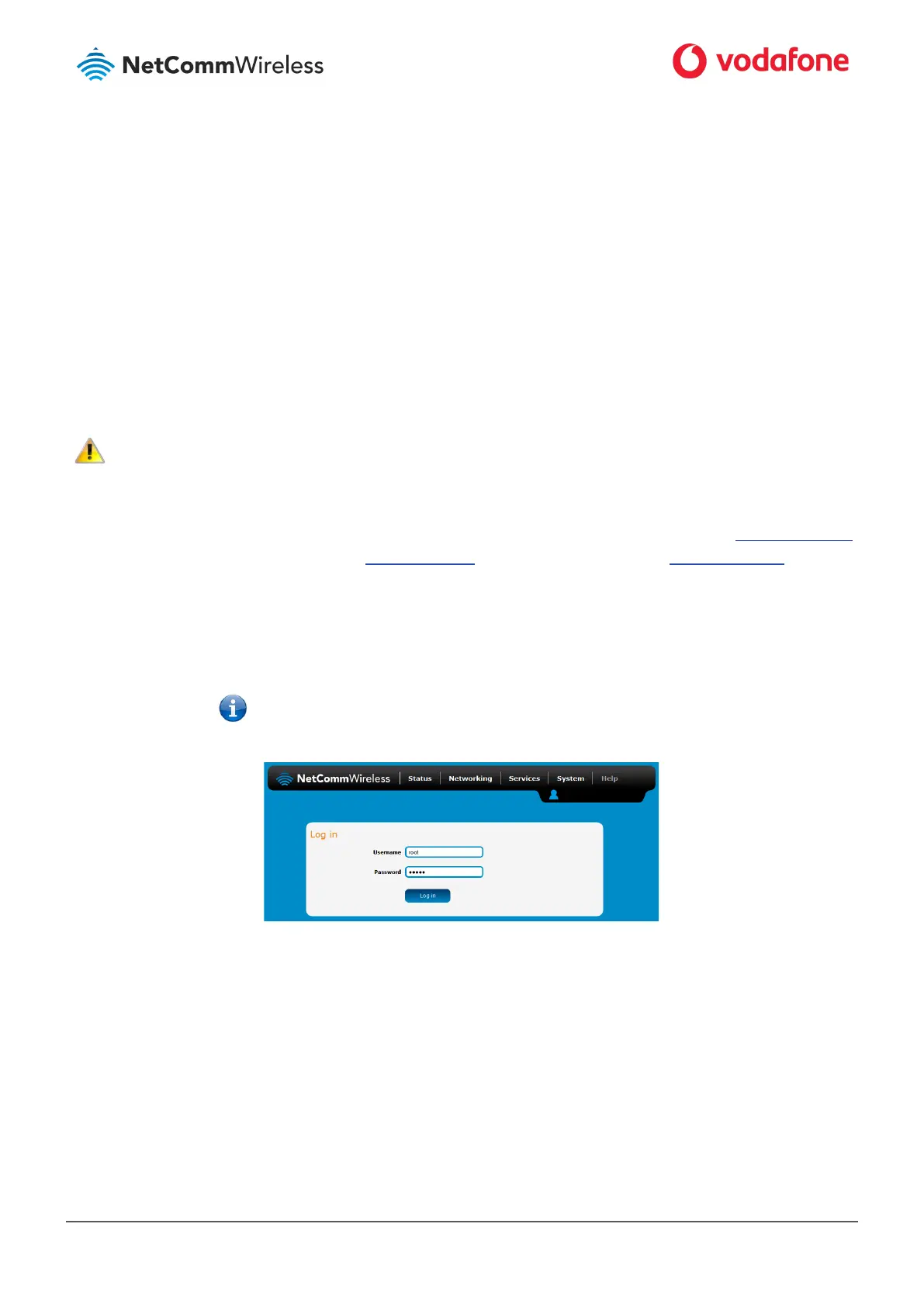
Login to the router with the following credentials:
Username:
root
Password:
Note – Default password is admin which must be changed after first login.
Figure 8: Login page
16 From the menu bar along the top of the screen, select Networking then from the left select the Routing menu followed by the
DMZ option.



 To Next Page