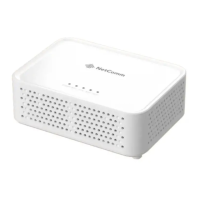
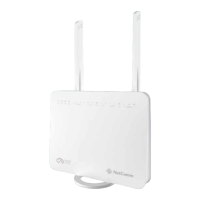
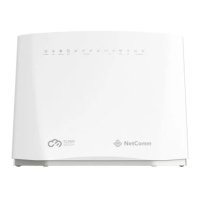
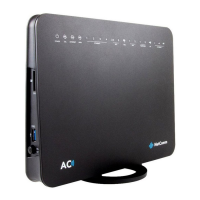
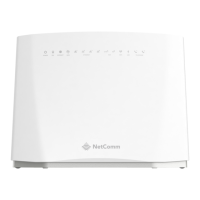
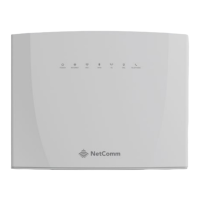
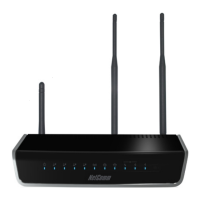
The NetComm Wi-Fi 6 Gateway (CF40MESH) is a versatile device designed to provide high-speed internet access and robust wireless connectivity for homes and small offices. As a Wi-Fi 6 enabled gateway, it leverages the latest wireless technology to deliver enhanced performance, greater capacity, and improved efficiency, especially in environments with multiple connected devices. This device serves as the central hub for your internet connection, routing data traffic and creating a wireless network for your devices.
Function Description:
The primary function of the NetComm Wi-Fi 6 Gateway is to act as an internet gateway, connecting your local network to the wider internet. It supports various internet connection types, making it adaptable to different service provider setups.
- Internet Connectivity: The gateway is designed to connect to your Internet service provider's network. It supports common access types in Australia and New Zealand, including Ethernet WAN for fixed-line technologies like nbn™ FTTP, HFC, FTTC, UFB Fixed Wireless, and Sky Muster™ satellite services. For these services, the gateway uses its red WAN port to connect to a dedicated connection box provided by the access network provider. Additionally, it supports VDSL connections for nbn™ FTTB, FTTN, or VDSL over traditional telephone lines, which may require an optional DSL box.
- Wi-Fi 6 (802.11ax) Technology: The device incorporates Wi-Fi 6, the latest generation of Wi-Fi technology. This means it offers faster speeds, lower latency, and increased capacity compared to previous Wi-Fi standards. It is particularly beneficial in households with numerous smart devices, streaming services, and online gaming, as it can handle more simultaneous connections without significant performance degradation.
- Local Area Network (LAN) Ports: The gateway includes multiple yellow LAN ports (LAN1, LAN2, LAN3, LAN4) for wired connections. These ports allow you to connect devices such as desktop computers, smart TVs, gaming consoles, or network-attached storage (NAS) directly to the gateway using Ethernet cables, providing stable and high-speed connections for bandwidth-intensive tasks.
- Wireless Network Creation: Beyond wired connections, the gateway establishes a wireless local area network (WLAN) using Wi-Fi 6. This allows Wi-Fi-enabled devices like smartphones, tablets, laptops, and smart home devices to connect to the internet and communicate with each other wirelessly.
- Power Management: The device is powered by an external power adaptor that connects to a DC-IN POWER port on the back of the gateway and then to a standard power outlet. It features a power button for easy on/off control.
- Indicator Lights: The front panel of the gateway features several indicator lights (POWER, WAN, LAN, WIFI, WPS) that provide visual feedback on the device's operational status, helping users quickly assess connectivity and activity.
- WPS Button: A WPS (Wi-Fi Protected Setup) button is included, simplifying the process of connecting Wi-Fi devices to the network without manually entering the Wi-Fi password.
Usage Features:
The NetComm Wi-Fi 6 Gateway is designed for straightforward setup and daily use, catering to both pre-configured scenarios and manual configuration.
- Pre-configured Option: For users who receive the gateway from their service provider, the device may come pre-configured and ready for immediate use. In such cases, users are advised to follow their service provider's specific instructions. This streamlines the setup process, making it plug-and-play for many customers.
- Manual Setup: If the gateway is not pre-configured, users can easily set it up themselves. The process involves connecting the gateway to the internet service and then configuring the Wi-Fi settings.
- Connecting to Internet Service:
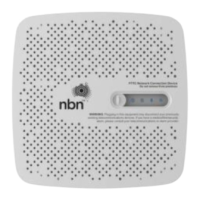
- Ethernet WAN (nbn™/UFB Plan): For services like HFC, FTTP, and FTTC, the setup involves connecting the gateway's red WAN port to the UNI-D port of the nbn™ connection box using an Ethernet cable. It's crucial to wait for the lights on the nbn™ connection box to turn blue (which can take up to 15 minutes) before connecting the Wi-Fi 6 Gateway.
- VDSL (FTTN/FTTB): For FTTN and FTTB connections, an optional DSL box is required. The telephone cable connects from the telephone wall plate to the DSL box, and then an Ethernet cable connects the DSL box to the gateway's red WAN port.
- Powering On/Off: The gateway is turned on or off using the power button located on the back panel. It's recommended to turn off the gateway at the power outlet before making physical connections to the nbn™/UFB hardware.
- Connecting to Wi-Fi:
- Initial Power-Up: After connecting the gateway to the internet service and powering it on, users should wait a few minutes for the device to start up completely.
- Wi-Fi Network Name and Password: To connect wireless devices, users need to enter the Wi-Fi Network Name (SSID) and Wi-Fi Password, which are typically found on a "Wi-Fi Security Card" or a label on the bottom of the gateway. These credentials are case-sensitive.
- QR Code Scan: For added convenience, the Wi-Fi Security Card may include a QR code that can be scanned by smartphones or other compatible devices to automatically connect to the Wi-Fi network, eliminating the need for manual entry.
- Gateway Configuration (Advanced): For more detailed configuration, users can access the gateway's web interface.
- Accessing the Interface: This is done by connecting a device (via Wi-Fi or Ethernet to a yellow LAN port) and opening a web browser. Typing
192.168.20.1 into the address bar and pressing Enter will bring up the login screen.
- Login Credentials: The default username is
admin. The unique password is printed on the label on the bottom of the gateway. After entering the credentials, clicking "Login" grants access to the configuration settings.
- Basic Setup: The interface guides users through a "Basic Setup" process to complete the configuration, which may involve setting up connection type (PPPoE/Dynamic IP/Static IP) and other specifics like VLAN Tag, WAN IP Address, Subnet Mask, and DNS Servers, depending on the service provider's requirements.
Maintenance Features:
The NetComm Wi-Fi 6 Gateway is designed for minimal maintenance, focusing on reliability and ease of troubleshooting.
- Indicator Lights for Status Monitoring: The front panel LEDs (POWER, WAN, LAN, WIFI, WPS) are crucial for basic troubleshooting. For example, the POWER light indicates if the device is on, the WAN light shows internet connectivity, and the WIFI light indicates wireless network activity. Users can quickly identify if there's a problem with power, internet connection, or Wi-Fi functionality by observing these lights.
- Power Cycling: A common troubleshooting step for many network devices, including this gateway, is to power cycle it. This involves turning off the device using the power button or unplugging it from the power outlet, waiting a few seconds, and then turning it back on. This can resolve minor software glitches or connectivity issues.
- Firmware Updates (Implied): While not explicitly detailed in the provided text, like most modern gateways, the NetComm Wi-Fi 6 Gateway would typically support firmware updates. These updates are released by the manufacturer to improve performance, add new features, patch security vulnerabilities, and fix bugs. Users would usually be notified by their service provider or can check the gateway's web interface for available updates.
- Factory Reset (Implied): Most gateways include a factory reset option, often a small button that needs to be pressed with a paperclip. This restores the device to its default settings, which can be useful for resolving persistent configuration issues or preparing the device for a new user.
- Cleanliness: Keeping the device in a clean, well-ventilated area, free from dust and obstructions, helps maintain optimal performance and prevents overheating, contributing to its longevity. The perforated design on the sides suggests the importance of airflow.
- Security Card: The Wi-Fi Security Card serves as a convenient reference for the Wi-Fi Network Name and Password, which are essential for connecting new devices or re-connecting existing ones after a password change or device reset. Keeping this card safe is a simple maintenance practice for network access.
- Service Provider Support: For complex issues or specific service-related problems, users are directed to contact their retail service provider. This highlights that while basic troubleshooting can be done by the user, specialized support is available for more intricate problems.
In summary, the NetComm Wi-Fi 6 Gateway is a modern, user-friendly device that provides reliable and high-performance internet connectivity, designed to be easily integrated into various home and small office network environments, with clear instructions for both initial setup and ongoing use.

 Need help?
 General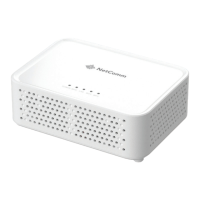

 To Next Page