EasyManua.ls Logo

NETGEAR DGND4000 Premium Edition - User Manual

NETGEAR DGND4000 Premium Edition
160 pages
Print Icon
To Next Page IconTo Next Page
Loading...
350 East Plumeria Drive
San Jose, CA 95134
USA
November 2012
202-11047-01
v1.0
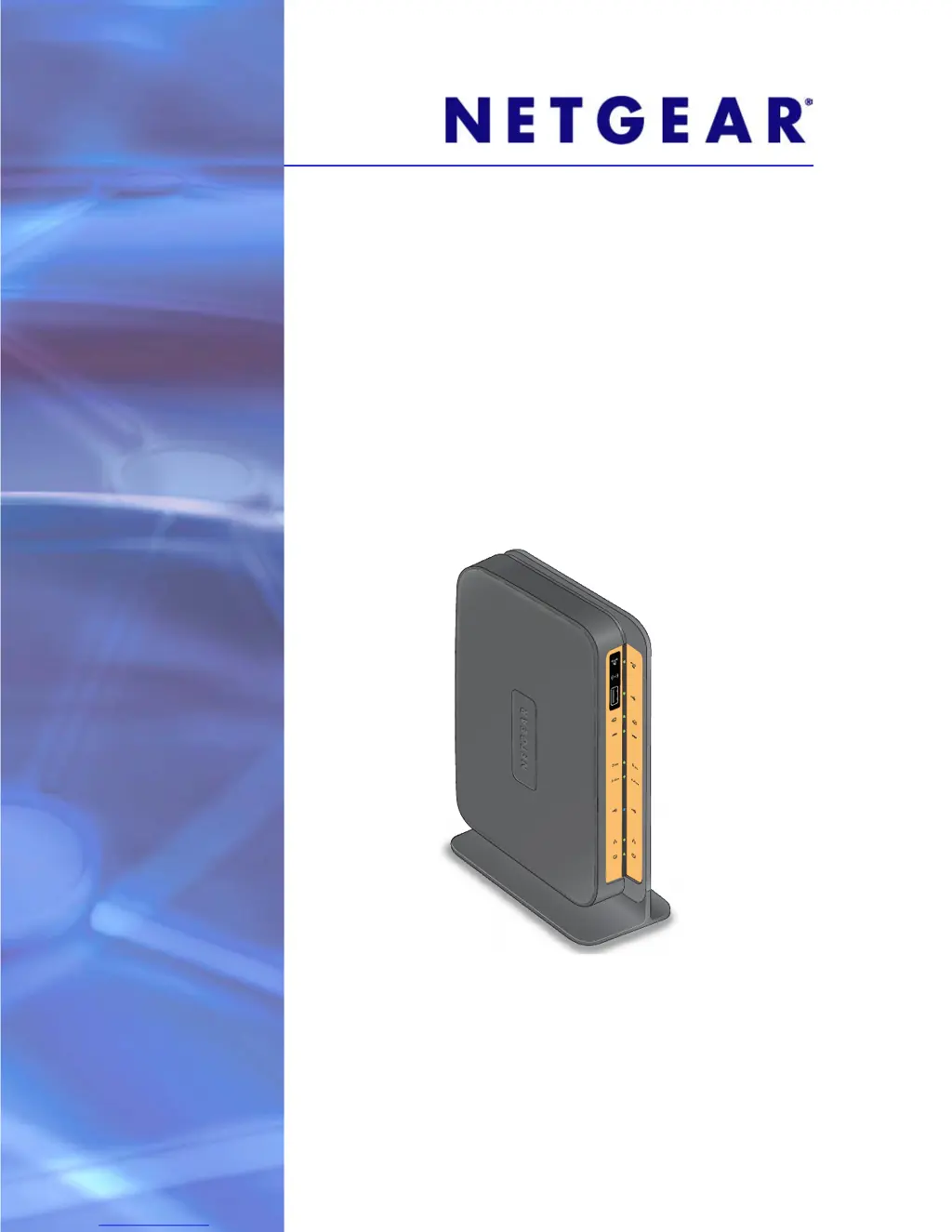
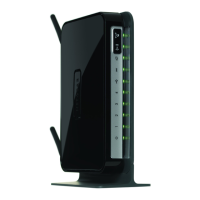
N750 Wireless Dual Band
Gigabit DSL Modem
Router—Premium Edition
DGND4000
User Manual

Table of Contents

Other manuals for NETGEAR DGND4000 Premium Edition

Questions and Answers

  • S
    sarah16Aug 18, 2025
    What to do if I cannot log in to my NETGEAR DGND4000 Premium Edition?
    • J
      Jordan HodgesAug 18, 2025
      Check the Ethernet connection between the computer and the wireless modem router. If your computer’s IP address is shown as 169.254.x.x., check the connection from the computer to the wireless modem router, and reboot your computer. If your wireless modem router’s IP address was changed and you do not know the current IP address, clear the wireless modem router’s configuration to factory defaults. Make sure that your browser has Java, JavaScript, or ActiveX enabled. Try quitting the browser and launching it again. Also, make sure that you are using the correct login information. The factory default login name is admin, and the password is password.
  • J
    Jamie CruzAug 21, 2025
    Why is the wireless signal strength weak on my NETGEAR Wireless Router?
    • K
      kimberly48Aug 21, 2025
      Your wireless modem router might be too far from your computer, or too close. Place your computer near the wireless modem router, but at least 6 feet away, and see whether the signal strength improves. Also, check if your wireless signal is blocked by objects between the wireless modem router and your computer.
  • D
    Donald RangelAug 25, 2025
    What to do if the Power LED stays red on my NETGEAR DGND4000 Premium Edition Wireless Router?
    • L
      Latoya LopezAug 26, 2025
      The wireless modem router might have a problem. Turn the power off and back on to see if the wireless modem router recovers. Alternatively, press and hold the Restore Factory Settings button to return the wireless modem.
  • P
    Pamela RomeroAug 28, 2025
    What to do if wireless LEDs are off on my NETGEAR DGND4000 Premium Edition?
    • C
      Catherine ParkerAug 28, 2025
      Check to see if the Wireless On/Off button on the wireless modem router has been pressed.
  • J
    Jacob MccoyAug 31, 2025
    What to do if Internet or Ethernet Port LEDs are off on my NETGEAR DGND4000 Premium Edition Wireless Router?
    • L
      Louis OwenAug 31, 2025
      Make sure that the Ethernet cable connections are secure at the wireless modem router and at the modem or computer. Ensure that power is turned on to the connected modem or computer. When connecting the wireless modem router’s Internet port to a cable or DSL modem, use the cable that was supplied with the cable or DSL modem.
  • K
    Kristine MosesSep 3, 2025
    How to fix incorrect date or time on my NETGEAR Wireless Router?
    • L
      Laura GeorgeSep 3, 2025
      The wireless modem router might not have successfully reached a network time server. Check that your Internet access is configured correctly. If the wireless modem router does not automatically sense daylight saving time, in the Schedule screen, select the Automatically adjust for daylight savings time check box.
  • J
    jenniferdaviesSep 7, 2025
    What to do if changes are not saved on my NETGEAR Wireless Router?
    • E
      elizabeth02Sep 7, 2025
      When entering configuration settings, always click the Apply button before moving to another screen or tab. Also, click the Refresh or Reload button in the web browser.
  • M
    Monica FrankSep 10, 2025
    What does it mean if the LEDs never turn off on my NETGEAR Wireless Router?
    • J
      Joseph ChavezSep 10, 2025
      There is a fault within the wireless modem router. Cycle the power to see if the wireless modem router recovers. Alternatively, press and hold the Restore Factory Settings button to return the wireless modem router.
  • C
    Carl DavisNov 14, 2025
    Why can't I access the internet with my NETGEAR DGND4000 Premium Edition?
    • W
      walterdennisNov 14, 2025
      Your NETGEAR Wireless Router might not have obtained an IP address from your ISP. Restart your network to force your cable or DSL modem to recognize your new wireless modem router. Alternatively, your Internet service provider (ISP) might require a login program; ask your ISP whether they require PPP over Ethernet (PPPoE) or some other type of login. If your ISP checks for your computer’s host name, assign the computer host name of your ISP account as the account name in the Internet Basic Settings screen. If your ISP allows only one Ethernet MAC address to connect to the Internet, inform your ISP that you have bought a new network device, and ask them to use the wireless modem router’s MAC address. Alternatively, configure your wireless modem router to clone your computer’s MAC address. R...

NETGEAR DGND4000 Premium Edition Specifications

General IconGeneral
BrandNETGEAR
ModelDGND4000 Premium Edition
CategoryWireless Router
LanguageEnglish

Related product manuals