Troubleshooting
100
Orbi High-Performance AC3000 Tri-band WiFi System
4. If the Power LED on the back of the satellite does not light, press the Power On/Off button.
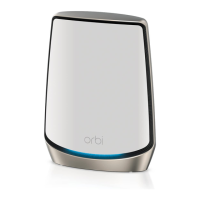
5. Wait for the satellite’s ring LED to light solid white, then pulse white, and then pulse
magenta.
6. Press the Sync button on the router and then press the Sync button on the satellite within
two minutes.
The satellite syncs with the router.
7. Move the satellite to a location closer to the middle of your home.
8. Connect the satellite to a power source.
9. If the Power LED on the back of the satellite does not light, press the Power On/Off button.
10. Wait for the satellite’s ring LED to light solid white, then pulse white, and then pulse
magenta.
Cannot Log In to the Router
Make sure that your computer or mobile device is connected to the Orbi WiFi network. If you
do not want to use a WiFi connection, you can connect your computer to the Orbi router with
an Ethernet cable.
If you changed the admin password and you forgot what it is, see Recover the admin
Password on page 78.
Cannot Access the Internet
Check your network and Internet connections:
1. Make sure that your WiFi-enabled computer or mobile device is connected to the Orbi
network.
2. If you are connected to Orbi but you cannot access the Internet, check to see if your Internet
connection is working.
3. Launch a web browser from a computer or WiFi device that is connected to the network.
4. Enter orbilogin.com.
A login window opens.
5. Enter the router user name and password.
The user name is admin. The default password is password. The user name and
password are case-sensitive.
The BASIC Home page displays.
6. Click the ADVANCED tab.
The ADVANCED Home page displays.



 To Next Page
 Loading...