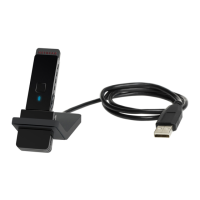
NETGEAR 54 Mbps Wireless USB 2.0 Adapter WG111v3 User Manual
30 Troubleshooting
v1.0, April 2007
Ad Hoc Mode is Not Working Correctly
You must click the Initiate Ad Hoc button before you click Apply. Here is how you start an Ad
Hoc network:
1. Fill in the Network Name (SSID).
2. Select the Computer-to-Computer (Ad Hoc) Network Type.
3. Click Initiate Ad Hoc.
4. Accept the default settings or make your changes, click OK, and then click Apply.
Two WG111v3 icons are in the system tray. You have an older software version installed on your system
and it needs to be removed. See “Removing the Software” on
page 2-9or “Upgrading the Wireless Adapter Software” on
page 2-10.
I can connect to the access point, but not
the other computers on the network or to
the Internet.
This could be a physical layer problem or a network
configuration problem.
1. Check to make sure that the access point is physically
connected to the Ethernet network.
2. Make sure that the IP addresses and the Windows
networking parameters are all configured correctly. See
the link to “Internet Networking and TCP/IP Addressing”
on page B-33
.
3. Restart the cable or DSL modem, router, access point, and
computer.
Viewing the IP address. To view the Wireless Adapter IP address, click the WG111v3
icon to open the Smart Wizard. Then check the IP address in
the About page.
No IP address is assigned to the Wireless
Adapter.
This may occur if you upgraded your Wireless Adapter
software and did not reboot your system.
• Either restart your computer, or connect to a different access
point.
• It does not usually help to shut down the Smart Wizard or
disable/enable the card.
Note: Be sure all computers in your Ad Hoc network are configured with static IP
addresses in the same subnet.
Table 4-1. Troubleshooting Tips (continued)
Problem Action


 To Next Page
 Loading...