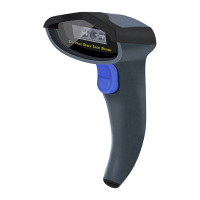
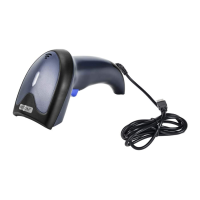
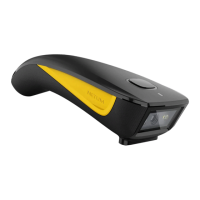
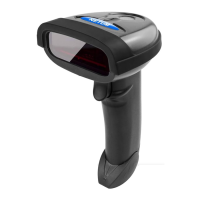
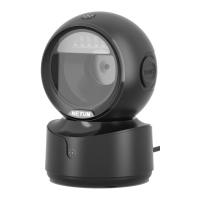
The NETUM Barcode Scanner is a versatile USB wired 1D and 2D barcode scanner designed for plug-and-play operation. It is compatible with various operating systems, including Windows XP, Windows 7, 8, 10, and MAC. The device comes with a Quick Start Setup Guide and one barcode scanner unit.
Function Description:
The NETUM Barcode Scanner is primarily used for scanning and decoding 1D and 2D barcodes. Its plug-and-play functionality allows for immediate use with US keyboards upon connection via a USB cable. For other keyboard types, users need to configure the keyboard language settings before operation.
Usage Features:
Quick Setup Guide:
To get started, simply connect the scanner to your device using the provided USB cable. If you are using a US keyboard, the scanner is plug-and-play and ready for immediate use. For other keyboard languages, refer to the "Keyboard Language" section to configure the appropriate language setting.
Programming Code:
NETUM barcode scanners are pre-programmed with common terminal and communication settings. To modify these settings, users can scan specific barcodes provided in this guide. An asterisk (**) next to an option indicates the default setting. All configurations, except for Factory Defaults, require the following sequence: Scan "Enter Setup" → "Programming Code" → "Exit Setup". If the scanner exits setup mode, no programming codes can be read.
Factory Defaults:
To revert all settings to the factory defaults, scan the "Factory Defaults" barcode.
Keyboard Language:
The scanner supports various keyboard languages. The American keyboard is set as the default. If you are using a US keyboard, no further setup is required. For other languages, such as French, German, Italian, Spanish, Portuguese, Japanese, Czech Republic, Brazil, Russia, Turkey Q, and UK, you must scan the "Enter Setup" barcode, then the barcode for your desired language (e.g., "French Keyboard"), and finally the "Exit Setup" barcode. After setting the language, place the cursor where you want the data to be outputted and begin scanning.
Enable All Symbologies:
By enabling all symbologies, the scanner can decode all types of non-programmed barcodes. To activate this feature, scan the "Enable All Symbologies" barcode.
USB Interface (Optional):
- USB HID-KBW (Default): In this mode, the scanner functions as a Keyboard device, operating on a Plug and Play basis without requiring any drivers. This is the default setting.
- USB COM Port Emulation: If connected via USB, this feature allows the host to receive data as if from a serial port. This mode typically requires a driver. To enable this, scan the "USB COM Port Emulation" barcode.
Scan Mode:
- Trigger Mode (Default): This mode enables the scanner to enter manual trigger mode, where scanning is initiated by pressing a trigger button. To enable this, scan the "Trigger Mode" barcode.
- Auto Sense Mode: In this mode, the scanner automatically detects and scans barcodes without manual triggering. To enable this, scan the "Sense Mode" barcode.
- Continuous Mode: This mode allows the scanner to continuously scan, capture, decode, and transmit data repeatedly. To enable this, scan the "Continuous Mode" barcode.
Terminator:
The scanner provides a shortcut to set the terminating character suffix to CR (Carriage Return) or TAB.
- No Terminator: To disable any terminating character, scan the "No terminator" barcode.
- CR/ENTER (Default): To set the terminating character to Carriage Return/Enter, scan the "**CR/ENTER" barcode.
- TAB: To set the terminating character to TAB, scan the "TAB" barcode.
Symbologies - QR Code Output:
The scanner supports outputting QR Code data to various applications.
- Code Outputted on Notepad or Excel: To output QR Code data to Notepad or Excel, scan the "Code Outputted on Notepad or Excel" command barcode.
- Code Outputted on Word or Wechat: To output QR Code data to Word or Wechat, scan the "Code Outputted on Word or Wechat" command barcode.
Maintenance Features:
Troubleshooting (FAQ):
- Applying or Removing Suffixes: For detailed instructions on applying or removing suffixes, users can visit the official website (https://www.netum.net/) to download the complete manual and refer to the "prefix and suffix" section, or contact customer service for assistance.
- Messy Code Problem with Foreign Languages: The default keyboard language is English. If experiencing messy code issues with other foreign languages, refer to the "Keyboard language" section to configure the correct language.
- Unreadable Barcodes:
- Dirty or unclear barcodes may not be readable.
- Settings for some less commonly used barcode types might be deactivated by default. Users may need to activate specific barcode types to ensure they function correctly. Contact support for further assistance.
- Clean the scanner's window to improve readability.
Support:
For any inquiries, users can contact NETUM support via:
- Telephone: +0086 20-3222-8813
- Whatsapp: +86 136 222 33 974
- Email: service@netum.net
- Address: Room 301, 6th Floor and full 3rd Floor, Building 1, No. 51 Xiangshan Avenue, Ningxi Street, Zengcheng District, Guangzhou, Guangdong, China / 511356
- Website: https://www.netum.net/
- Name: Apex CE Specialists GmbH
- Address: Habichtweg 1 41468 Neuss Germany
- Name: APEX CE SPECIALISTS LIMITED
- Address: 89 Princess Street, Manchester, M1 4HT, UK
The device is Made in China.

 Need help?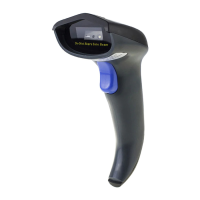

 To Next Page
 General