EasyManua.ls Logo

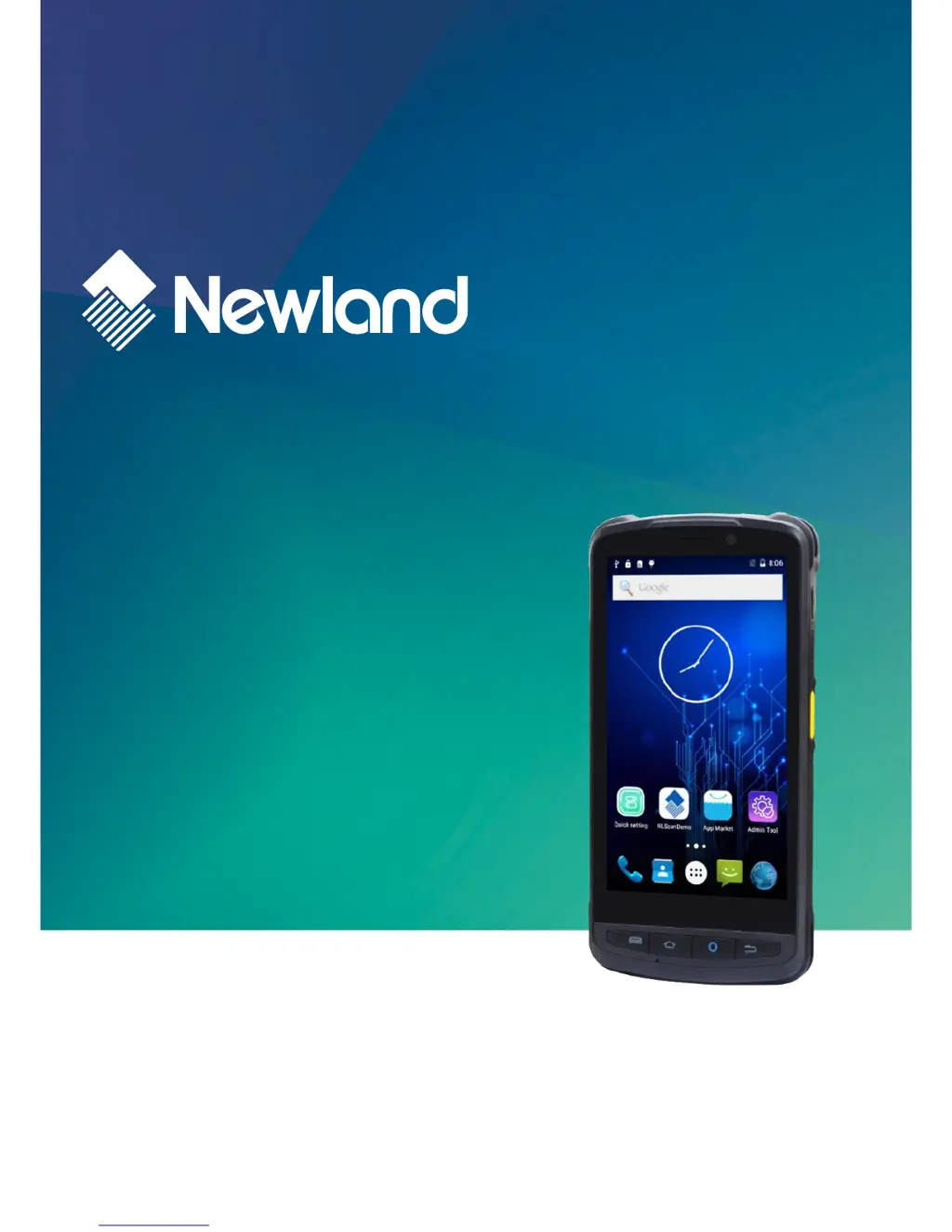
Newland MT90 Orca - User Manual

Newland MT90 Orca
57 pages
Print Icon
To Next Page IconTo Next Page
Loading...
SCANNING MADE SIMPLE
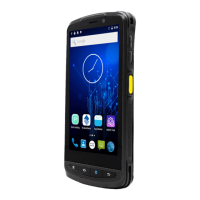
MT90 Orca
mobile computer
user guide

Table of Contents

Other manuals for Newland MT90 Orca

Questions and Answers

Summary

Chapter 1 About This Guide

Introduction

Provides instructions for programming and operating the NLS-MT90 portable data collector.

Documentation Set

Details the available documentation for the MT90, including Quick Start and User Guide.

Chapter Descriptions

Provides a general overview of the manual's content and chapter breakdown.

More Information

Directs users to the official website for additional product and support information.

Chapter 2 Getting Started

Introduction

Lists parts, accessories, and explains initial setup and powering on.

Unpacking

Instructions for carefully unpacking and verifying all items in the package.

Accessories (Optional)

Lists optional accessories available for the MT90 device.

Getting Started

Provides an overview of the MT90 device and its physical components.

The MT90

Detailed diagram and labeling of the MT90 device's physical parts and ports.

Keypad

Explains the function of each key on the MT90, including front, side, and power buttons.

LEDs on the MT90

Describes the meaning of different LED indicators for scan/decode and battery status.

Cradle

Diagram and labeling of the MT90 charging cradle components.

Installing the Battery

Step-by-step guide on how to install the battery into the MT90.

Removing the Battery

Step-by-step guide on how to remove the battery from the MT90.

Charging the Battery

Instructions for charging the MT90 battery using AC adapter or cradle.

Communicating with PC

Steps to connect the MT90 to a PC for file transfer via USB.

Installing the Micro SD Card;SIM Card

Instructions for inserting Micro SD and SIM cards into the MT90.

Chapter 3 Basics

Introduction

Provides the basics of setting up and using the MT90 terminal.

Switching On; Rebooting; Switching Off the MT90

Detailed instructions for powering on, rebooting, and shutting down the MT90.

Locking;Unlocking the MT90

How to lock and unlock the MT90 screen for security and quick access.

Home Screen

Navigating the home screen, opening apps, and managing app icons.

Status Icons

Explanation of various icons displayed in the status bar for device information.

Installing App

Methods for installing new applications on the MT90.

Uninstalling App

Procedure for removing applications from the MT90.

Date & Time

How to set the date and time on the MT90 device.

Display

Customizing display settings like brightness, wallpaper, and sleep timer.

Ringtones

Setting ringtones and notification sounds for the MT90.

Restoring Factory Settings

Procedure to reset the MT90 to its original factory default settings.

Language & Input Method

Configuring language preferences and input methods on the MT90.

Shortcuts to Apps

Creating shortcuts for applications on the MT90's home screen.

Widgets

Managing and adding widgets to the MT90's home screen.

Chapter 4 Scanning Barcodes

Introduction

Provides scanning tips and instructions for setting up the scanner.

Scanning 1 D Barcode

Guidance on optimal distance and angle for scanning 1D barcodes.

Scanning 2 D Barcode

Optimal angles and distance for scanning 2D barcodes.

Programming Scanner

Steps to access and configure scanner settings on the MT90.

Enable scan

How to enable or disable the barcode scanning feature of the MT90.

Output Mode

Configuring how scanned data is outputted (keystroke, API, EditText).

Scan Mode

Selecting between Level, Continuous, and Pulse scan modes.

Scan Trigger

Choosing the scan trigger key (front panel or side keys).

Prefix & Suffix

Setting prefixes and suffixes for scanned barcode data.

Good Read Indicator

Configuring sound, vibration, or LED feedback for successful scans.

Encoding

Selecting character encoding for interpreting barcode data (UTF-8, GBK, ISO-8859-1).

Data Extraction

Extracting specific parts of raw barcode data based on character position.

Character Replacement

Programming character replacements for scanned data.

Symbologies

Enabling or disabling barcode symbologies and setting parameters.

Chapter 5 Bluetooth

Introduction

Describes how to connect the MT90 to other Bluetooth devices.

Pairing Bluetooth Devices

Steps to pair the MT90 with available Bluetooth devices.

Unpair;rename a paired Bluetooth device

How to unpair or rename an already paired Bluetooth device.

Chapter 6 Wi-Fi

Introduction

Describes how to connect the PT60 to a Wi-Fi network.

Join a Wi-Fi network

Steps to connect the MT90 to an available Wi-Fi network.

IP Settings

Configuring IP settings (DHCP or Static) for Wi-Fi connections.

Chapter 7 Mobile Network

Introduction

Explains how the MT90 uses 4G network for internet connectivity.

Turn on cellular network

Steps to enable cellular data and connect to the mobile network.

APN Settings

How to configure APN settings for cellular data connection issues.

Chapter 8 Admin Tool

Introduction

Explains the Admin Tool's purpose: specifying apps users can run.

Setting the Admin Password

Procedure for setting an administrator password for the first time.

Setting the Admin Mode

Configuring app management, autostart apps, and password reset.

Entering;Exiting the User Mode

How to switch between Admin and User modes on the MT90.

Chapter 9 Whitelist Manager

Introduction

Specifies the Whitelist Manager's role in controlling app installations.

Logging in Whitelist Manager

Steps to log into the Whitelist Manager with default credentials.

Chapter 10 Others

Camera

Guide to using the Camera app, its modes, and settings.

GPS

Instructions for enabling and using the GPS feature on the MT90.

NFC (optional)

How to enable and use the NFC feature for reading/writing tags.

Memory Cleanup

Steps to clean up device memory for improved performance.

Chapter 11 System Update

Update the system online

Instructions for performing online system updates for the MT90.

Chapter 12 App Development Guide

Development Environment

Specifies the recommended Android SDK for app development on MT90.

Use of Non-standard Interfaces

Refers to the SDK Handbook for details on non-standard interfaces.

Chapter 13 Maintenance & Troubleshooting

Introduction

Covers safety, handling, and troubleshooting for MT90 issues.

Important Safety & Handling Information

General safety guidelines for using and handling the MT90.

Disassembly and Retrofit

Warning against unauthorized disassembly to maintain warranty.

External Power Supply

Recommendation to use only the included AC adapter to prevent damage.

Abnormal Situation

Actions to take in case of unusual odors, overheating, or smoke.

Drop Damage

Procedure to follow if the terminal is damaged from a drop.

LCD Screen

Precautions for handling the LCD screen, especially when cracked.

Stacking Heavy Objects

Warning against placing heavy objects on the terminal.

Mounting Location

Guidelines on where to place the terminal to avoid hazards.

Wireless Functionalities

Restrictions on using wireless features in certain environments.

Use & Maintenance

General maintenance tips, cleaning, and troubleshooting steps.

Battery Safety Guidelines

Important safety instructions for handling and disposing of batteries.

Troubleshooting

Common problems and their solutions for the MT90.

Newland MT90 Orca Specifications

General IconGeneral
BrandNewland
ModelMT90 Orca
CategoryHandhelds
LanguageEnglish

Related product manuals