Granting Camera Access
If you are having issues getting the camera to be recognized on your system, please try the
following steps depending on your computer type.
For Windows
1. Go to Settings > Privacy > Camera and turn on "Allow apps to access your camera".
2. Select the apps on the list where you want the camera to be used. When the app is open,
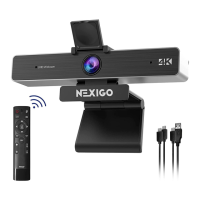
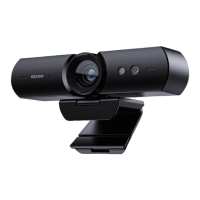
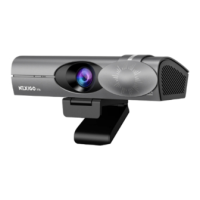
ensure that you have selected the NexiGo Iris 4K Webcam as the active camera and
microphone from the list of available options (or choose your capture card if using HDMI
connection mode).
For macOS
1. Go to the Apple Menu > System Preferences > Security & Privacy, and select the Privacy
tab. Select Camera from the list of options on the left side of the page.
2. Select the apps you want to enable camera access for. Click the box next to the app's
name to enable camera access for that application.
US 01EN 12


 To Next Page