10
Unlocking the Screen
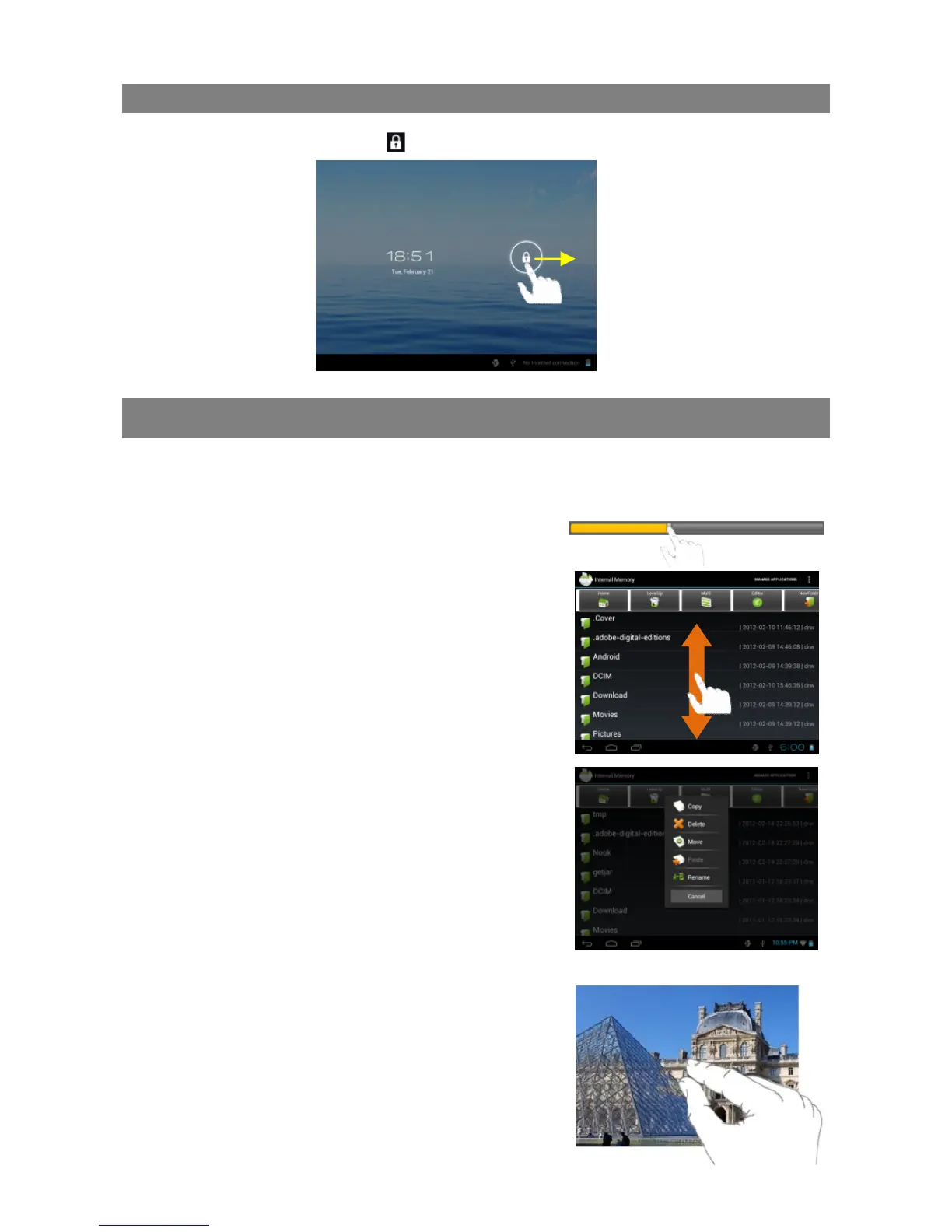
The screen will be locked after the device is idle for a few seconds. You need to unlock the
screen by dragging the lock icon rightwards before you continue to use the device.
Tips on touching screen
Click: Briefly click on an item can open an application or page.
Drag: When watching a video or listening to music, you can tap on the progress
bar to playback any designated section of the file. You can drag the cursor of the
progress bar to any other elapsed time point of
the file.
Slide finger: In different browsers (File, Music,
Video, Photo, etc.), you can hold your finger on
the screen and then drag up and down to scroll
the file list up and down.
Hold finger: In some browsers (File, Music,
Video, Photo, Web etc.), you may hold your
finger on an item to display options.
Pinch finger: You can zoom the page by
pinching your finger.







 To Next Page