EasyManua.ls Logo

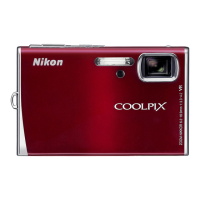
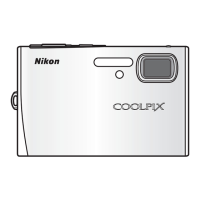
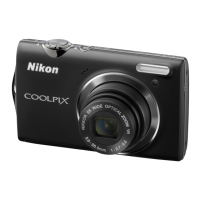
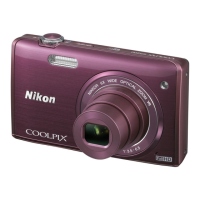
Nikon Coolpix S52 - User Manual

Nikon Coolpix S52
147 pages
Print Icon
To Next Page IconTo Next Page
Loading...
No reproduction in any form of this manual, in whole or in part
(except for brief quotation in critical articles or reviews), may be
made without written authorization from NIKON CORPORATION.
Printed in China
YP8B01(11)
6MMA5811-01
DIGITAL CAMERA
Users Manual
En
En

Table of Contents

Other manuals for Nikon Coolpix S52

Questions and Answers

  • U
    umooreAug 19, 2025
    What to do if my Nikon Coolpix S52 won't take a picture when pressing the shutter button?
    • C
      Calvin GreenAug 20, 2025
      If your Nikon Digital Camera doesn't take a picture when you press the shutter-release button, ensure the camera is in shooting mode (not playback or menu display) and that the battery is charged. If in playback mode, press the c button. If menus are displayed, press the d button. Also, check if the flash is charging.
  • D
    david45Aug 22, 2025
    How to fix a Nikon Digital Camera that cannot focus?
    • M
      michelewolfeAug 22, 2025
      If your Nikon Digital Camera cannot focus, set AF assist in the setup menu to Auto and restart the camera. The subject may be one that the autofocus struggles with. Try turning the camera off and then on again.
  • K
    Kelli BrownAug 25, 2025
    Why did my Nikon Coolpix S52 Digital Camera settings reset?
    • A
      Andrea GutierrezAug 25, 2025
      The camera settings on your Nikon Digital Camera may have reset because the backup battery is exhausted. Replace the backup battery.
  • M
    Melissa ButlerAug 26, 2025
    Why is the monitor blank on my Nikon Digital Camera?
    • S
      Stephanie BarnesAug 26, 2025
      The monitor might be blank on your Nikon Digital Camera for several reasons: the camera is off, the battery is exhausted, the camera is in standby mode, the flash is charging, or the camera is connected to a computer via USB or to a TV via audio/video cable. Check these possible causes.
  • J
    Jennifer SmithAug 28, 2025
    How to fix pictures that are blurred on my Nikon Coolpix S52 Digital Camera?
    • X
      xbrayAug 28, 2025
      If your pictures are blurred, consider using the flash and a tripod for stabilization.
  • D
    Dennis Lawrence Jr.Aug 29, 2025
    What to do if my Nikon Coolpix S52 turns off without warning?
    • V
      Victoria DeanAug 29, 2025
      If your Nikon Digital Camera turns off without warning, the battery may be low or cold, or the camera may have turned off automatically to save power. Check the battery and power settings.
  • C
    Charles CunninghamAug 31, 2025
    How to adjust the monitor when it's hard to read on my Nikon Digital Camera?
    • S
      Sean ThompsonSep 1, 2025
      If the monitor on your Nikon Digital Camera is hard to read, adjust the monitor brightness. Also, ensure the monitor is clean. The monitor may also dim to save power, but it should brighten when the controls are used.
  • R
    Russell DavisSep 2, 2025
    Why does my Nikon Coolpix S52 flash not fire?
    • M
      Mr. Christopher FosterSep 2, 2025
      If the flash on your Nikon Digital Camera does not fire, check the flash settings to ensure it is turned on. Also, some scene modes and D mode might disable the flash. Continuous or BSS selected for Continuous in the shooting menu can also cause this issue.
  • D
    Danielle WrightSep 4, 2025
    How to remove bright specks in pictures taken with flash on my Nikon Coolpix S52 Digital Camera?
    • T
      Timothy GuzmanSep 4, 2025
      If bright specks appear in pictures taken with the flash on your Nikon Digital Camera, it's likely due to the flash reflecting off particles in the air. Turn the flash off to resolve this.
  • D
    Dalton McbrideSep 6, 2025
    Why are the colors unnatural in my Nikon Digital Camera photos?
    • C
      Charles CastilloSep 6, 2025
      If the colors in your Nikon Digital Camera photos appear unnatural, the white balance may not match the light source. Try adjusting the white balance settings.

Summary

Nikon COOLPIX Camera: Parts and Controls

Basic Operations Buttons

Details the function of key buttons like playback, mode, and menu.

Rotary Multi Selector

Explains how to navigate menus and select options using the multi selector.

Getting Started: First Steps

Charging and Inserting the Battery

Covers battery charging procedures and correct battery installation.

Nikon COOLPIX: Mastering Auto Mode Photography

Step 1: Power On and Select Auto Mode

Initial setup for shooting in automatic mode.

Step 2: Framing and Focusing Your Subject

Techniques for composing shots and achieving proper focus.

Step 3: Focus and Shoot Process

The steps involved in focusing and capturing an image.

Nikon COOLPIX: Special Shooting Modes

Nikon COOLPIX: Playback and Media Management

Nikon COOLPIX: Movies and Connectivity

Recording Movies

Instructions for capturing video clips with sound.

Nikon COOLPIX: Camera Settings and Menus

Shooting Options: The Shooting Menu

Detailed settings for various shooting modes and parameters.

Nikon COOLPIX: Technical Information and Support

Troubleshooting and Error Messages

Solutions for common operational problems and error displays.

Nikon Coolpix S52 Specifications

General IconGeneral
Megapixel9 MP
Sensor typeCCD
Image sensor size1/2.5 \
Optical zoom3 x
Focal length range6.3 - 18.9 mm
InterfaceUBS
Digital SLRNo
Built-in flashYes
Dimensions (WxDxH)59 x 21 x 97.5 mm
Effective sensor resolution9000000 pixels
Focal length (35mm film equivalent)38 - 114 mm
Focus adjustmentAuto
ISO sensitivity100, 200, 400, 800, 1600, 3200
Memory slots-
Internal memory38 MB
Compatible memory cardssd
Video formats supportedAVI
Display diagonal3 \
Display resolution (numeric)230000 pixels
Product colorRed
Battery typeRechargeable
Battery life (CIPA standard)200 shots
Number of batteries supported1
Bundled softwareSoftware Suite CD-ROM
Scene modesbeach, dusk, Fireworks, Museum, Night landscape, Night portrait, party (indoor), Portrait, Sports, Sunset, Landscape (scenery)
Photo effectsblack&white, Sepia, Vivid
White balanceauto, Cloudy, custom modes, daylight, flash, Fluorescent, Incandescent
Flash modesauto, Flash off, Red-eye reduction, Slow synchronization
Weight and Dimensions IconWeight and Dimensions
Depth21 mm
Width59 mm
Height97.5 mm
Weight125 g

Related product manuals