6 7
ADVANCED WIRELESS LIGHTING
Radio Control
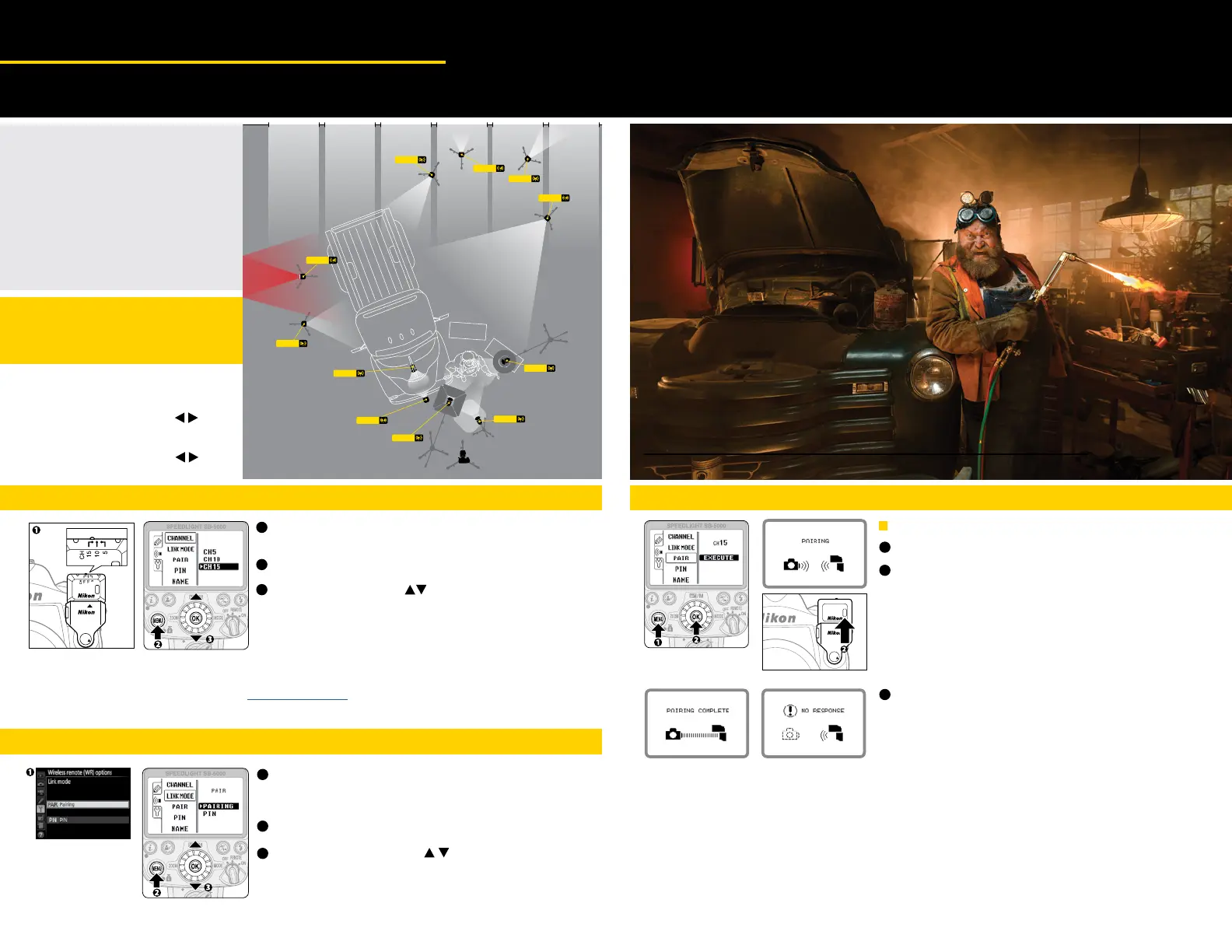
Step 2 - Setting the Channel
Check the channel set on the WR-R10
For details about WR-R10 settings, see the WR-R10 user’s manual.
Choose [CHANNEL] from the wireless item menu.
Press the multi-selector to choose the same channel
as the WR-R10, and then press the OK button.
1
2
3
Pairing:
• Once the SB-5000 and the WR-R10 are paired, it is not necessary to pair them again.
• To use multiple SB-5000 units, each unit must be paired with the WR-R10.
• When another WR-R10 is attached to the camera, re-execute pairing with it.
• Pin Code Pairing: You can set a unique PIN code on each Speedlight.
See page D-14 of the SB-5000 User’s Guide for setting and using a PIN code.
Step 3 - Setting the Link Mode
Check the link mode set on the camera with the
WR-R10 attached
For details about how to check the link mode, see the camera user’s manual
Choose [LINK MODE ] from the wireless item menu.
Press the multi-selector to choose the same
link mode as the camera with the WR-R10
attached, and then press the OK button
1
2
3
Linking and Pairing
Radio Control
with D5 and D500
©Joe McNally
Step 4 - Setting the Link
When link mode is set to pairing
Choose [PAIR] from the wireless item menu
Check that [EXECUTE] is highlighted, and then press
the OK button while pressing the pairing button on
the WR-R10 attached to the camera.
• An execution indicator appears on the LCD and the LINK indicator
flashes slowly in green and orange while pairing.
• The LINK indicator flashes slowly in green if the device to be paired
cannot be found while pairing.
Check that Pairing has succeeded
• When pairing succeeds, a completion indicator appears on the LCD
and the LINK indicator lights up green.
• When pairing fails, an error indicator appears on the LCD and the
LINK indicator flashes slowly in orange. Check the channel and link
mode setting and try again.
• For details about WR-R10 settings, see the WR-R10 user’s manual.
• To complete set-up see next page.
1
2
3
Rim light
for vehicle
SB-5000 tucked
inside engine hood
One SB-5000 to
light inside engine
compartment
D5
SB-5000
in soft box
Bounce light
off reflector
One SB-5000
inside hanging shop light
over tool chest
WALL WITH WINDOWS TO UTILIZE EXISTING NATURAL LIGHT
Rim light for
back of vehicle
Rim light for
side of vehicle,
also defines
hanging shop light
Two SB-5000 placed low
lighting wall
SOLID WALL
Red Gel
SB-5000
SB-5000
SB-5000
SB-5000
SB-5000
SB-5000
SB-5000
SB-5000
SB-5000
SB-5000
SB-5000
Pairing succeeded Pairing failed
1. Photo shooting menu, select flash
control CMD.
2. Using the multi selector press
to the right, Wireless Flash Options.
3. Using the multi-selector press
to the right, select RADIO AWL.
Step 1 - Set Flash Control
for CMD Wireless Flash
Options Radio AWL
NOTE:
WR-R10 Firmware Upgrade Required for units purchased before March 22, 2016
For details on Firmware Updates go to: support.nikonusa.com



 To Next Page