EasyManua.ls Logo

NORWii N26 - User Manual

NORWii N26
18 pages
Print Icon
To Next Page IconTo Next Page
Loading...
The Professional Presenter
- 1 -
Wireless Presenter User Manual
N26/N26S
Be sure to read this user manual
carefully before using the wireless
presenter and keep it for future
reference.
Question and Answer IconNeed help?

Do you have a question about the NORWii N26 and is the answer not in the manual?

Summary

Features

Page Navigation and Presentation Control

Controls for navigating slides, playing presentations, and accessing the black screen.

Key Function Switching

Allows switching page turning keys between arrow keys, Page Down/Up, supporting PowerPoint, Keynote, Prezi.

Integrated USB Receiver Storage

USB receiver can be stored at the rear of the presenter for easy carry and plug-and-play.

Hyperlink Functionality

Tab key equivalent to Tab, Enter for hyperlink, Alt+Tab for window switching.

Laser Safety Compliance

Class 2 safe laser module compliant with IEC/EN60825-1:2014.

USB Compatibility and Plug-and-Play

Supports USB 2.0 with universal driver, plug and play.

Customizable Page Up;Down Keys

Page up/down keys are customizable via Norwii Presenter software; receiver firmware is updatable.

Operation System Support

Package Contents

Wireless Presenter with Receiver

Includes the wireless presenter with the USB receiver stored inside.

User Manual

Contains instructions for using the wireless presenter.

AAA Battery

A single AAA battery is included for powering the device.

Function Description

Power Switch Operation

Instructions on how to turn the presenter on and off using the power switch.

Page Up Key Functionality

Details on clicking for page up and long-pressing for slide show start/black screen.

Page Down Key Functionality

Describes clicking for page down and long-pressing for black screen entry/exit.

Physical Laser Key

How to turn the laser beam on and off by pressing and releasing the physical laser key.

Hyperlink and Window Switching

Explains using Tab, Enter, and Alt+Tab for hyperlinks and switching active windows.

Software Compatibility

Confirms support for PowerPoint, Keynote, Prezi, and other software with page up/down functions.

Page Up;Down Key Function Switching

Details on cycling through key functions (arrow keys, Prezi, browser) by pressing page up/down simultaneously.

Installation

Battery Installation

Guide on installing a No. 7 AAA battery into the presenter.

USB Receiver Installation

Instructions for plugging the USB receiver into a USB port for automatic driver installation.

Controlling the Presenter

How to control the wireless presenter by operating its keys.

Turning Off the Presenter

Procedure for turning off the wireless presenter.

Frequently Asked Questions (FAQ)

Downloading Software and Pairing

Instructions for downloading software and pairing the presenter with the USB receiver.

Checking Battery Status

How to determine if the battery is low or depleted based on LED indicators and laser output.

Troubleshooting Laser Pointer Issues

Steps to diagnose why the laser pointer may not be working or is dim.

Addressing Dim Laser Beam

Explains that a dim laser is usually due to low battery and how to resolve it.

Troubleshooting USB Device Detection

Steps to resolve issues where the computer does not detect the USB receiver.

Calibrating the Presenter

Procedure for calibrating the presenter when the mouse cursor moves erratically.

Presenter Not Controlling Computer

Reason why the presenter may not control the computer and how to re-pair the receiver.

Adjusting Settings on macOS

Instructions for adjusting Norwii Presenter settings on macOS.

Certifications

Product Support

Overview

This document describes the N26/N26S Wireless Presenter, a professional tool designed to enhance presentations. It emphasizes the importance of reading the user manual carefully before use and keeping it for future reference.

Function Description

The wireless presenter is designed to provide seamless control over presentations, supporting various functions across different operating systems and software.

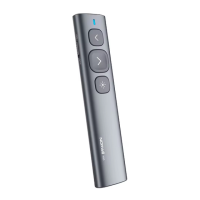
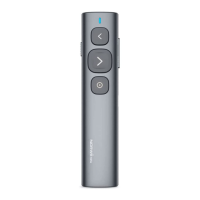
  • Previous/Next Page: The presenter supports navigation to the previous and next pages. A single click on the "page up" key moves to the previous page, while a long press initiates a slide show from the current page. Similarly, a single click on the "page down" key advances to the next page, and a long press activates a black screen.
  • Page Turning Key Switching: The function of the page turning key is highly versatile. It can be freely switched between:
    • Up and down arrows (default, supporting PowerPoint and Keynote).
    • Left and right arrows (for Prezi, activated by pressing page up and page down keys simultaneously for the first time).
    • Page Up and Page Down on the computer keyboard (for internet browsers and Microsoft Photo software, activated by pressing page up and page down keys simultaneously for the second time).
    • The default up and down arrows on the computer keyboard (activated by pressing page up and page down keys simultaneously for the third time).
  • Slide Show Start/End: A long press on the "page up" key starts a slide show from the current page. A subsequent long press on the "page up" key ends the slide show.
  • Black Screen Function: A long press on the "page down" key enters a black screen, and another long press exits it.

Laser Pointer:

  • Physical Laser: The presenter includes a physical laser key. Press and hold this key to activate the laser beam, and release it to turn off the laser beam.
  • Navigation: The "Tab" key allows users to switch between hyperlinks on a page.
  • Opening Hyperlinks: Pressing the "Enter" key opens the selected hyperlink.
  • Closing Windows: A long press on the "Enter" key executes Alt-F4, closing the current active window.
  • Window Switching: Press and hold the "Tab" key to activate the Alt-Tab function, allowing users to switch between open windows. Releasing the button on the desired window switches to that window.

Software Compatibility:

  • The wireless presenter fully supports popular presentation software such as PowerPoint, Keynote, and Prezi. It also supports page up and page down functions for internet browsers and Microsoft Photo software.

Integrated Design:

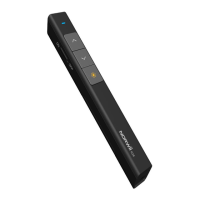
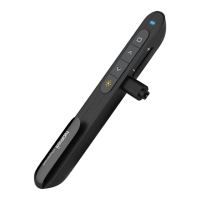
  • The USB receiver is designed to be stored conveniently at the rear of the wireless presenter. This integrated design enhances portability and ensures a plug-and-play experience.

Customization:

  • The page up/down keys can be customized using the Norwii Presenter software, offering a personalized user experience. The firmware of the USB receiver is also updatable.

Usage Features

Power Management:

  • Power Switch: The presenter features a power switch. Pushing it up to "ON" turns on the device, while pushing it down to "OFF" turns it off.

Installation:

  • Battery Installation: The device is powered by a single AAA battery. To install, open the battery cover, insert the AAA battery, and then close the cover.
  • USB Receiver Installation: The USB receiver is stored inside the wireless presenter. To use, take out the receiver and plug it into an available USB port on the computer. The operating system will automatically install the necessary driver.

Operating Systems:

  • The presenter is compatible with Windows 7 / 8 / 10 / 11 or later, macOS, Linux, and Android systems. On Android/Linux systems, it may only support the page turning function.

Input Method Editors (IME):

  • When using the product, it is recommended to change the Input Method Editors (IME) to English input mode for optimal performance.

Maintenance Features

Laser Safety Warning:

  • Laser Beam: This product generates a laser beam. Users are warned not to stare directly into the beam or expose users of telescopic optics to it.
  • Eye Safety: Do not shine the laser beam on people's or animal's eyes to avoid eye damage.
  • Child Safety: The product should not be given to children as a toy.
  • Class 2 Laser Product: The device incorporates a Class 2 safe laser module that complies with IEC/EN60825-1:2014.

Battery Safety:

  • Disposal: Do not throw the product into fire, as the battery may explode.
  • Liquid Exposure: Do not immerse the product in water or any other liquid, as this may cause the battery to explode if short-circuited or damaged.
  • Battery Replacement: The product uses AAA batteries. Replace the battery in a timely manner to ensure proper function.

Troubleshooting and Support:

Battery Status:

  • Low Power Indication: When the battery level is low, the indicator light on the flip pen will flash slowly, signaling that the AAA battery needs to be replaced.
  • No Laser/No Indicator: If the power is on, but the laser button is pressed and no laser is emitted, or if other buttons are pressed and the LED indicator light does not illuminate, it indicates that the battery is out of power or the laser module is damaged. Replace the battery first.

Laser Pointer Issues:

  • Laser Not Working: If the laser does not light up, check if the power switch is on. If the LED flashes slowly, the battery is low. If other functions work but the laser doesn't, the laser module may be broken and require replacement.
  • Dim Laser: A dim laser beam usually indicates low battery power. Replace the AAA battery as soon as possible. If the laser beam remains a red dark spot after replacement, the laser module may be aging, and after-sales repair should be sought.

USB Receiver Detection Issues:

  • Device Not Detected: If the computer does not detect the device when the USB receiver is plugged in, first check if the USB port is functional using a USB mouse or keyboard. If other USB devices work but the presenter's receiver doesn't, the receiver may be broken or the USB drivers are incompatible. Try another USB port on the same computer or on a different computer. If it works on another computer, the original computer's USB drivers are incompatible, and backing up data and reinstalling the OS may be necessary.

Calibration:

  • When to Calibrate: Calibration is required if the mouse cursor moves continuously in one direction without user input, or if the mouse on the computer does not move horizontally or vertically when the product is moved horizontally or vertically, indicating an angle between movement direction and the horizontal/vertical direction.
  • Calibration Process: Place the product on a horizontal and stable surface. Press and hold the "page down" key and turn on the power. The blue LED will flash, indicating entry into calibration mode. Release both hands and keep the product as level as possible. The blue LED will flash for 3 seconds, stop flashing, and remain on for 5 seconds before turning off, signaling that calibration is complete.

Pairing Presenter and USB Receiver:

  • If the laser works and the USB receiver is detected, but the presenter cannot control the computer, it means the USB receiver has not properly saved the presenter's address. Use the Norwii Presenter software to re-save the presenter's address, an operation also referred to as "pairing" the wireless presenter and the USB receiver.

macOS Settings for Norwii Presenter Software:

  • On macOS, users need to grant specific operation permissions for the Norwii Presenter software. This includes adding permissions for [Input Monitoring], [Screen Recording], and [Accessibility] under [System Preferences] - [Security & Privacy] - [Privacy].

NORWii N26 Specifications

General IconGeneral
TechnologyRF 2.4GHz
Laser ColorRed
Page ControlYes
Laser PointerYes
HyperlinkYes
Volume ControlYes
ConnectivityUSB
Control Distance100M
CompatibilityWindows, macOS, Linux

Related product manuals