Chapter 2: Getting started
Note:Yourheadsetremainspairedwithyourdeviceautomaticallyunlessyoumanually
disconnectorunpairit.
Android devices—Android OS
1.
TurnonyourAndroiddevice.
2.
AccessyourQuickSettingsmenubyswipingdownfromthetopofyourscreen.
3.
TaptheBluetoothicon( )toenableBluetooth.
4.
TouchandholdtheBluetoothicon.
5.
TapPair new deviceorlookunderAvailable devices.
Ifyourheadsetdoesn'tappearinthelist,see“Troubleshootyourheadset”onpage29.
6.
TapDragon Bluetooth Headset II.
Whenpairedsuccessfully,theredandblueLEDlightsstopflashing.
Note:Yourheadsetremainspairedwithyourdeviceautomaticallyunlessyoumanuallyunpairit.
Windows devices
1.
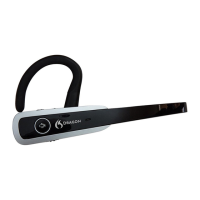
TurnonyourDragonBluetoothHeadsetII.
2.
TurnonyourWindowsdesktoporlaptop.
3.
LaunchSettings>Devices>Bluetooth and other devices.
4.
EnabletheBluetoothsetting.
5.
ClickAdd Bluetooth or other device.
TheAddadevicedialogboxopens.
6.
ClickBluetooth.
YourWindowsdevicesearchesfordiscoverableBluetoothdevices.
Ifyourheadsetdoesn'tappearinthelist,see“Troubleshootyourheadset”onpage29.
15



 To Next Page