NuForce DAC80 Digital to Analog Converter
USB 192kHz/24-bit SETUP & OPERATION
The following guidelines and drivers are for enabling the DAC80 for use with PC or Mac computers in
Asynchronous USB Mode. In most cases, this is the preferred operation for the best possible performance.
Note:
•
The instructions below are required for Windows OS systems. You will ind Mac OS setup instructions following
this section.
Windows OS Installation
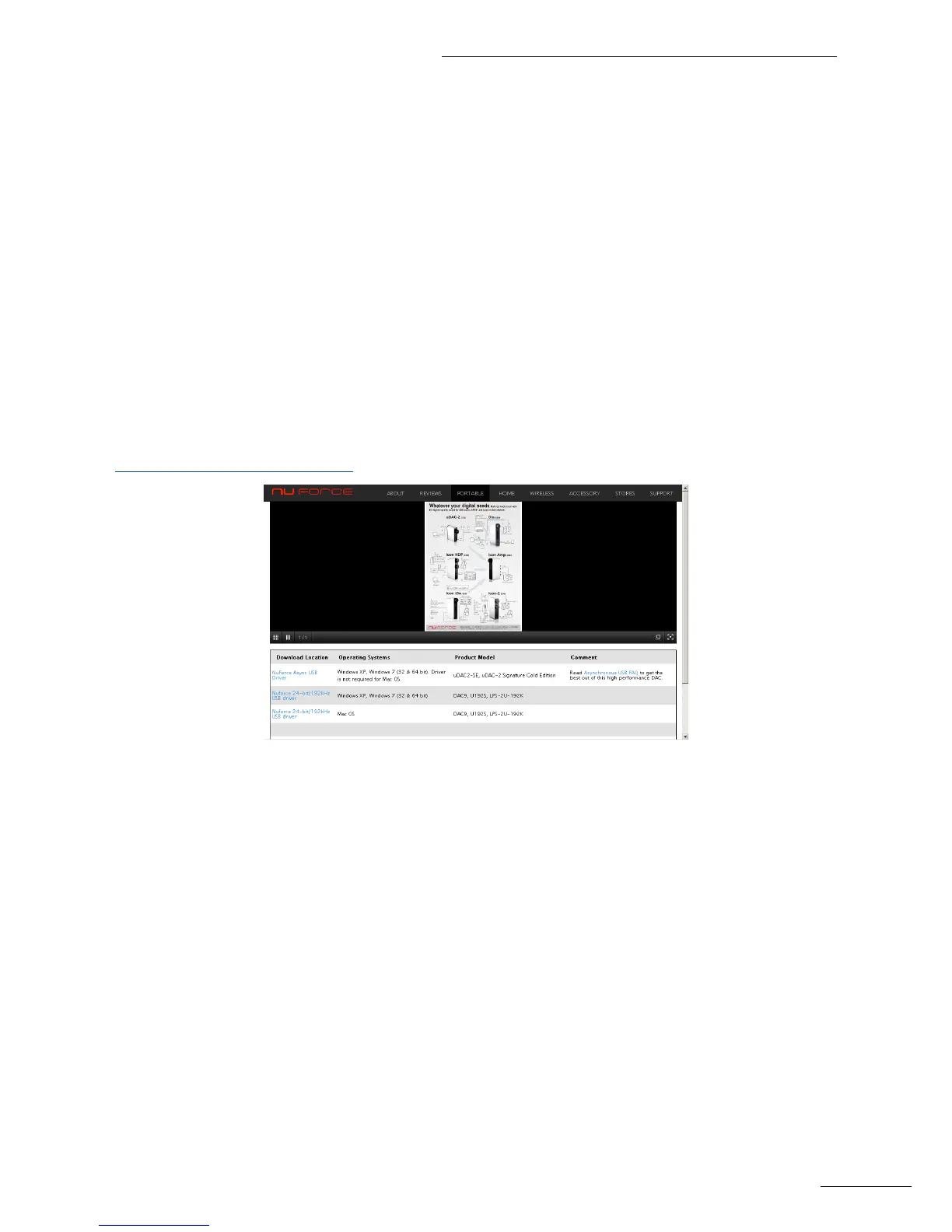
Download Driver
First, you will need to download the required driver from the following location:
http://nuforce.optoma.com/download
Install Driver & Software
After downloading the driver, run the Installation program. After the installation, an icon linking to the NuForce
Stereo Audio Control Panel program will appear on your desktop. For now, move on to the Connect Hardware
step. Detailed information regarding software adjustment will follow.
Connect Hardware
Once the software has been installed, connect a quality USB cable from the computer’s USB port to the input of
the DAC80. After the cable is connected, a window will pop up at the lower-right side of the display that reads:
NuForce Async USB Audio 192K HS installed
Select Playback
Right click on speaker icon at the bottom right and select Playback Devices.
Choose NuForce DAC80 and close window.


 To Next Page