12
Google Play Updates
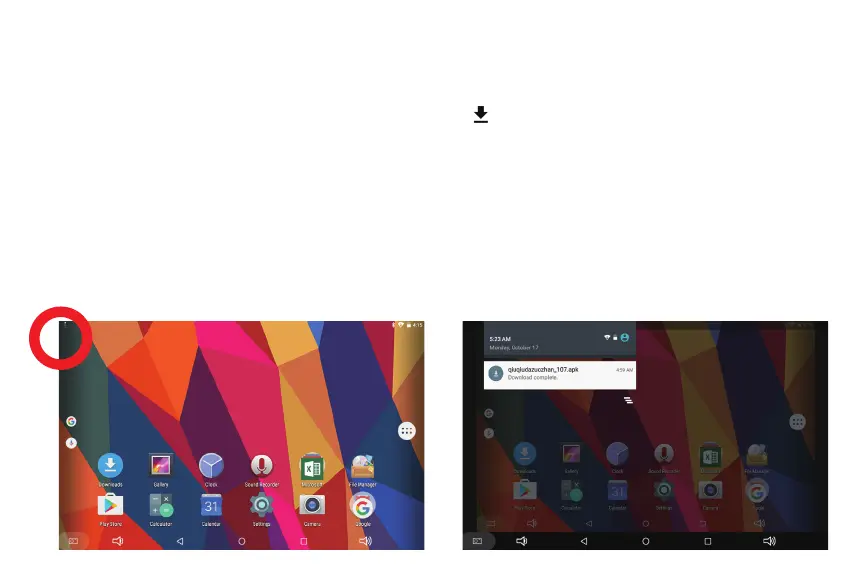
The first time you sign on to Google’s Play Store, updates will automatically start
downloading on to the tablet. The download icon will appear in the top left of screen.
Installing a new application while multiple apps are downloading will reduce tablet speed
and performance. After all downloads and updates have been installed, the tablet will
resume normal operating performance.
To view the progress of downloads working in the background, slide your finger down
from the top edge of the screen. For best performance close unopened applications.
While not in use the opened apps continue to consume battery power thereby reducing
battery life and tablet performance.



 To Next Page