13
1
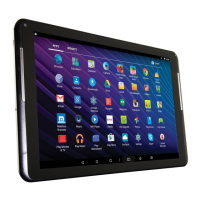
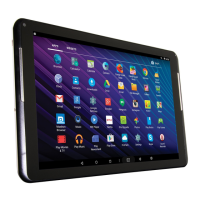
Activity / Downloads: Tap to view. Swipe down to expand to Quick Settings.
2
Tray: Quick app access. Switch between single and multiple app views.
3
App: Application on the home screen. Activate by tapping. Remove by holding
and moving up to “Remove” icon.
4
Go to Previous Page
5
Go to Home Page
6
Overview: See all active/open apps. Swiping to left/right will close the app.
7
App Tray: View all apps available on the tablet.
8
Search: Tap to activate keyboard for search inquiries.
9
Status Bar: Shows battery level, time, WiFi strength and Owner/Guest Status.



 To Next Page