69
Messages
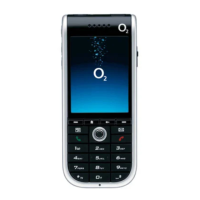
More than just a phone, your O
2
Ice
mobile is a stylish media centre giving you
loads of ways to communicate with
friends, family and colleagues. You can
choose from text and multimedia
messages to really make your point. Or
just to have fun.
•
In the main menu, scroll to Messages
and select by pressing , or press
left or right on the navigation key from
the standby mode, to bring up the short
cut menu and select .
Then select
New text message
The O
2
Ice mobile elevates text messaging
to an art form. Be witty, be outrageous.
Whatever you do you’ll never be boring.
•
Select New text message
Select a contact
•
In the To: screen enter the number of
the person you want to send a text to,
or press and select Add contact to
add a contact(s) from your phonebook
•
Scroll through the list available and
press to select. You can choose
more than one. Once complete press
to select Done
Create your message
•
Scroll down and enter your text message
using the alphanumeric keys. Your
message can be up to a maximum of
456 characters. One standard text
consists of 160 characters.
If you use more than 160 characters in
your text message you’ll be charged for
two or more messages
O2 Active
•
Select O2 Active by pressing and
start browsing, or from the standby
screen press to select O2 Active
For further information on O
2
Active check
out o2.co.uk or read the O
2
Active section
within your welcome pack.
Bookmarks
Use this to store and visit your favourite
web links and save time while browsing.
•
Scroll to Bookmarks and press
to select
We’ve saved some great bookmarks for
you already so you can go direct to the
sites to download the latest wallpapers,
ringtones, videos and games.
•
To create your own bookmarks press
to select Options, then scroll to
Create new and select. Then follow
the prompts
You can also create bookmarks while
browsing. Just go to the site you want to
bookmark and select Options – Bookmarks
– Add Bookmark and follow the prompts.
Enter address
• Select Enter address and type in a web
address you want to visit
• Then press to select Go
History
Select to see what sites have been visited
from your mobile.
• Highlight a site, then select Options and
choose from the following
Details Gives you details of downloads
and other activity
Delete Delete the highlighted web
address
Delete all Delete all web addresses
stored in History
Manage
Provides you with management options
for WAP Profiles, Browser, Memory,
Security and Saved pages.
68


 To Next Page