89
Games
•
Scroll to Games and press
My Games
This is where all the games you have
downloaded will be stored. Select to view
and choose the one that suits your mood!
•
Select My Games and then scroll to the
game that you have downloaded and
select
•
You’re now ready to play
Download
If you want to try something new there’s
lots available.
•
Select Download* – your O
2
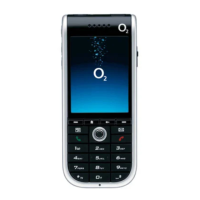
Ice mobile
will connect to O
2
Active. Scroll to
Games Arcade and select to choose
from a wide range of games
to download
Welcome to the era of fast and furious
mobile gaming. The O
2
Games Arcade
brings you full colour, quality games from
classic puzzles to championship footy.
Choose from a variety of categories such
as, action, sport, puzzle and strategy,
racing, arcade and retro, and a lot more.
Games are easy to download and you can
preview them beforehand. You will only
be able to view games that are available
on your mobile.
How to download games
•
Once you are in the Games Arcade you
can choose from the top games, new
releases, best sellers or just click on all
games to see our full catalogue. These
games are all available on the Games
Arcade, some games may not be
available for all devices
•
Select the category you want and a list
of all the available games will appear
on screen
* Standard WAP charges plus download charges may apply. See www.o2.co.uk or check your calling plan for
more details. Terms and conditions apply.
Sending contact details from your
phonebook
•
From the main menu select Contacts
•
Scroll through your contact list and press
to select Options
•
Select Send Business Card – Bluetooth
•
Your O
2
Ice mobile will list phones or
computers that are already paired
•
If the phone or computer you want is
not listed, select Options – Device search
to find more
•
Select the phone or computer you want
and press
•
Enter a PIN code – just ensure the
receiver enters the same PIN you choose
e.g. 0000. If the recipient enters the
same PIN you’ll be paired
•
Select the phone you wish to send to
and press
•
Your contact details will be sent
Sending content
•
From the main menu select Gallery, then
select the media type – Photo’s & Images
/ Sound / Video / Other files
•
Scroll to the item of content you wish
to send
•
Press to select Options – Send by –
Bluetooth
•
Your O
2
Ice mobile will list phones or
computers that are already paired
•
If the phone or computer you want is
not listed, select Options – Device search
to find more
•
Select the phone or computer you want
and press
•
Enter a PIN code – just ensure the
receiver enters the same PIN you choose
e.g. 0000. If the recipient enters the
same PIN you’ll be paired
•
Select the phone you wish to send to
and press
•
Your content will be sent
88


 To Next Page