THUMP PRO USER GUIDE 20
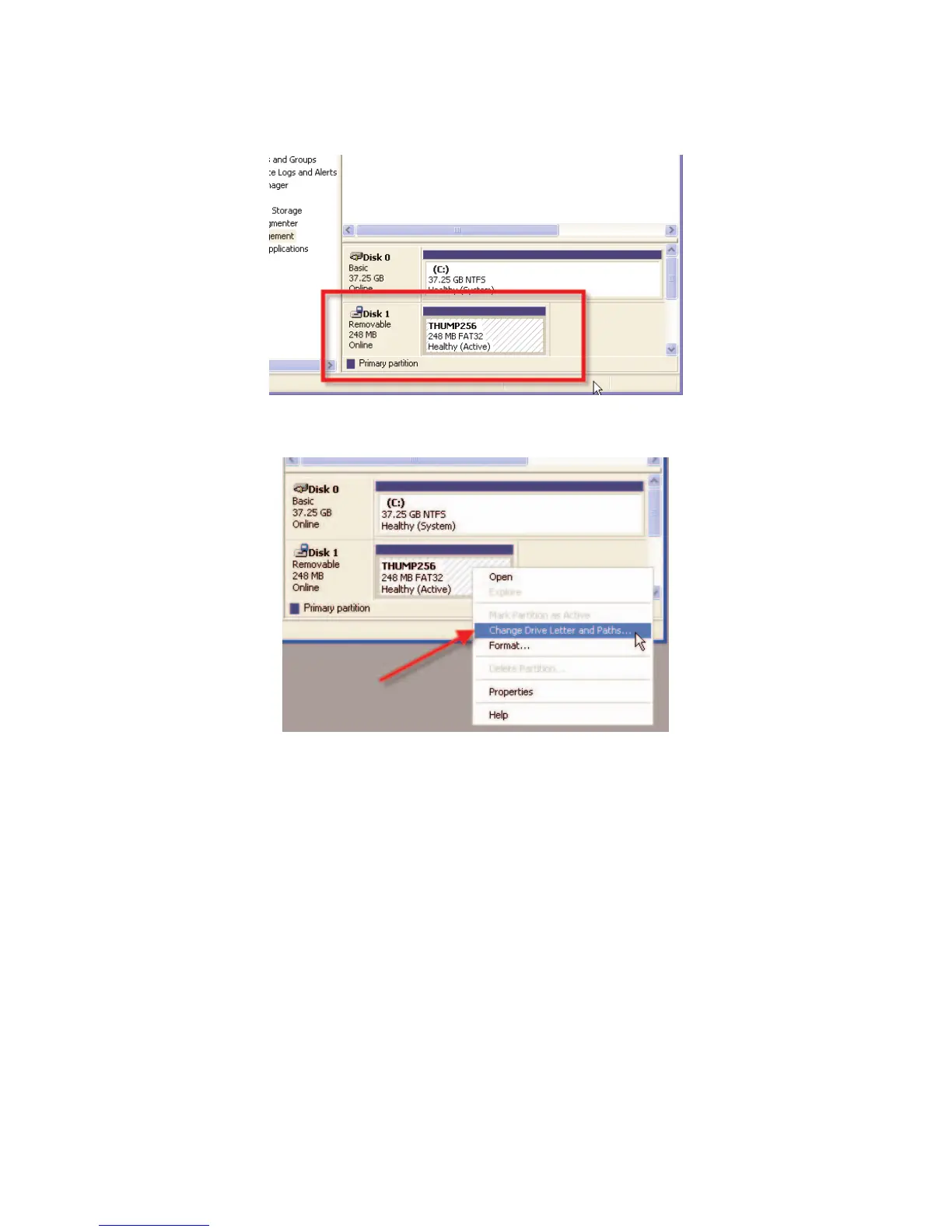
STEP 3: Locate “THUMP Pro” on the lower right portion of the window.
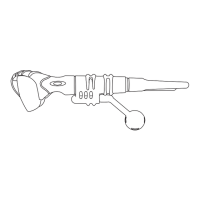
STEP 4: With your right mouse button, click on the THUMP Pro device and select “Change Drive Letter and Paths...”
STEP 5: Click the “Change...” button. (If the “Change...” button is grayed out, click the “Add...” button.)
STEP 6: From the dropdown list on the right, select a drive letter. Be sure the drive letter you choose has not already
been assigned to another device. (If you’re not sure, avoid choosing the first few letters in the list.) Finish by
clicking the “OK” button.
STEP 7: Click the “Yes” button to confirm.
STEP 8: Open “My Computer.” THUMP Pro should now appear as the drive you selected.


 To Next Page