SOLUTION 1
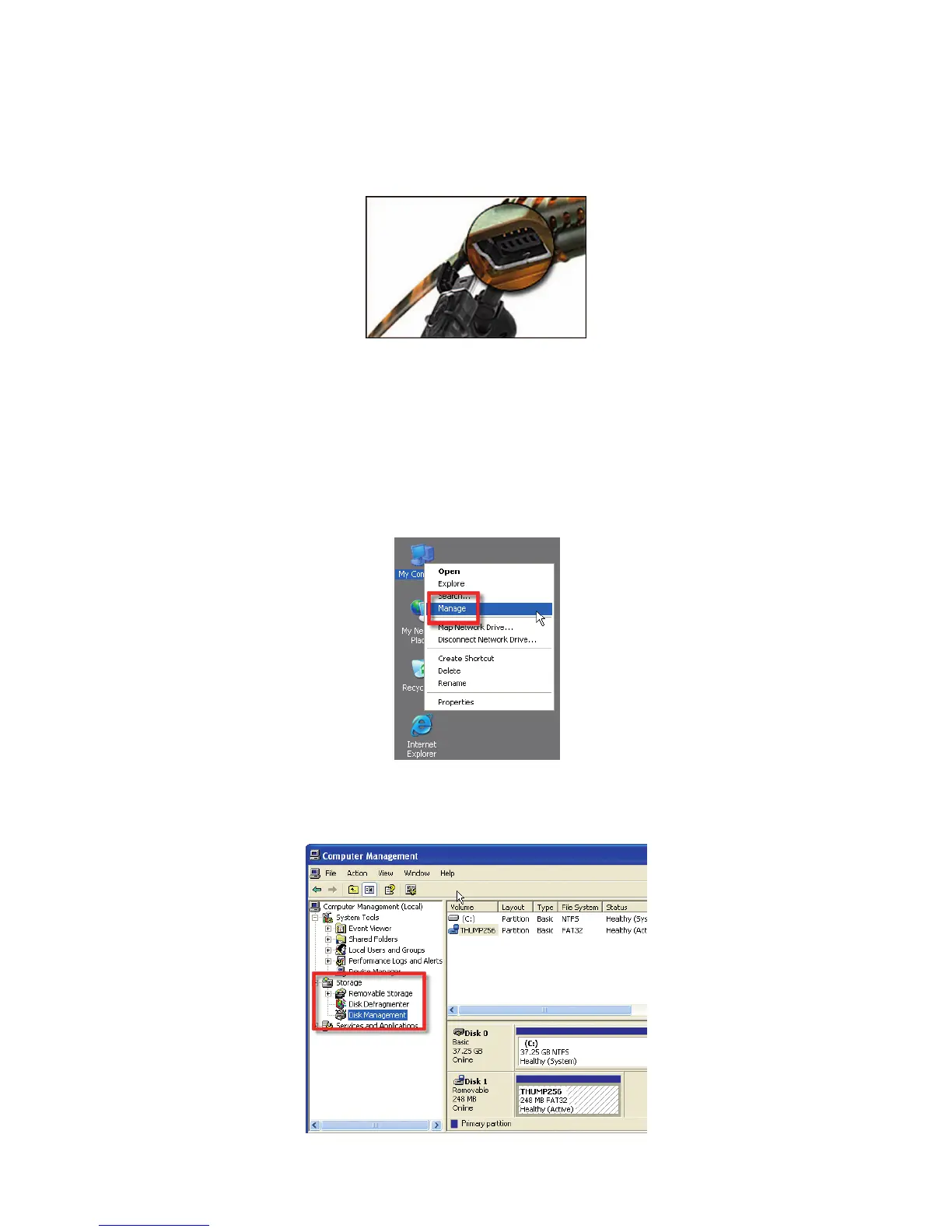
Dirt may be lodged in the USB cable connector. Unplug the cable and simply blow on the place where the cable plugs into THUMP
Pro. Also blow on the part of the cable that plugs into THUMP Pro. When finished, reconnect THUMP Pro to your computer.
SOLUTION 2
There could be a problem with the drive letter. (Your computer recognizes THUMP Pro as an external drive, and automatically
assigns it a drive letter. Sometimes the drive letter is not properly assigned. This can happen when THUMP Pro attempts to use the
same drive letter as a device that is already connected to your computer.)
With THUMP Pro connected to your computer, complete the following steps:
THUMP PRO USER GUIDE 19
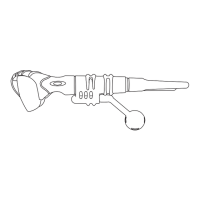
STEP 1: With your right mouse button, click on the “My Computer” icon and select “Manage” as shown below.
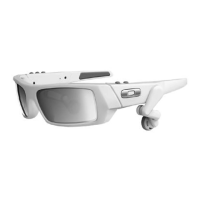
STEP 2: On the left side of the “Computer Management” window, find “Storage” and select “Disk Management”
below it. (If you don’t see “Disk Management,” click the “+” beside “Storage” to expand the list.)


 To Next Page