IF THUMP PRO DOES NOT APPEAR IN “MY COMPUTER” (WINDOWS XP / 2000)
With THUMP Pro connected to your computer, complete the following steps to see which solution will work best for you.
THUMP PRO USER GUIDE 18
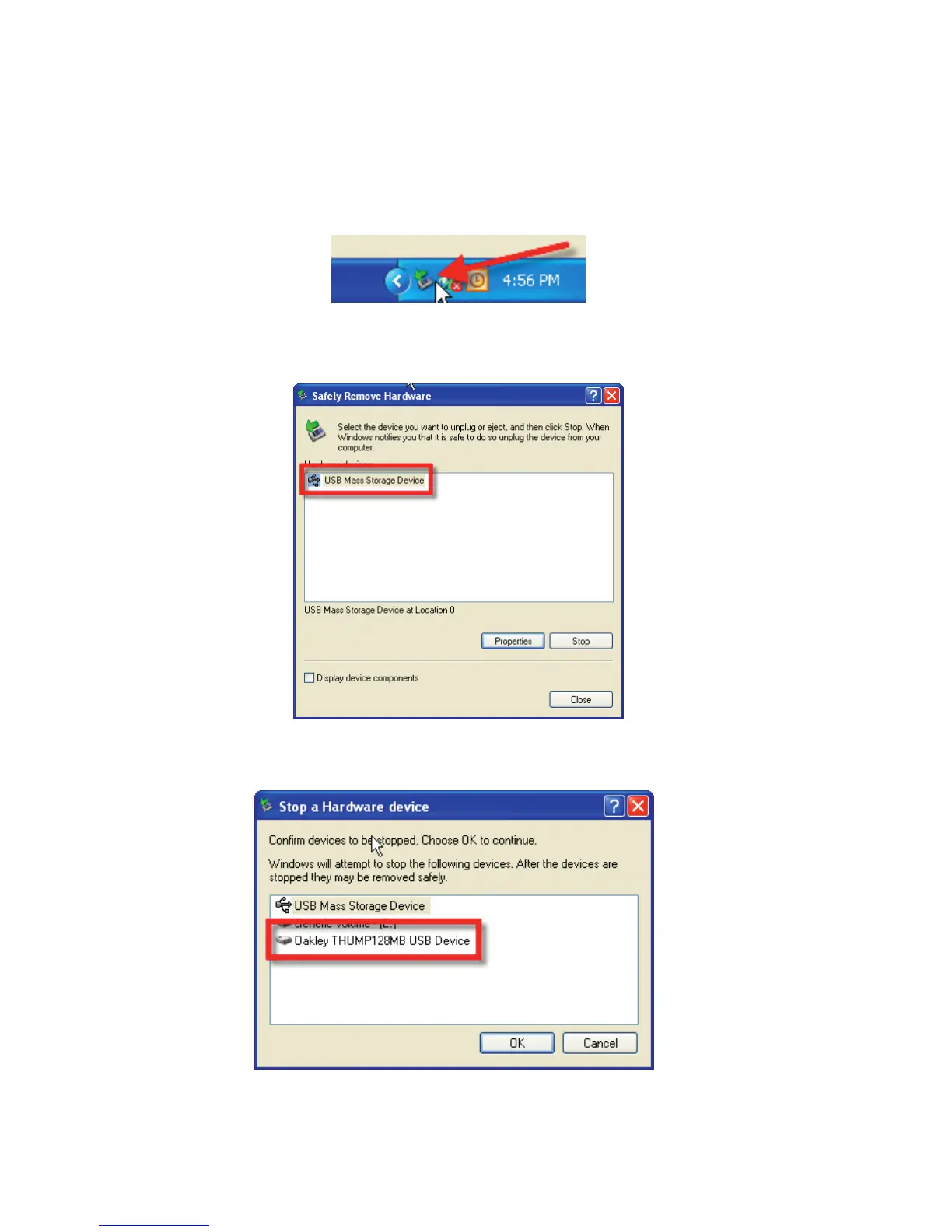
STEP 1: At the bottom right of your screen, locate the small icon with the green arrow, shown below. Double-click it with your
left mouse button. (If the icon isn’t there, proceed to “Solution 1” below.)
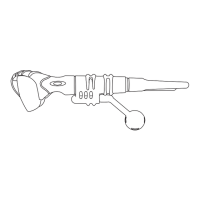
STEP 2: In the “Safely Remove Hardware” window, double-click “USB Mass Storage Device” with your left
mouse button. (If it is not in the list, click the “Close” button then proceed to “Solution 1” below.)
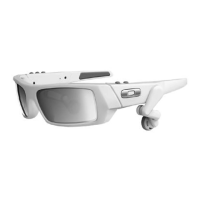
STEP 3: In the “Stop a Hardware device” window, if THUMP Pro is in the list, try “Solution 2”. If THUMP Pro is
not in the list, try “Solution 1”.
Click the “Cancel” button to close the “Stop a Hardware device” window. Click the “Close” button to close the
“Safely Remove Hardware” window.


 To Next Page