EasyManua.ls Logo

Oberheim XK - Setting The Mod Lever Negative Controller Value; Setting the Foot Switch Controller Value

Oberheim XK
41 pages
Print Icon
To Next Page IconTo Next Page
To Previous Page IconTo Previous Page
Loading...
ZONES
Setting
The
Mod
Lever
Negative
Controller
Value
The
Mod
Lever
Is
usable
In
both
directions.
Pulling
the
lever
towards
the
front
of
the
Xk
changes
he
modulation
amount
on
the
remote
instrument,
this
can't
be
reassigned.
Pushing
the
Mod
lever
towards
the
back
of
the
Xk
will
send
a
value
to
an
assignable
controller
on
the
remote
instrument
The
range
is
the
same
as
the
slider
(0 to
127).
The
controller
number
can be between
0
and
63.'
TO
SET
THE
MOD
LEVER
CONTROLLER
VALUE,
press
the
switch
labled
"MIDI
Controllers".
The
Continuous
I
e.d
should
be
ON.
if
not
press
the
switch
again.
Next,
push
the
Mod
Lever
towards
the
back,
and
while
Holding
the
lever,
select
the
controller
value
on
the
keypad.
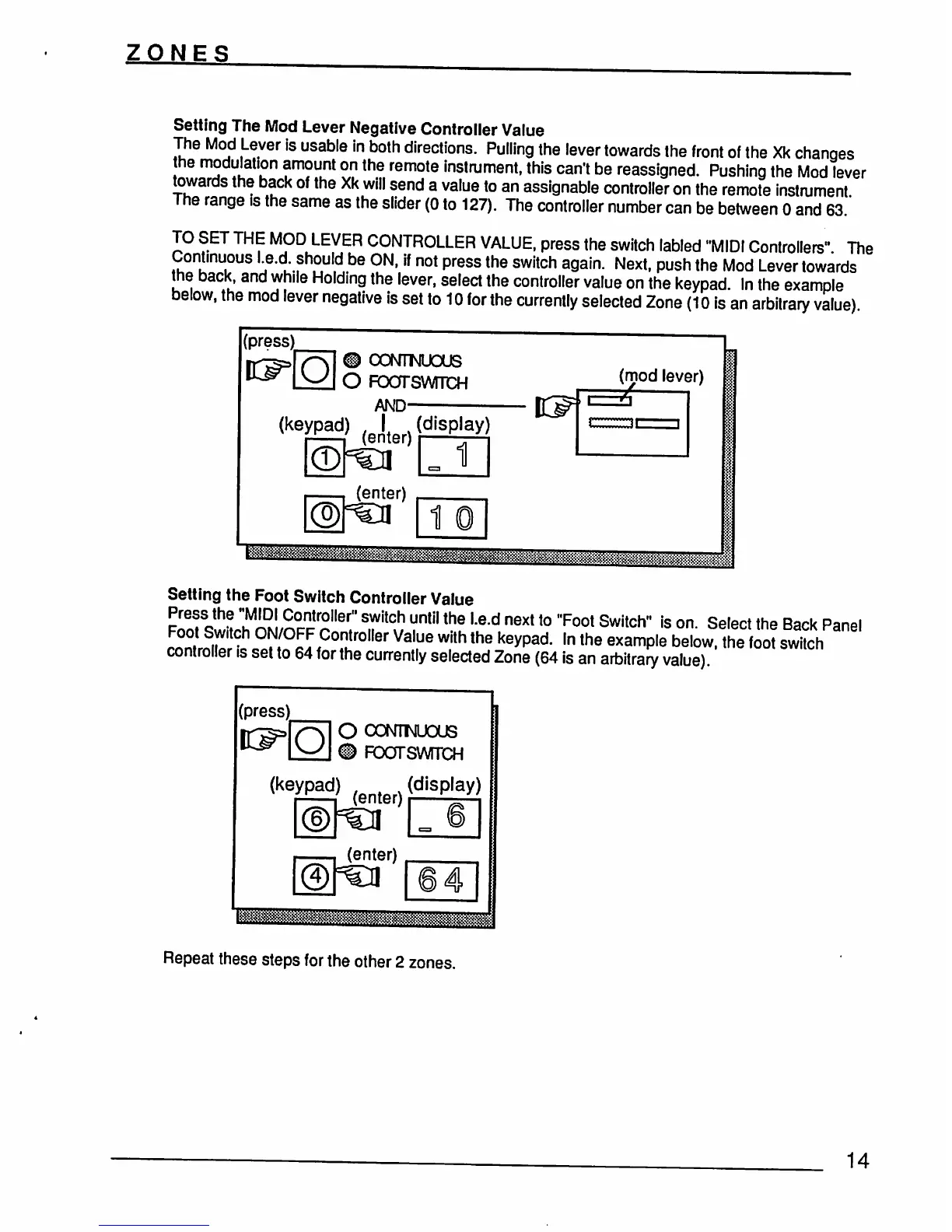
In
the
example
below,
the
mod
lever
negative
is
set
to
10
for
the
currently
selected
Zone
(10
is
an
arbitrary
value)
(press)
©
ooismNuous
O
FOOTSWTTCH
AND-
(k6ypad)
(e^ter)(dlSplay)
1
(mod
lever)
(enter)
1
Setting
the
Foot
Switch
Controller
Value
Press
the
"MIDI
Controller"
switch
until
the
l.e.d
next
to
Toot
Switch"
is
on.
Select
the
Back
Panel
££22
h
£F,/oLF,cT0ller
Val,ue
wlth
the
keypad
ln
the
examp|e
below-tn
S
controller
is
set
to
64
for
the
currently
selected
Zone
(64
is
an
arbitrary
value)
(press)
o
contiguous
®
footsvvttch
(keypad)
(display)
(enter)
Repeat
these steps
for
the
other
2
zones.
14