Need help?
Do you have a question about the Obihai OBi202 and is the answer not in the manual?
Lists the OBi device models by series.
Steps to access the device's web interface via IP address.
Details on the username and password required for web interface access.
General configuration for ITSP profiles, including naming and protocol settings.
Setting up SIP server addresses and ports for registration.
Entering VoIP ATA account details for service provider registration.
Customizing calling features like Caller ID and call forwarding options.
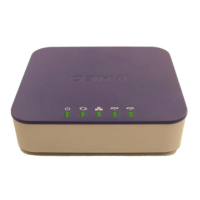
This document outlines the configuration process for OBi series VoIP Much devices, including models OBi100, OBi110, OBi200, OBi202, OBi300, and OBi302. These devices function as Analog Telephone Adapters (ATAs), enabling users to make and receive calls over the internet using traditional analog phones. The configuration guide focuses on setting up the device to work with the VoIP Much service, ensuring proper registration and call routing.
The initial step in configuring the OBi device involves obtaining its IP address. This is achieved by dialing *** from a phone connected to the OBi device and then pressing 1 to confirm the choice. The device will then announce its IP address, which will be in a format similar to 192.168.xxx.xxx. This IP address is crucial for accessing the device's web-based Graphic User Interface (GUI), which is the primary interface for all subsequent configuration steps.
Once the IP address is obtained, the user needs to open a web browser and enter http:// followed by the IP address into the URL address bar. This action will direct the browser to the OBi device's login page. The device requires authentication, prompting the user for a username and password. The default username is typically admin, and the password is provided in the user's SETUP PDF document. Successful login grants access to the device's comprehensive configuration settings.
The configuration process is structured into several key sections within the GUI. The first major section covered is "Service Providers" -> "ITSP Profile." This section is where the device is configured to connect to the VoIP Much service. The guide specifically focuses on "ITSP Profile A," which is the default profile for most users, though other profiles can be configured if the device is used with multiple providers.
Within the "General" subsection of "ITSP Profile A," the user is instructed to set the "Name" field. This name should correspond to the ATA device username provided in the user's SETUP PDF. This helps in identifying the specific profile and its associated account.
The next critical subsection is "SIP." This is where the core SIP (Session Initiation Protocol) settings for connecting to the VoIP Much server are entered. The guide emphasizes that to modify any settings, the "Default" checkbox on the right-hand side of each field must be unchecked. This action enables the user to input custom values.
The specific SIP details to be entered include:
5060, the standard port for SIP communication.5060.These settings ensure that the OBi device can locate and register with the VoIP Much network, allowing it to initiate and receive calls.
Following the SIP configuration, the guide moves to "Voice Services" and instructs the user to select "SP1 Service" (or another SPx entry if applicable). This section is dedicated to entering the specific account details for the VoIP Much service.
The key fields to be configured under "SP1 Service" are:
{>('XXXXXXXXX'):ph}, where XXXXXXXXX should be replaced with the ATA Device Username. The instruction explicitly states to include the brackets. This particular configuration is designed to prevent "ghost calls" or unsolicited calls from internet bots, enhancing the security and usability of the device. By routing inbound calls specifically to the authenticated username, it filters out generic or malicious call attempts.After all the necessary settings have been entered and verified, the final step is to save the changes and reboot the OBi device. The guide instructs the user to click the "Submit" button to save the configurations. Upon submission, the device will typically initiate a reboot. Once the reboot process is complete, the OBi device should be registered with the VoIP Much service and ready for use.
Maintenance of the device primarily involves ensuring that the configuration remains correct and up-to-date. If there are changes to the VoIP Much service parameters (e.g., SIP addresses, usernames, or passwords), the user would need to revisit these configuration steps to update the device. Regular checks of the device's registration status, often indicated by an LED on the device itself or within the GUI's status page, can help in troubleshooting connectivity issues. The web-based GUI provides a centralized point for all configuration and status monitoring, making it relatively straightforward to manage the device's connection to the VoIP Much service. The emphasis on unchecking "Default" boxes before making changes highlights the importance of user-initiated modifications, ensuring that settings are intentionally altered rather than relying on factory defaults that may not be suitable for the specific VoIP Much service.
 General
| Category | Adapter |
|---|---|
| Ports | 2 x FXS, 1 x WAN, 1 x LAN, 1 x USB |
| Wi-Fi | No |
| Power Supply | 5V DC |
| Supported Services | Google Voice, SIP |
| Supported Codecs | G.711, G.726, G.729, iLBC |
| Network Protocols | SIP, RTP |

 To Next Page