EasyManua.ls Logo

OBSBOT Tail - User Manual

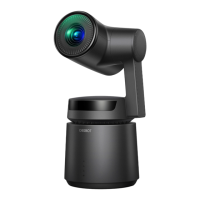
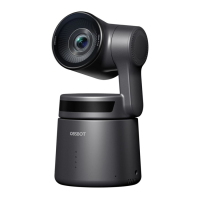
OBSBOT Tail
8 pages
Print Icon
To Next Page IconTo Next Page
Loading...
Quick Start Guide
快速入门指南
快速入門指南
イックイド
Kurzanleitung
Guide de démarrage rapide
Краткое руководство по началу работы
To learn more about this product, please download the OBSBOT Tail User
Manual http://remo-ai.com/. This content is subject to change without
prior notice.
了解产品全部信息,请在睿魔智能官网下载《寻影用户手册》 :http://re-
mo-ai.com/ 如内容有更新,恕不另行通知。
如要進一步瞭解本產品,請在睿魔智能官網下載《尋影用戶手冊》:
http://remo-ai.com/。如內容有更新,恕不另行通知。
本製品の詳細については、OBSBOT Tailユーザーマニュアル(http://re-
mo-ai.com/)をダウンロードしてください。本コンテンツの内容は、予告な
く変更される場合があります。
Um mehr über dieses Produkt zu erfahren, laden Sie bitte das Benutzer-
handbuch zu OBSBOT Tail unter http://remo-ai.com/ herunter. Im Hinblick
auf diese Inhalte sind Änderungen ohne vorherige Ankündigung
vorbehalten.
Pour en apprendre plus sur ce produit, veuillez télécharger le manuel de
l'utilisateur de l'OBSBOT Tail http://remo-ai.com/. Ce contenu peut être
soumis à des modifications sans préavis.
Для получения подробной информации об этом продукте загрузите
Руководство пользователя OBSBOT Tail на сайте http://remo-ai.com/.
Содержимое данного руководства может быть изменено без
предварительного уведомления.
Question and Answer IconNeed help?

Do you have a question about the OBSBOT Tail and is the answer not in the manual?

OBSBOT Tail Specifications

General IconGeneral
Sensor Size1/2.3 inch CMOS
Tracking TechnologyAI Tracking
ConnectivityWi-Fi, Bluetooth
PortsHDMI
CompatibilityiOS, Android
Mounting1/4-20" standard tripod mount

Summary

Product Overview

Components

Lens

Camera lens component.

Camera Indicator

Indicator light on the camera.

Cooling Intake

Air intake for cooling.

Battery Indicator

Light indicating battery status.

Cooling Outlet

Air outlet for cooling.

Type-C Data Port

Port for data transfer via USB Type-C.

Micro SD Slot

Slot for Micro SD card.

Power-Status Button

Button to control power and status.

Type-C Charging

Port for charging via USB Type-C.

Microphone Jack

Connector for microphone.

UNC 1;4-20 Mount

Mounting thread for accessories.

Electrical Contact Interface

Interface for electrical accessories.

Battery Indicator Status

Battery Detection

Status of battery detection upon pressing the power button.

Discharging Status

Status of battery indicator while discharging.

Charging Status

Status of battery indicator while charging.

Camera Indicator Status

Indicator Status Overview

Explains the five statuses of the camera indicator light.

Indicator Light Meanings

Detailed descriptions of indicator light patterns and meanings.

OBSBOT Studio App

App Download and Install

Instructions for downloading and installing the app on iOS and Android.

Charging the OBSBOT Tail

Charging Instructions

How to charge the OBSBOT Tail camera using the Type-C cable.

First Time Charging

Requirement to charge the device for first-time activation.

Startup & Shutdown

Powering On and Off

Steps to turn the camera on and off.

Connecting to the App

Connecting Mobile Device

Steps to connect the mobile device to the camera via Wi-Fi.

Target Selection

Target Selection Methods

Ways to select a target using gestures or the app.

App Selection Modes

Different modes for target selection within the app.

Launchpad

One-Click Special Effects

Using the Launchpad for special effects.

Gesture Control

Gesture Functionality

Overview of gesture control and enabling/disabling it.

Gesture Commands

Specific gestures for controlling the camera.

User-Defined Gestures

Customizing gestures for specific functions.

Related product manuals