3.5 Connecting OCam Camera to Wi-Fi Router (For remote control)
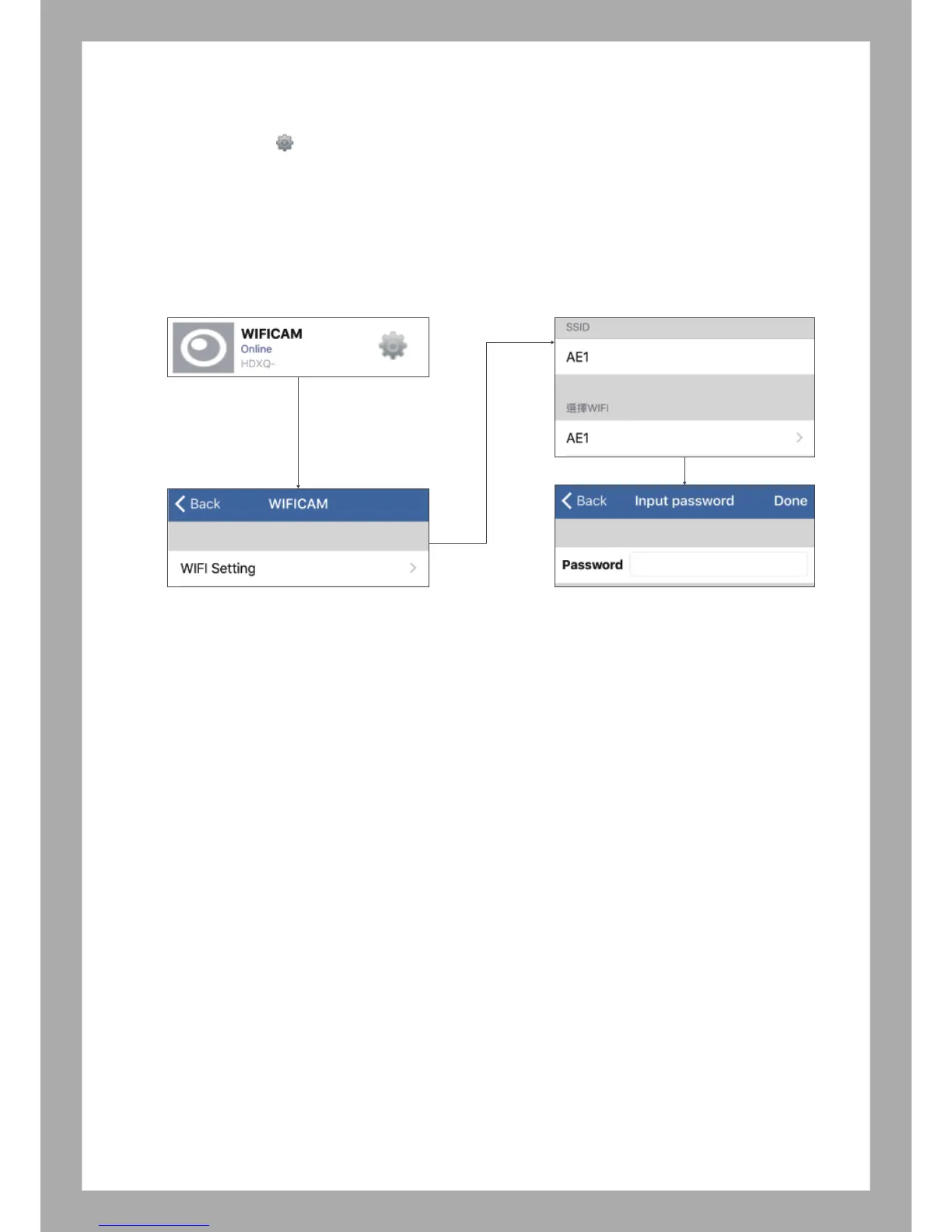
3.5.1 Click the “ ” >
3.5.2 Select “Wi-Fi Settings”
3.5.3 Choose your home Wi-Fi network in the list and enter the password.
Wait around 60 seconds until camera connect to the home Wi-Fi Network, the blue indicator light
will turn into steady blue once connection is completed.
Camera status will show as ONLINE. Start viewing the camera through the mobile app from
anywhere!
xxxxxx
-
xxxxx



 To Next Page